BPswitch Operators Manual
71 / 413
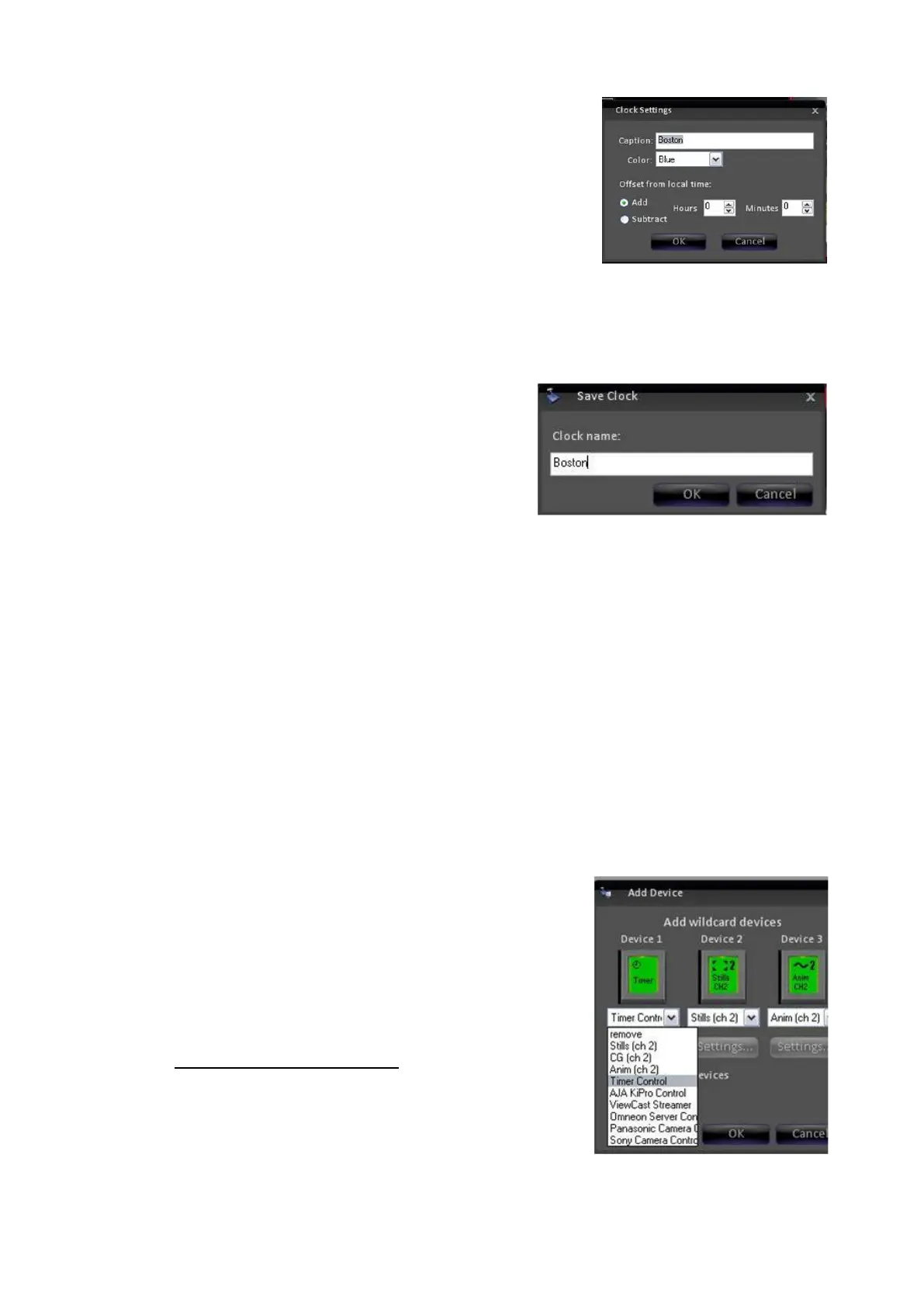
Offset from local time: Time-shifts the clock
backwards or forwards, both in hours and or
minutes, from the local time the Server is set to.
Once customization is complete, click on OK to
return to the clock.
To save an Analog Clock:
Float and customize an analog clock, as
described above, right-click on the clock
and select Save clock…
A Save clock dialog box will appear, as
shown on the right, enter
a name in the text
field.
Click on OK to save the clock and its
settings. All saved clocks will now be
accessed under the Window-Float-Clock
menu under the Remove clock setting.
Controlling Timer on the Multi-View
The timer/stopwatch on the Multi-View can also be controlled remotely through the
control panel or PixPad. This operation uses a standard device control, which will
be explained more in later sections. This section will provide basic operation of the
timer control.
To add Timer Control to a show:
Select the show to which you wish to add Timer
Control by loading a show (or creating a new one)
and then opening PixMaster by selecting
File, Edit
Show.
Select Edit Show Settings and then More
Devices.
See Adding Wildcard Devices for more information
about PixMaster and adding a device.
In Add Device window, assign the Timer Control
device to a Device Button A-F or 1-6 by selecting
the drop down menu and choosing
Timer Control,
as shown on the right.



 To Next Page