BPswitch Operators Manual
127 / 413
Select a button from the Program, Preview or Source
rows, as desired. The selected button will illuminate.
To indicate that this button is in a shifted state, on
the Flash SoftPanel a small light above it will
illuminate, while on the Control panel and browser
SoftPanel, the button will blink.
Press the [Shift] button again, which will turn off the
illumination of the shift button, and return all source
buttons to their unshifted state. The control panel will
continue to have the selected source blinking and
the small light on the SoftPanel will stay on so you
know a shifted source has been selected. Once a
direct or unshifted source is selected the blinking will
stop.
Lock Shift
The previous section described how to access more sources with the Shift button.
The default mode for shift is that it turns off after the first use, called one-shot shift.
During some productions it may be desired to access the shifted sources more
rapidly without the need of selecting shift every time, for these occasions the shift
function may be locked.
To turn on Lock Shift from the control panel:
Double-punch the [Shift] button (quickly select it 2 times). The Shift button
will illuminate orange.
To turn on Lock Shift from the application:
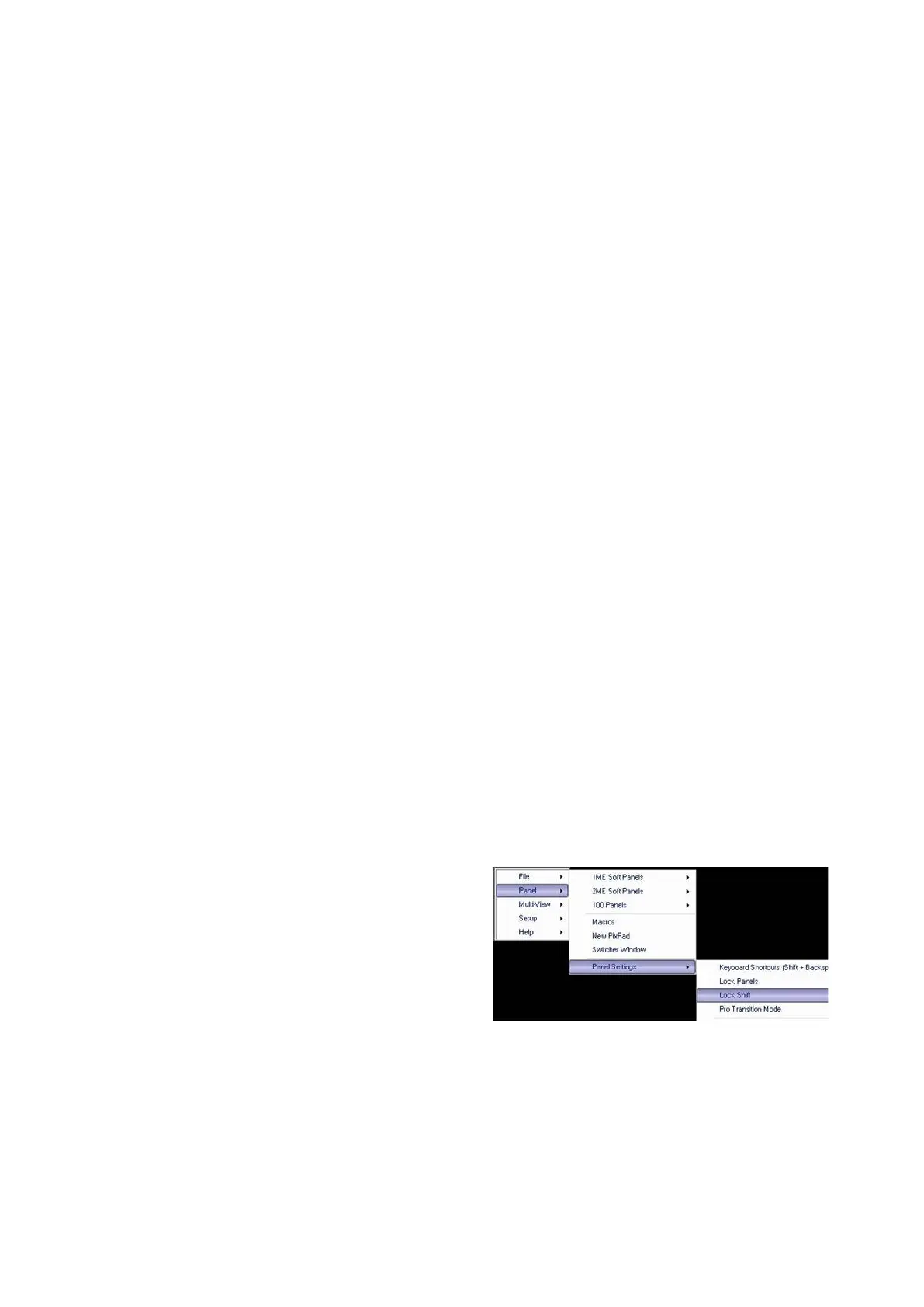
In BPswitcher, select the Panel drop
down menu.
Click on Lock Shift to place a check
mark next to it, as shown on the right.
To turn off Lock Shift:
Repeat step 1-3 above or double-punch the [Shift] button
Transitions
A transition is a change from one picture to another picture. There are three types



 To Next Page