BPswitch Operators Manual
163 / 413
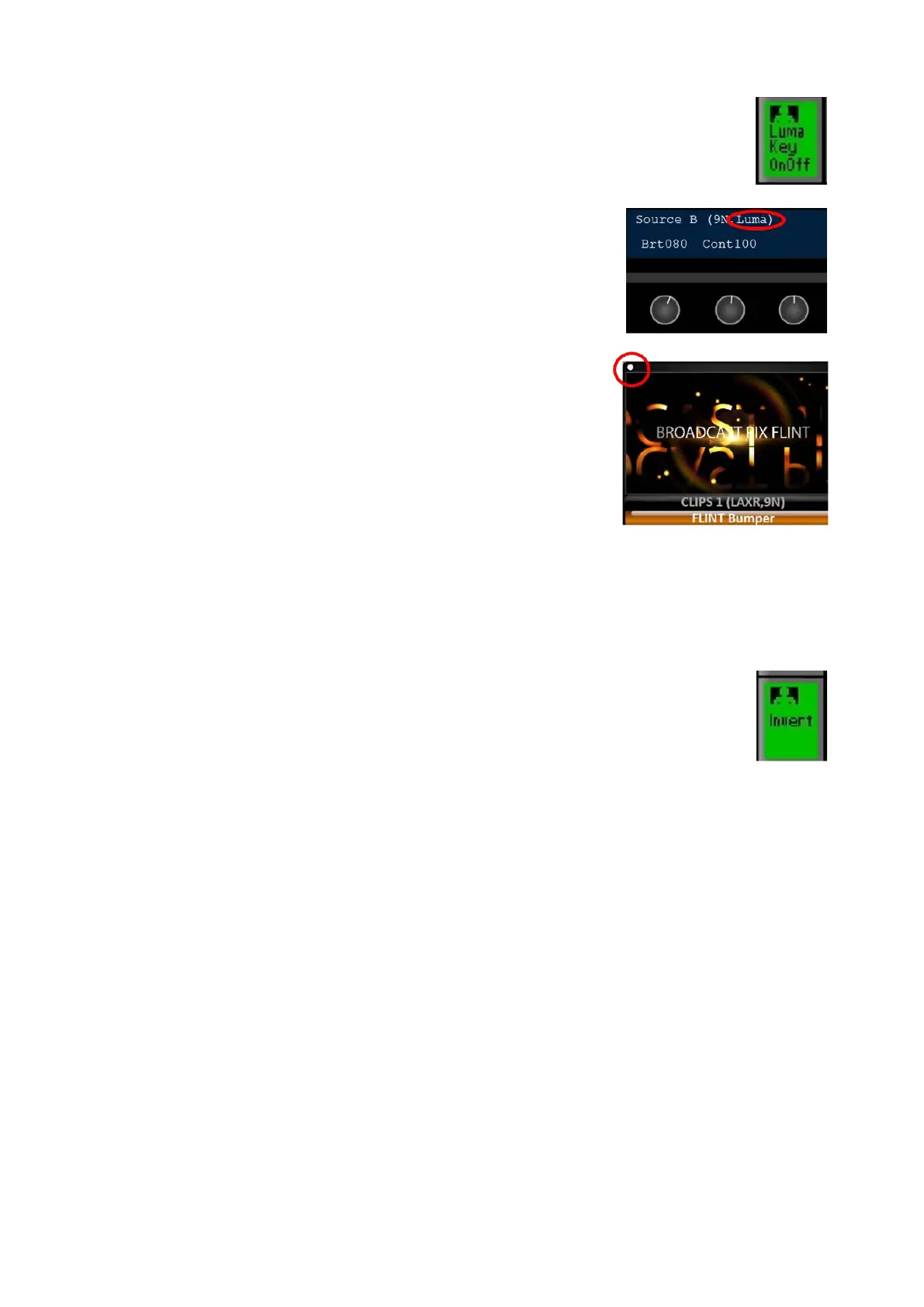
The display on the control panel will read out Luma
at the end of the source attributes and the source
window on the Multi-View will now display a white
dot in the upper left hand corner. Bother of these
indicate that Luma Key is on and active for that
specific source, as shown on the right.
Adjust the [1
st
Knob] Brightness value by turning its
knob under the display. The Brightness setting
determines the range of the brightness that is cut
out/removed. The greater amount of clip the more
transparent the source will be.
Adjust the [2
nd
Knob] Contrast value by turning its
knob under the display. The Contrast setting
determines the overall amount of brightness that is
cut out. The greater amount of gain the harsher the
edges will be, too much gain will make the entire
source transparent.
To invert the keying, press [Invert] PixButton in the
PixPad, as shown on the right.
The display will show the letters Inv. Inverting the
key reverses the values used in the luminance key.
Inverting the key can assist in fine-tuning the key.
Fluent Controls
The chromakey, lumakey and source control settings may also be modified and
controlled from the Multi-View using the Fluent Controls window and adjusting
settings with the mouse. Fluent Controls gives you a graphical representation of
the color being keyed out and an easier way of modifying settings. All the settings
described in the previous sections are available for control inside the Fluent
Controls window.
Activating ClearKey on the Multi-View



 To Next Page