BPswitch Operators Manual
164 / 413
Open the Fluent Controls window by selecting the
Panel, Fluent Controls menu from the Broadcast
Pix menu button, as shown on the right.
The Fluent Controls window will appear. Select the
ClearKey tab, as shown on the right.
Select the desired input to modify by clicking on the
Source: pull down menu. This example will use
Clips 1. Any external or internal source may be
selected, however only external sources and clips
may have ClearKey or luma key assigned.
You may also select the ClearKey indicator on the
source window on the Multi-View to automatically
open Fluent Controls and to assign it the selected
source.
To turn on the ClearKey chromakey, click on the
ClearKey button and it will illuminate blue, as
shown on the right.
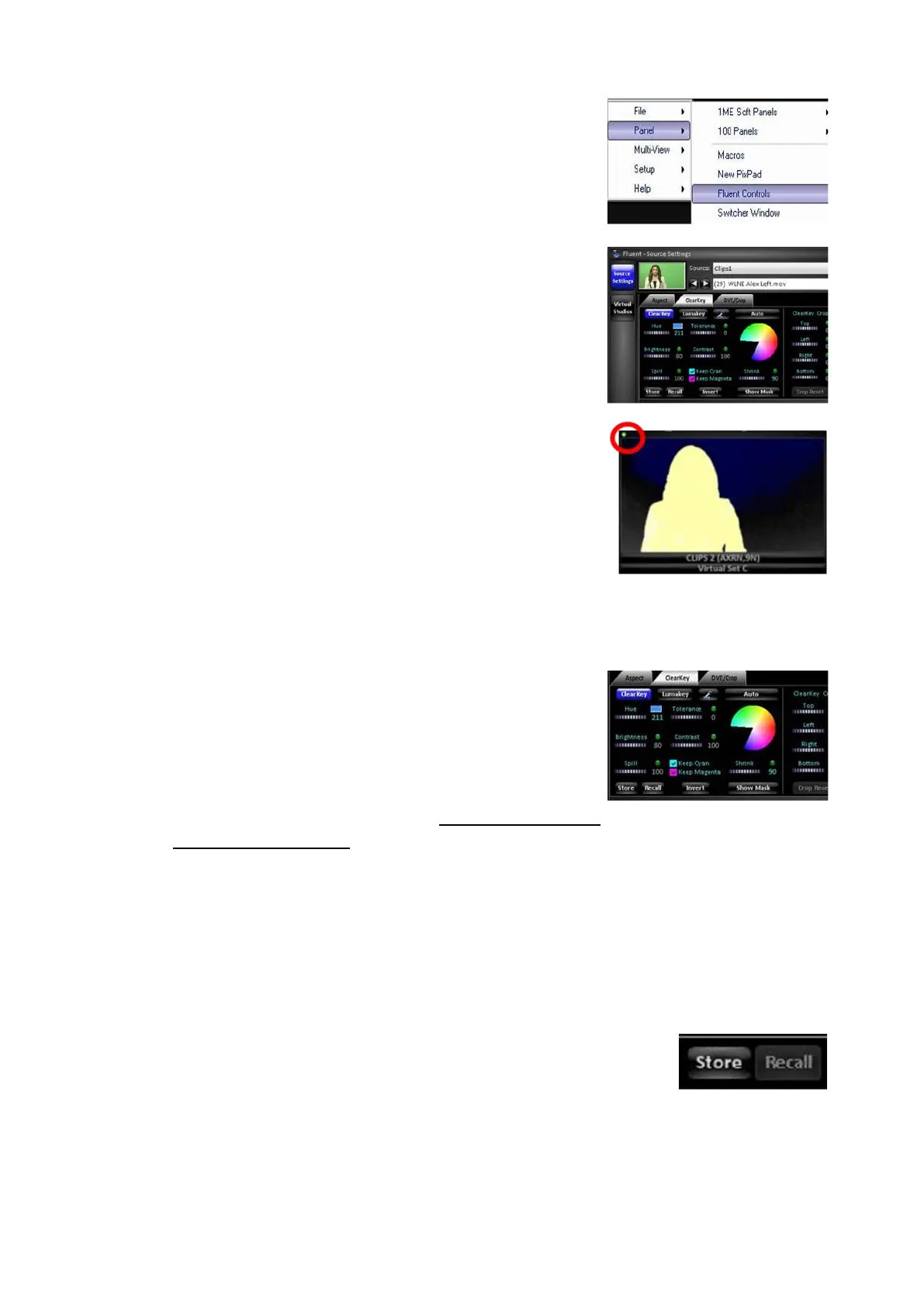
To automatically remove the colored background
and get the keyer adjusted roughly 90% simply
select the Auto button, as shown on the right.
To modify the ClearKey settings, turn each setting
wheel based on the description in ClearKey Settings
and Adjusting ClearKey.
To assist with keying the correct values, each value
may be disabled to view how it is affecting the key.
To disable a setting, click on the green activator
button for any/all of the values, the button will turn
red, and shown on the right. To enable the setting
click on the red activator button.
To copy and paste values from one input to another,
configure one input with the desired settings then
click on the Store button, as shown on the right.
In the Source: drop down menu select a different
input and click on the Recall button. Now all the
values from the previous input are copied to this



 To Next Page