BPswitch Operators Manual
363 / 413
save any passwords. If you have trouble
logging in, contact Ustream Technical
Support.
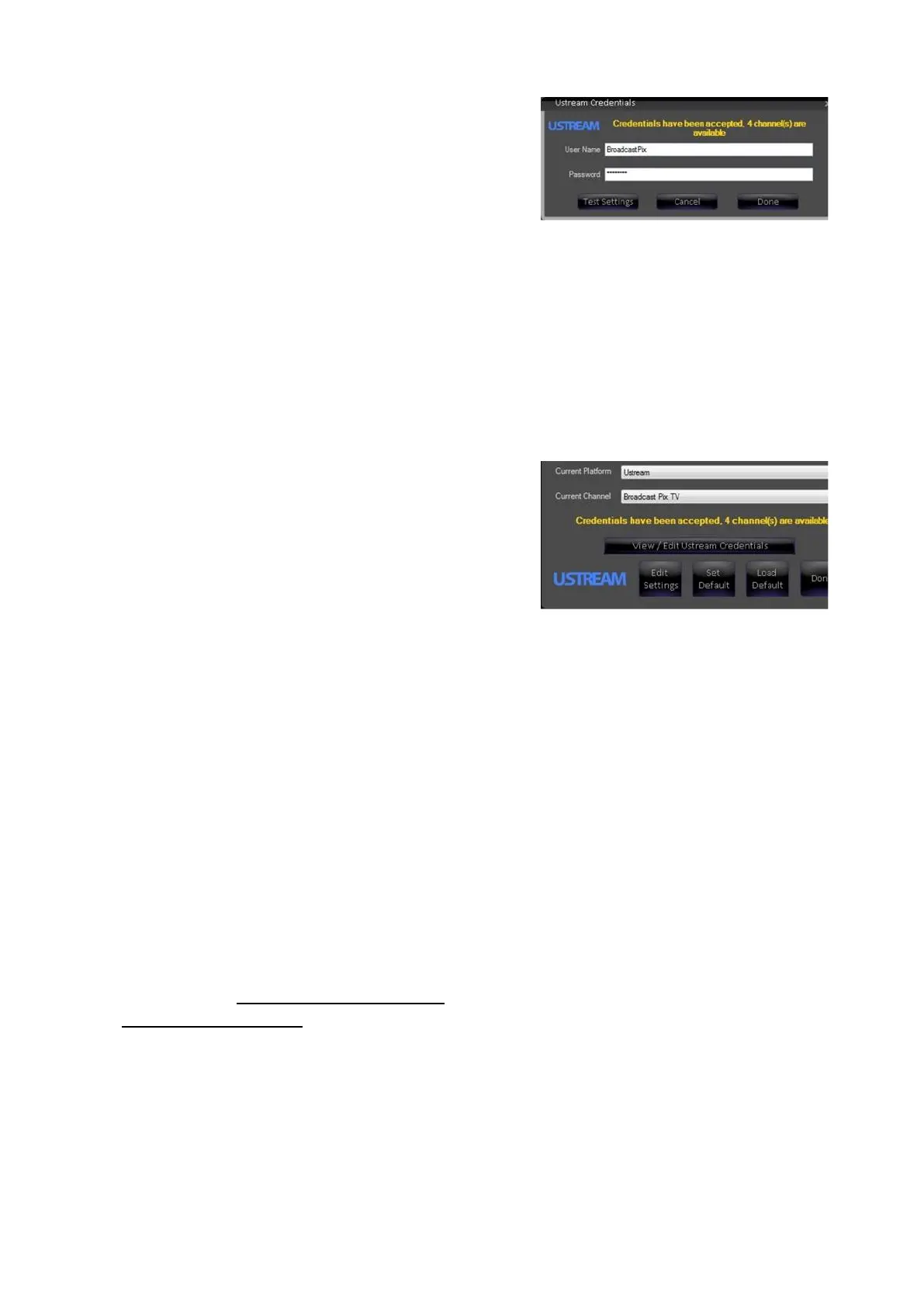
Click on the Test Settings button.
Once the settings are validated the top status
message will change to display how many
channels are available, as shown on the right.
If the status message reads out Server
unavailable, please check the internet
connection and your Ustream Username and
Password.
Once verified, click on the Done button.
The Streamer Settings window will now
display all the available channels from your
Ustream account. Under the Current
Channel drop down menu, select your
desired channel.
You are now ready to stream with Ustream.
For convenience, clicking on the Ustream
icon in Streamer Settings will open a web
browser and navigate to the Ustream home
page.
Logging in with a Livestream Account
If your CDN is Livestream, automatic
login and access to all your channels is
provided with a simple authentication
process. These steps do not require
you to enter the RMTP address or
Stream Key in Adobe Flash, however
all other compression settings
described in Creating a Flash Media
Live Encoder Profile will need entered.
In the Streamer Settings menu, select
Adobe Flash under the Current
Encoder drop down menu.
Select the desired saved profile under
the Current Profile drop down menu.



 To Next Page