BPswitch Operators Manual
158 / 413
Activating ClearKey from the Control Panel
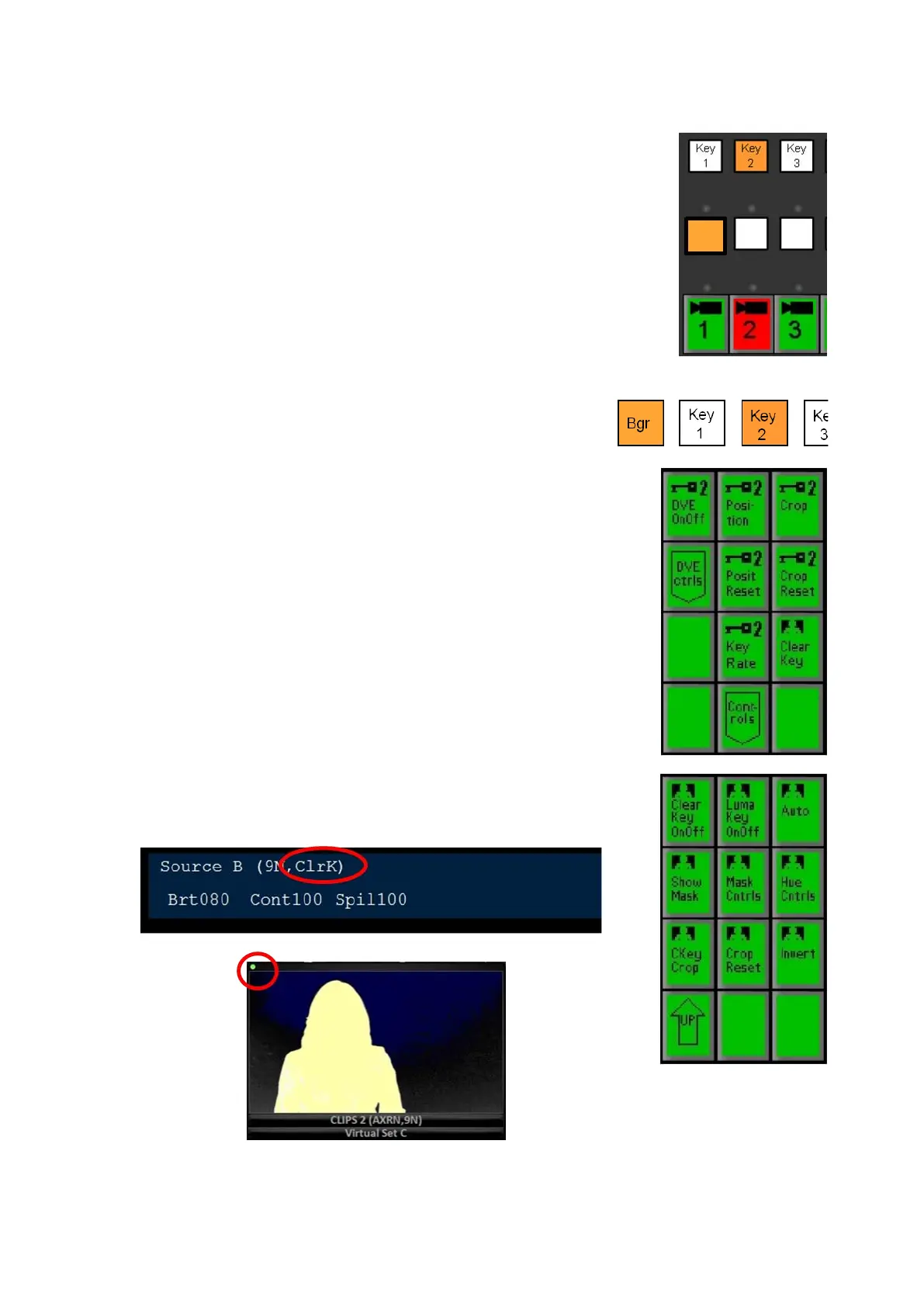
Place the video source which is shooting the subject
to be chromakeyed in a Keyer by pressing the [Key
Select] button of that key in the destination row.
Then select the [source] button for the desired
camera in the source row, as shown on the right.
This example will assume Key 2 is the desired
location and source 1 as the desired camera. You
may Chromakey any external live source, or any clip
from within the clip stores.
Bring Key 2 onto preview, by pressing the [Key 2
Transition] button, as shown on the right.
In the PixPad, which should have the Keyer PixPad
active, press the [ClearKey]
PixButton, as shown on
the right.
The PixPad will change to show the ClearKey
Controls.
To turn on the ClearKey chromakey, select the
[ClearKey OnOff] PixButton, as shown on the right.
The display on the control panel will read out ClrK at
the end of the source attributes and the source
window on the Multi-View will now display a colored
dot in the upper left hand corner. Both of these
indicate that ClearKey is on and active for that
specific source, as shown below.



 To Next Page