BPswitch Operators Manual
204 / 413
and the option Add Pause will be available to insert an
indefinite pause, which can be modified later.
Note when inserting in the middle of a macro, the
bottom of the macro will be hidden and display
“<Inserting into macro>”. After the recording is
stopped, the rest of the steps will appear in the Action
List.
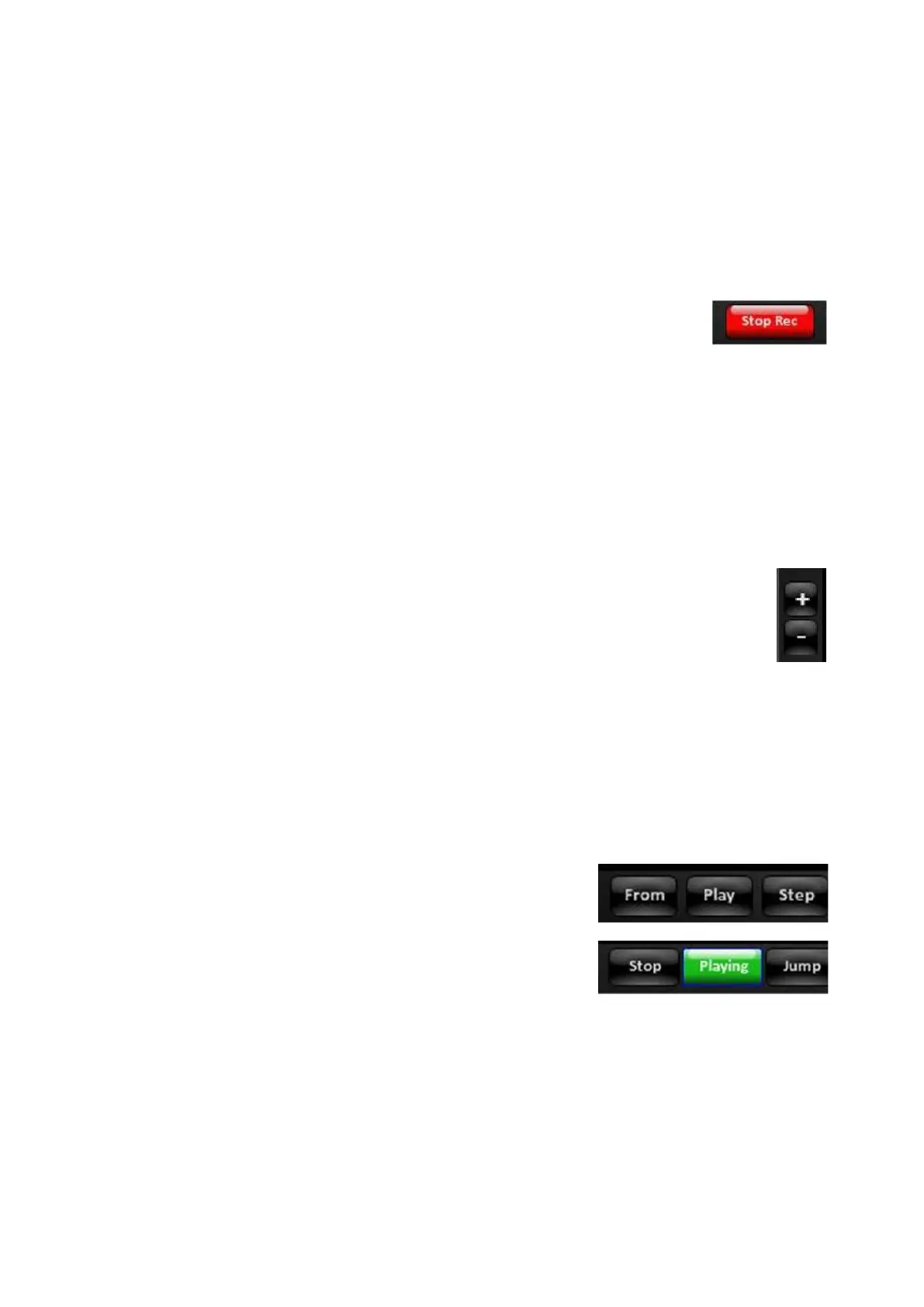
When recording is finished, click on Stop Record in
the Control Bar.
The macro is now ready to be edited, as described in
the previous section.
To delete a step:
Select a step in the Action List, with the mouse. The
row will highlight white.
Click on - Minus button, to the right to the Action List.
This will permanently delete the row, there is no undo.
Reviewing a Macro
Once a macro has been recorded and modified to your liking, you may review it in
the Macro Editor to ensure it will play out correctly. To play out Macros during a
production use the Macro Player, as described in the next section.
To review a macro:
To start running the macro from the beginning, click
on the Play button in the Control Bar, as
shown on the right.
The button will illuminate green and turn to a
Playing button and the macro will run from the
beginning with all the appropriate timing.
To play one step at a time, click on the Step button
in the Control Bar.
This function will play out one step/action for every
button push. Use Play Step for a manual
confirmation that the action is occurring, not for
timing purposes.



 To Next Page