BPswitch Operators Manual
52 / 413
back arrow buttons to switch the next group of 5 devices.
Created with the Personal Edition of HelpNDoc: Free CHM Help documentation generator
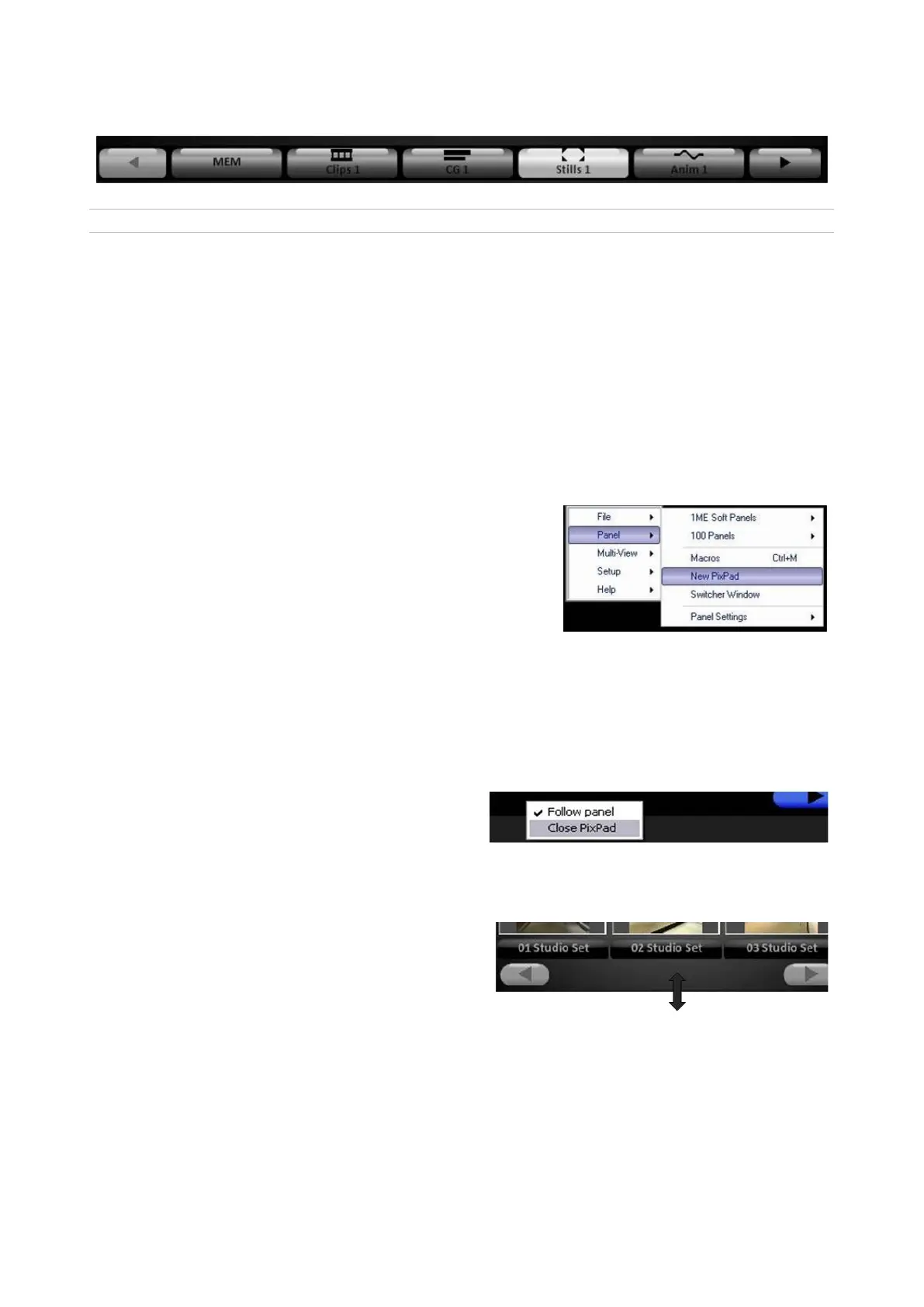
Floating PixPads
In addition to the Multi-View PixPad in the top right corner of the Multi-View, you
can create additional floating PixPads. These can be used on another portion of a
large screen, or on dual monitor systems can be opened on a the second monitor
where they are helpful as either additional info for a solo operator, or dedicated
info for a graphics operator. These PixPads can be assigned to either follow the
control panel or can be assigned to None to not change when the control panels
changes, for independent control.
To open a new PixPad:
In BPswitcher click on Panel
drop down menu, and click on
New PixPad,
as shown on the
right.
A PixPad will open.
To close a PixPad:
Right-Click on the bottom of the
PixPad.
In the pop-up menu, select Close
PixPad, as shown on the right.
To change the size of a PixPad:
Move the mouse to the left, right or
bottom edge of the PixPad. The cursor
will change to a resize icon.
Click and Drag the edges to the desired
size, using the mouse.
The PixPads can be resized to virtually
any size.
Release/unclick the mouse and the
PixPad has been resized.



 To Next Page