BPswitch Operators Manual
79 / 413
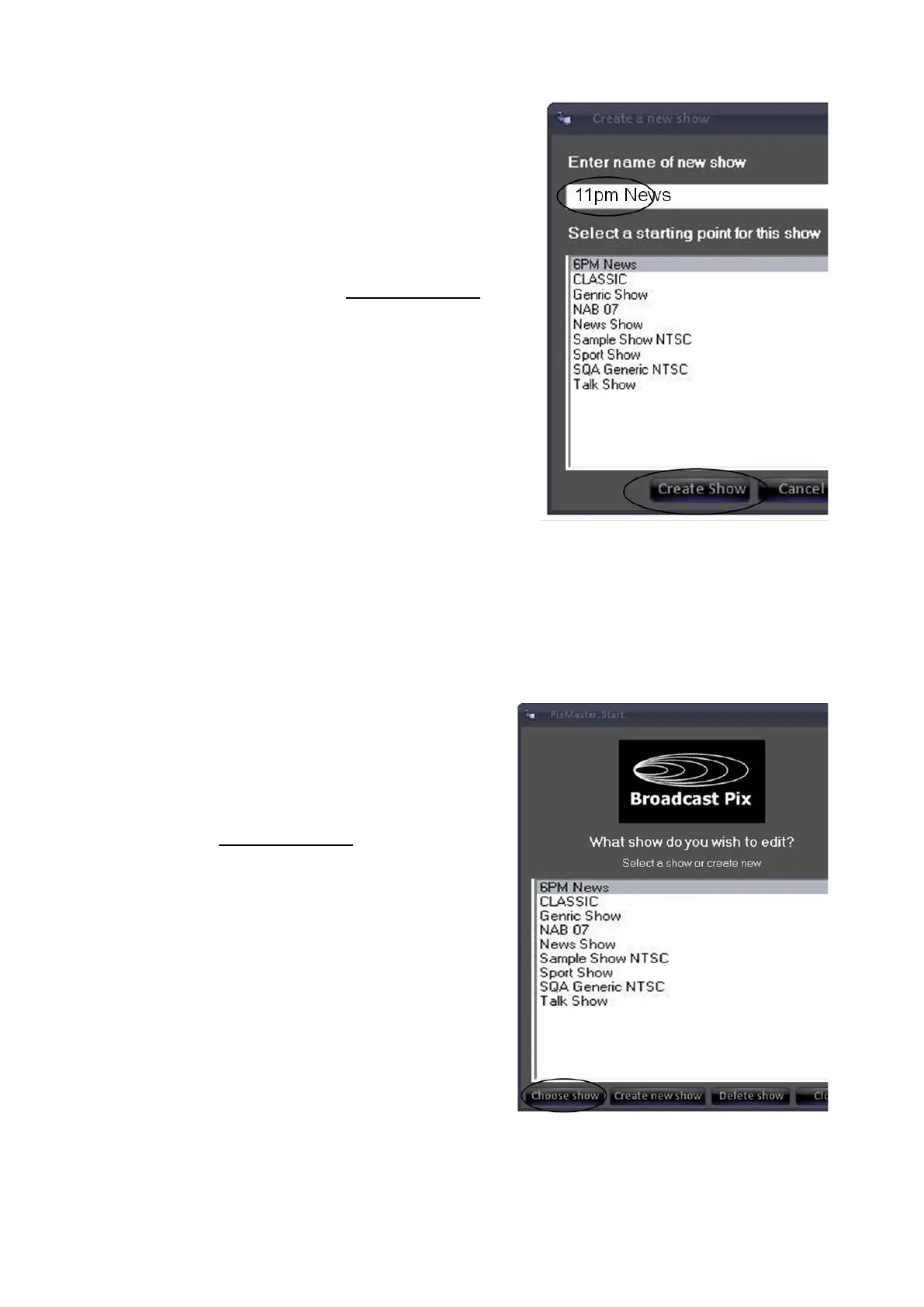
Give the new show a name, by entering it
under Enter name of new show.
In the example shown at the right, the new
show name is 11pm News and its starting
point is the 6PM News.
Click on Create Show and it will open in
PixMaster, as shown in Editing a Show.
Selecting an Existing Show to Edit
There are two ways to launch PixMaster to edit an existing show, either from the
desktop or from within BPswitcher.
From PixMaster:
Double-Click on the PixMaster icon on
the Desktop, and the PixMaster Start
window will appear, as shown at the right.
Double-click on the Show you wish to
open, and it will open in PixMaster as
shown in Editing a Show. (You can also
single-click on the show name and then
press the “Choose Show” button.)
From Switcher:



 To Next Page