BPswitch Operators Manual
53 / 413
Created with the Personal Edition of HelpNDoc: Easily create EPub books
Multi-View
The default Multi-View supports 4 sizes of computer (VGA/DVI) monitors in a
widescreen resolution and 1 in a 4:3 resolution: 1280x1024, 1360x768, 1440x900,
1680x1050 and 1920x1080. The system automatically will open the correct layout
based off the primary monitor set in Windows, see Adjusting the Windows Desktop
Screen Resolution to change the desktop screen resolution. These default layouts
are designed for one screen, but may be used as a starting point to create other
custom layouts in a multiple screen installation, see Floating Monitors to create
custom layouts.
The Multi-View consists of source windows, larger preview and program monitors,
a PixPad of thumbnails to correspond to the control panel PixPad, keyer windows,
a status bar, a clock/timer, clip counters as well as tally information.
The Multi-View is also interactive, so you can switch a show from the Multi-View,
as a complement to using a panel, in place of for simple shows or for backup in
case the control panel loses communication.
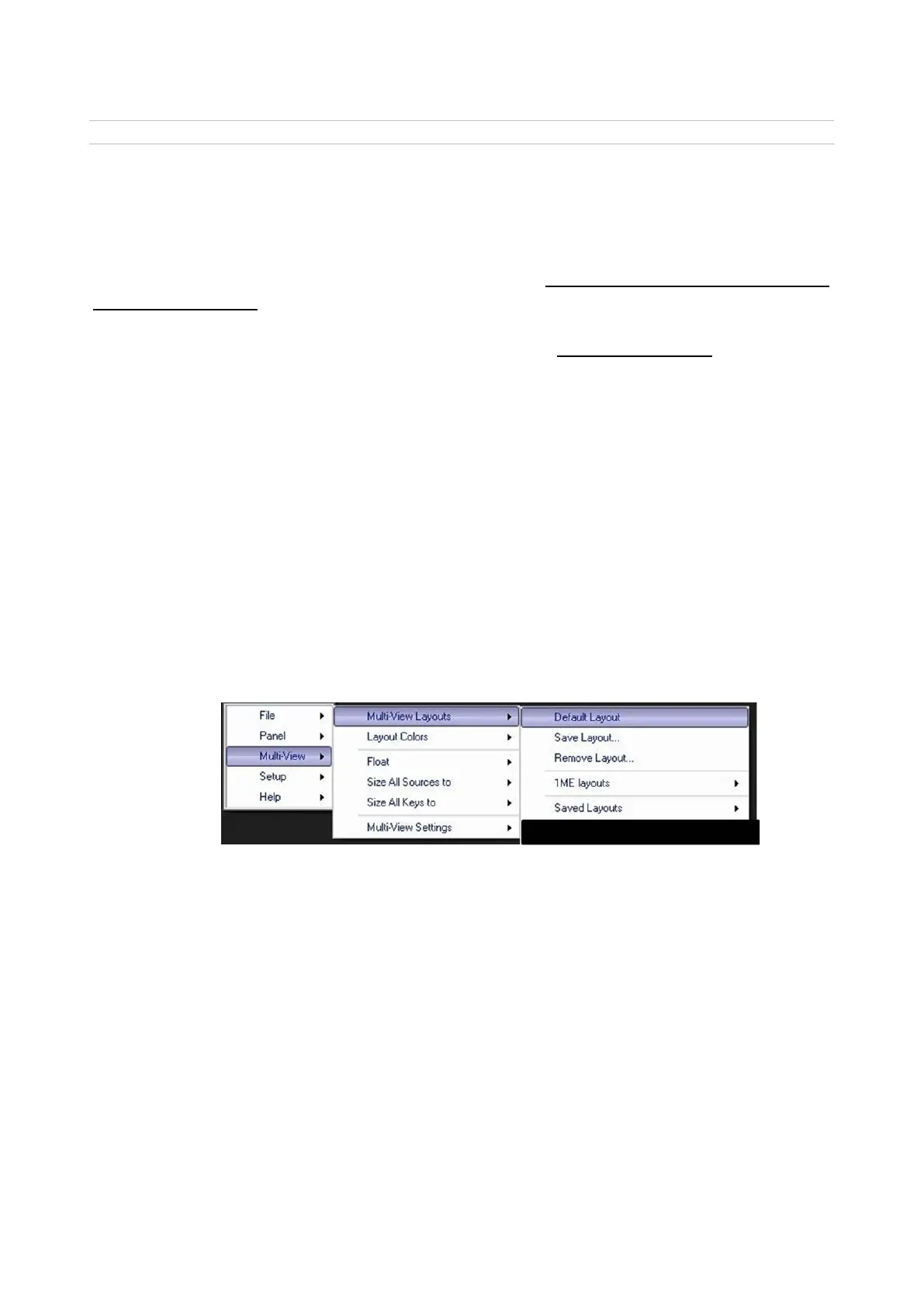
To load the default layout:
1.
Click on the Menu button and select the Multi-View drop down menu.
2. Select Multi-View Layouts.
3.
In the following menu, select Default Layout as shown below.
The Multi-View will refresh and load the correct layout based off the desktop
resolution of the primary monitor.
4.
To load the default layout at application startup, hold the Shift button on the
keyboard when the application is being launched.
Overview of the Multi-View
Depending on the screen resolution, the default layout may appear slightly
different. However, the basic concepts apply to all of Multi-View layouts.



 To Next Page