BPswitch Operators Manual
91 / 413
To Enable Watch Folders:
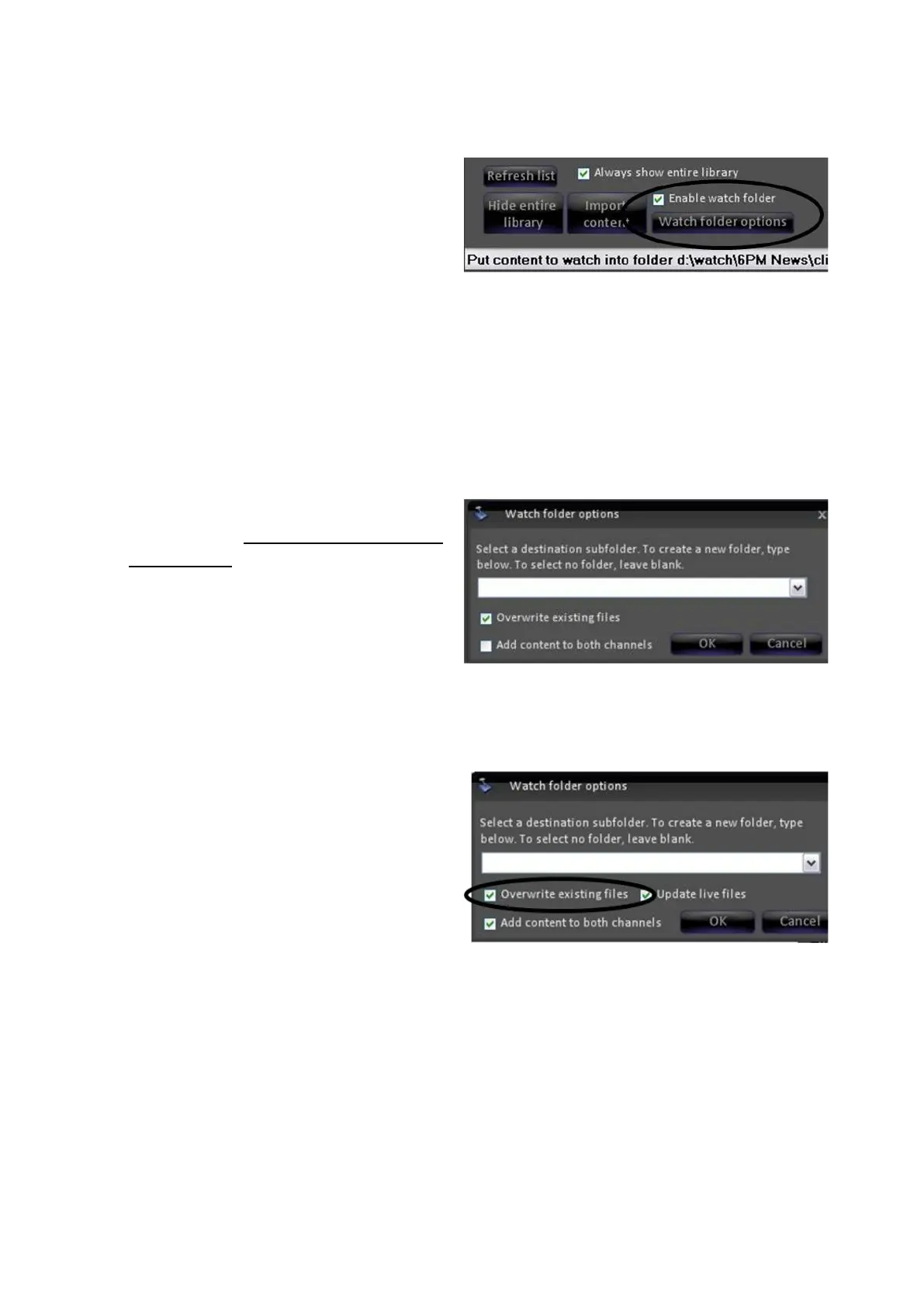
In a device’s content window, place
a check next to the Enable watch
folder checkbox, as shown on the
right.
This will activate a Watch folder
options button, as well as display the
path of where content should be
added to.
Click on the Watch folder options
button. This will open the Watch
folder options window, where you
can customize the watch folder.
To add content to a subfolder, as
described in Importing Content Into
a Subfolder, enter a folder name in
the blank space to create a new
folder or select an existing folder
from the pull down menu.
To not use a subfolder, and to have
content added to the central library,
leave the pull down menu blank, as
shown on the right.
If files have already been added to
a show or if a file of the same name
is in the central library, the
Overwrite existing files option
allows for content to be replaced.
The default for this option is on.
This option may be useful when
using generic files that may update
over time, like an “Open” or
“Bumper”.
For graphic content, the Update live
files option allows for graphic
content only to be updated even if
the content is on the air. The default
for this option is off.
This option may be useful when



 To Next Page