BPswitch Operators Manual
64 / 413
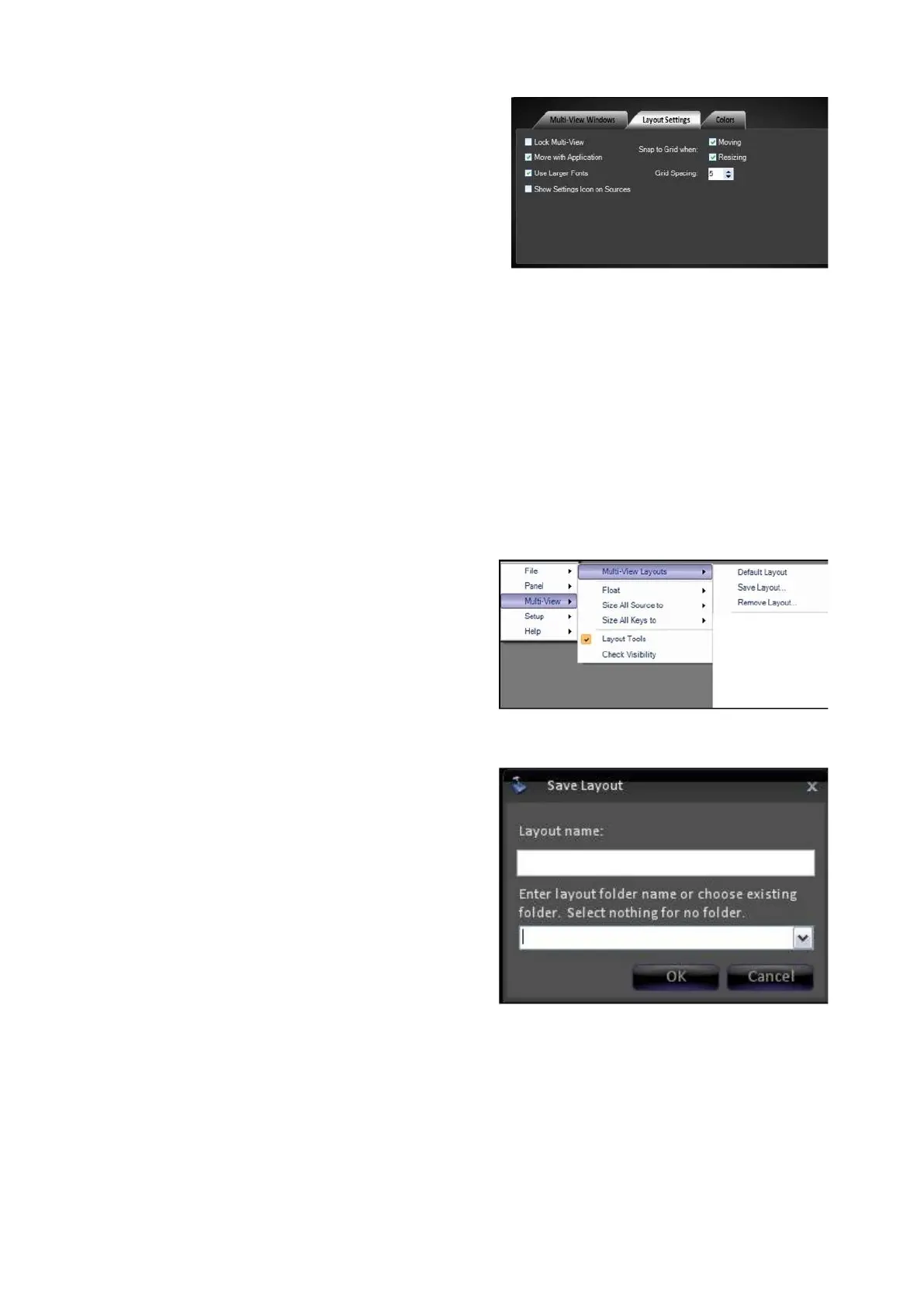
Other settings are available in this tab to
assist with Multi-View creation:
Snap to Grid allows for each window to
automatically snap to a grid spacing,
which allows for easier aligning of all the
windows to each other. The spacing size
is also customizable.
Move with Application allows the menu
icon to move independently from other
windows in case you would like to move
just that element to another screen.
Once a layout has been created and or modified, they can be saved as a template
for
later recall in the system.
To save a custom layout:
Select the Multi-View drop down menu
from the Menu button.
Then select Multi-View Layouts, and
then select Save layout…
The Save Layout window will appear as
shown on the right.
Enter the name you wish to give the
layout in the Layout name field. You
may also save layouts in different sub-
folders. Simply click in the Layout
folder field to enter the name of the
folder, for example ‘Saved Layouts’. If
no name is entered, then your saved
layout will appear in the main menu
under the factory-designed layouts.
Click OK to save it. Now it will appear
in the layout templates drop down list
where you can recall it in the future.
You can also remove/delete a saved
layout by selecting Remove Layout…
in the above list.



 To Next Page