BPswitch Operators Manual
116 / 413
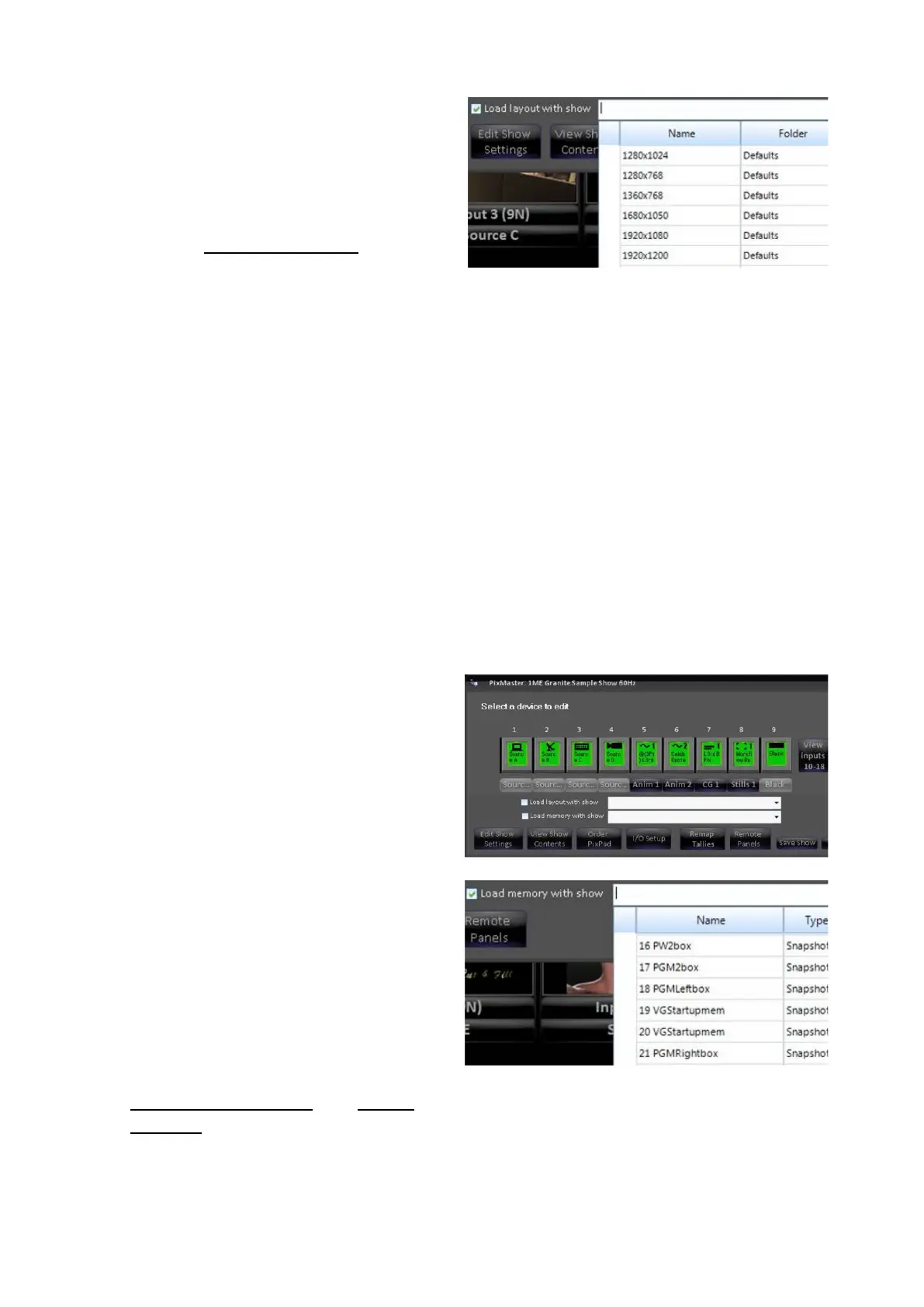
Click on the Load layout with show
drop down menu, and select the
desired saved layout from the
available list, as shown on the right.
To save a layout to appear in this
list, see Floating Monitors.
On the next show load the Fluent-
View will open to the selected layout,
regardless of the Startup Layout
selected in the System Settings
menu.
If both a Startup Layout and a Show
Layout are set to load, the show may
take a little extra time to have the
show fully load correctly.
To have no layout load at show load,
uncheck the Load layout with show
option.
To Link a Memory/Macro to a Show:
Open PixMaster to its first editable
screen, the Select a device to edit,
as shown to the right.
Place a check mark next to the Load
memory with show.
Click on the Load memory with show
drop down menu, and select the
desired saved SnapShot Memory or
Macro from the available list, as
shown on the right.
To save a Macro or MEM, see
SnapShot Memories and Fluent
Macros.
On the next show load the selected
memory/macro will run.



 To Next Page