BPswitch Operators Manual
384 / 413
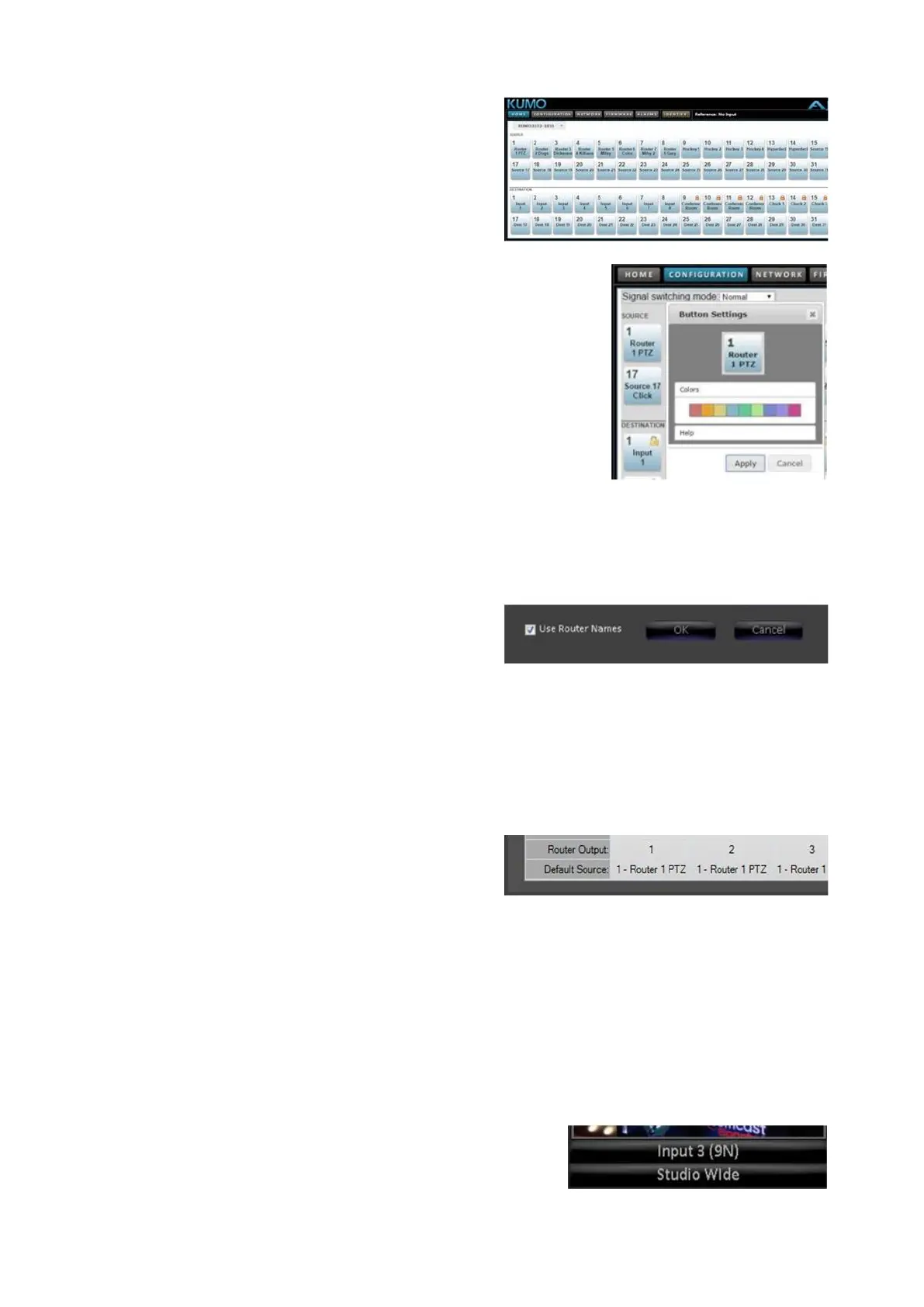
Here you may control the KUMO router
using the Home tab and label inputs and
outputs. Click on the Configuration tab.
To label an input, click on the source
button and a pop-up window will
appear, as shown on the right.
Click on the name and type the a
custom name on the button and click on
the Apply button. These names can be
carried over to the Broadcast Pix Multi-
View if desired.
Repeat this step for all attached inputs.
Close the web browser by clicking on
the x on the top right of the page.
In the Router Setup window, place a
check mark next to Use Router Names.
The custom names just applied on the
router webpage will now be applied to
the bottom label on the Multi-View and
source PixButtons.
Click on the OK button to close the
Router Setup window.
In the Input Assignments window, select
the Router Output drop down menu for
the specific Broadcast Pix inputs that
have a router outputs attached to it.
Select the router output number 1-32, as
shown on the right.
Each router output must use a unique
number. Any locked outputs on the
router will appear red, not allowing you
to change the routed source input.
The bottom name on each source
monitor represents the assigned Router
Input/Source Name or the Broadcast Pix



 To Next Page