BPswitch Operators Manual
392 / 413
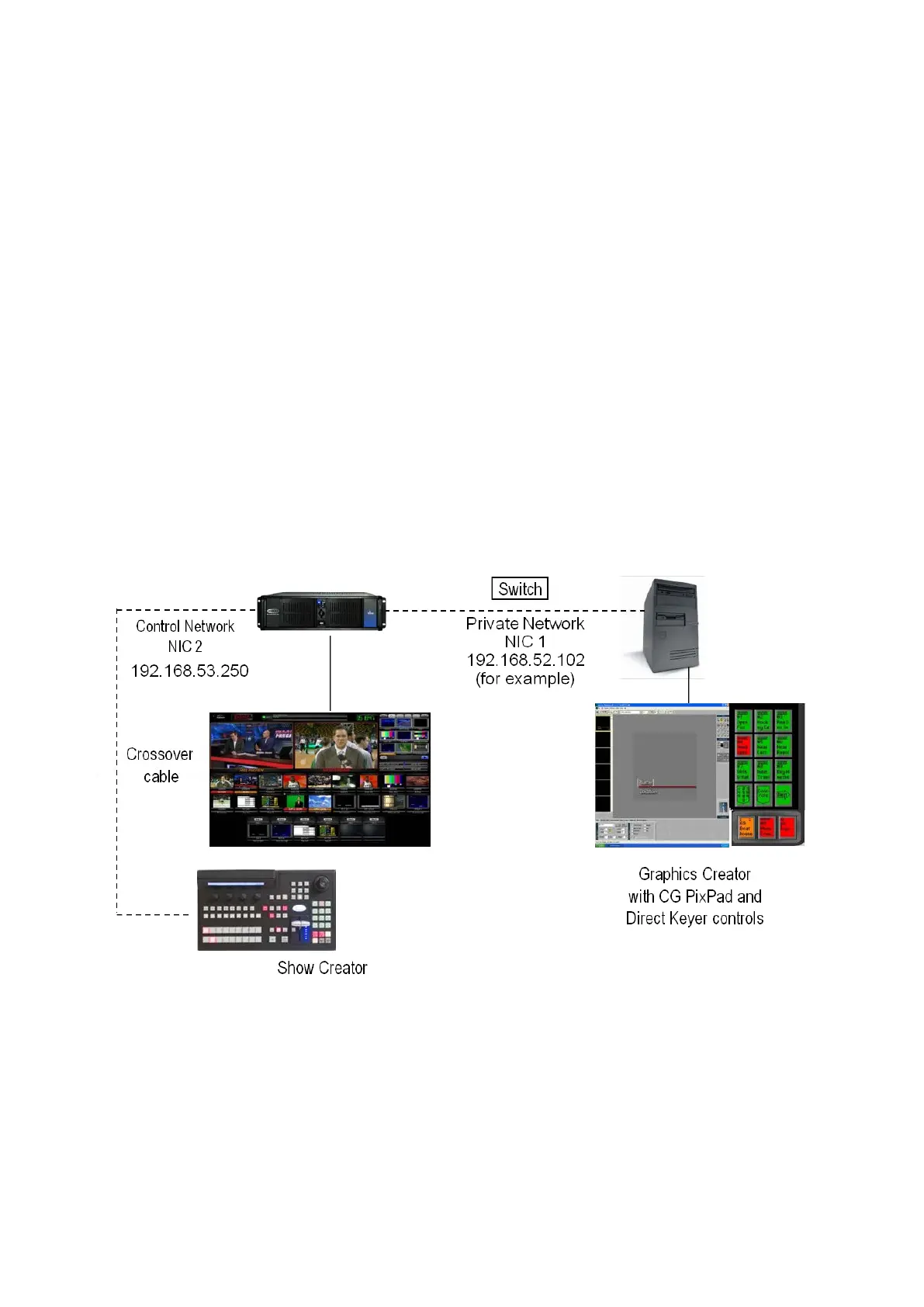
configuration might look like the following illustration. In this environment the
graphics operator has their own computer. To implement this two computer
system:
Network the two computers together using the additional network hub, which
keeps the graphics network traffic from interfering with the control network
traffic on the private hub that comes with the system. You will need to set a
static IP address to each computer. Do not use the same IP address as the
one used for the control network (192.168.53.250) as this will cause
performance issues. Go to Control Panel, Network Connections to change
the IP address of the network card. NIC 2 is for the Control Network for
Broadcast Pix (this is located next to the USB ports) and NIC 1 is used for
your local private network (this is located next to the graphics card).
Activate Windows file sharing, and share the folders C:graphics and D:clips
An additional Inscriber license will be necessary, which can be installed on
any Windows PC. Load the Inscriber software on it and select Stand Alone
when prompted by Inscriber during the install.
On the second graphics computer open a web browser, like Chrome.
In the address bar, enter the address of the first NIC card. For the above
example, enter 192.168.52.102/BrowserControl/softpanel1000.aspx
This will open a 1ME SoftPanel. You can also just type in the IP address and
it will go to the launcher page where you can select the SoftPanel.
Click on return on the keyboard to launch the SoftPanel in the web browser.



 To Next Page