BPswitch Operators Manual
186 / 413
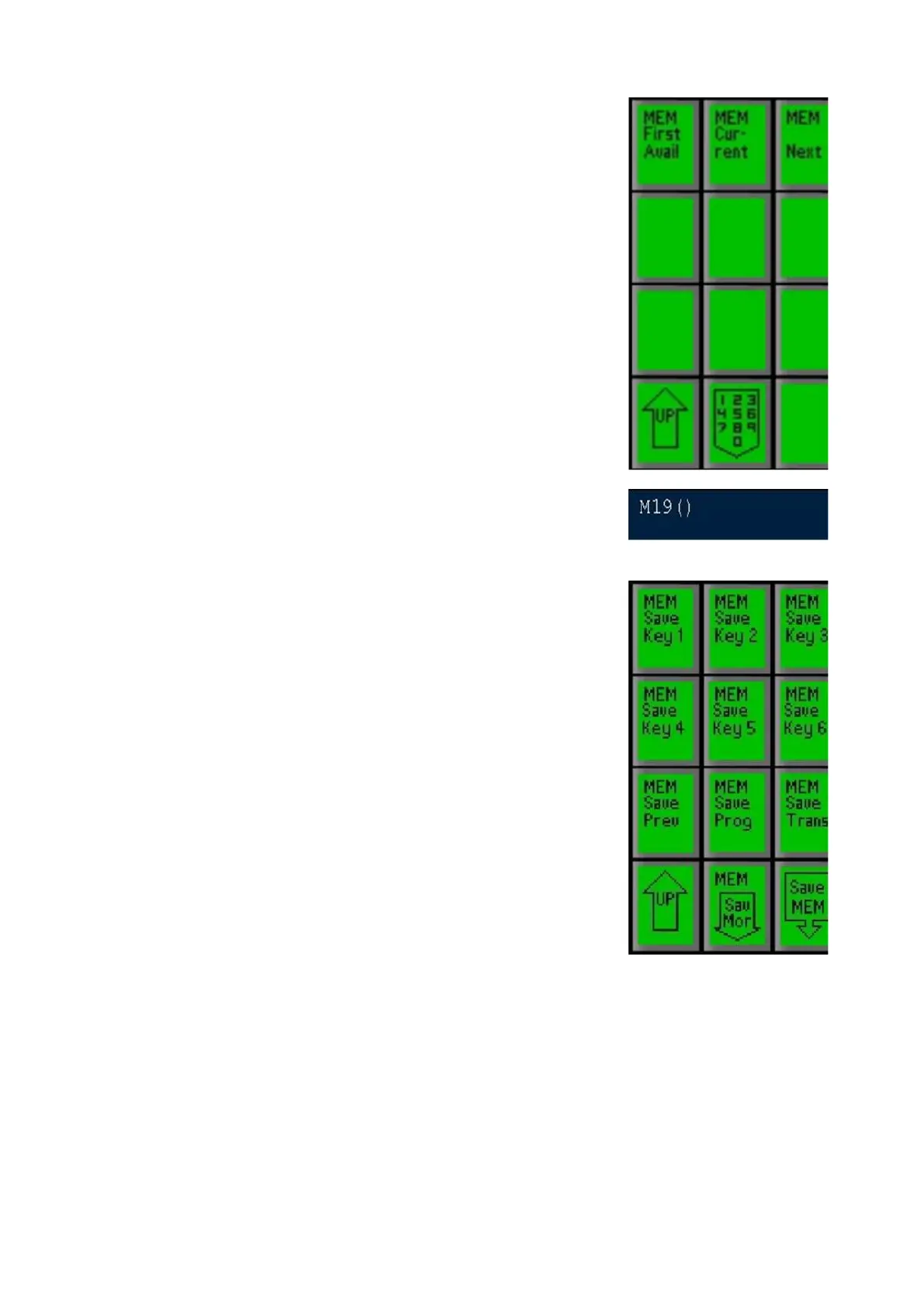
On the Mem controls PixPad, Press the [MEM Save
Snap Shot] PixButton, and this PixPad will appear,
which you can select where you want to save the
SnapShot Mem:
For the first unused memory position, press the
[Mem First Avail] PixButton
To edit a current Mem that you recently opened,
press the [Mem Current] PixButton
For the next Mem beyond the current one, press the
[Mem Next] PixButton
For a specific number press the [Numeric Keypad]
PixButton, and a keypad will appear on which you
can enter the Mem number desired.
When selected, the Mem location chosen will appear
in the panel display, such as Mem19, and the Mem
elements PixPad will appear, as shown to the right:
On the Mem elements PixPad, choose the panel
elements you want to save on this mem by pressing
the various PixButtons. As you press each, the
display will keep track of them, so you know what you
saved. For example, to save key 1, press the [Mem
Save Key 1] PixButton:
Press it once for the key set-up, and the display will
say 1k. For example a DVE box set-up.
Press it again to save both key set-up and the source
number assigned to it, and the display will say 1s. For
example a DVE box set-up, plus which source
number to fill it with.
Press it yet again to save the key set-up, plus the
source number, plus the content element number
within the source, and the display will say 1c. For
example a DVE box set-up, plus which source
number and content element
number to fill it with (like
the 4
th
clip in the first clip store).
If you press it a third time no key 1 information will be
saved, and the display will reflect that.
For example, if you want to save all three keyer set-ups, and the sources as
well on keys 1 and 3, then press the [Mem Save Key 1]
PixButton twice, the
[Mem Save Key 2] PixButton once, and the [Mem Save Key 3] PixButton



 To Next Page