BPswitch Operators Manual
197 / 413
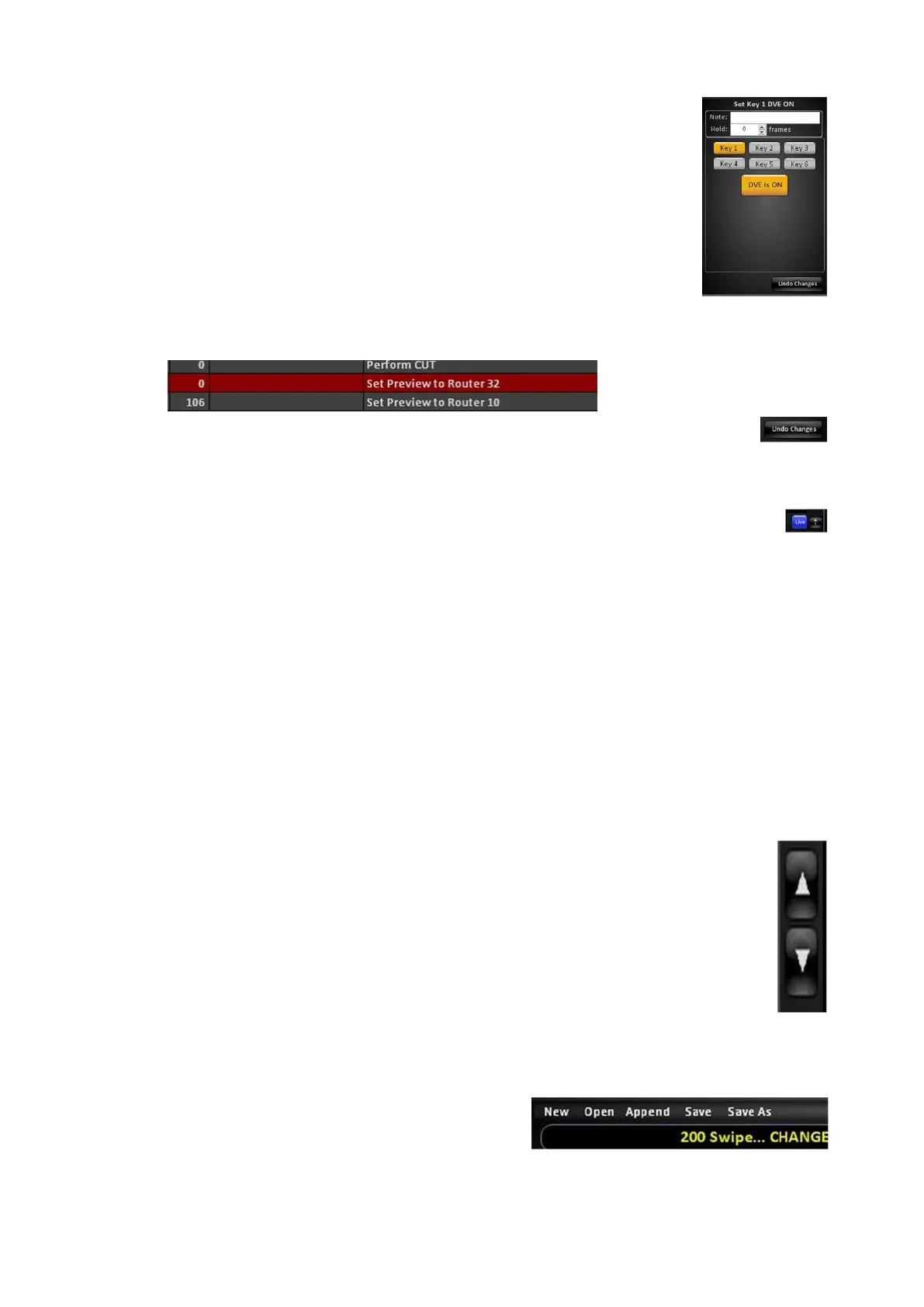
Keyer selector, displays various buttons/selectors for
changing key attributes.
Depending on the Edit Window, select a different
Keyer/Attribute button or enter a value in a number
field.
If a source or keyer is not available on your system, but
is selected in a macro, the Action List will show a red
highlight, as shown below, to signify that the
source/content is not available in your show or system.
Changes are automatically made to the Action List, to
revert back to the recorded action, click on Undo
Changes in the Details Panel.
Depending on what action is being modified, it maybe
useful to view the changes on the Program output. This
is useful when quickly selecting between Actions to
verify the effect.
Click on the Live button, near the bottom on the details
panel, and it will illuminate blue.
Now whatever action is highlighted or modified, the
result will occur on Program out. This function should
only be used in pre-production, when creating Macros.
To turn off Live editing, re-click the Live button, and the
button will turn to grey.
To move a step up or down in the Action List, select a
step and it with highlight white, then clock on the Up or
Down button to the right of the Action List.
This will move the highlighted step up or down one
step at a time.
To save a macro:
Once a macro is modified, the macro name
in the Title Bar will change to displaying
…CHANGED, as shown on the right.
To save the modified macro, click on Save



 To Next Page