BPswitch Operators Manual
234 / 413
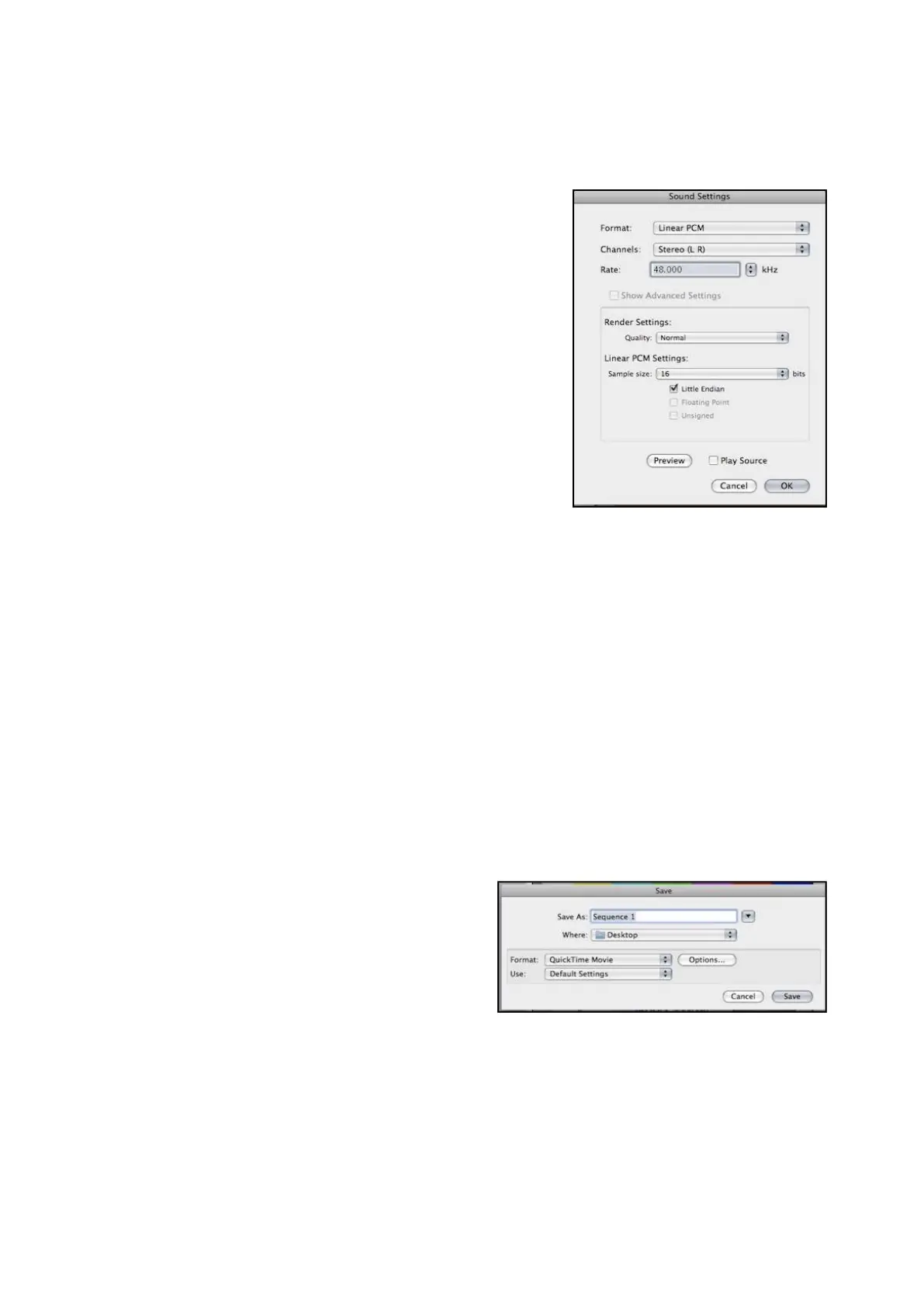
select the Settings… button under
the Sound section, to change the
audio compression settings.
The Sound Settings window will
appear, as shown on the right.
Under the Format drop down
menu, select Linear PCM.
Under the Channels drop down
menu, select Stereo (L R).
Under the Rate field, select 48.000
kHz from the drop down menu.
The clip store will support any
audio sample rate, since it
automatically converts all audio to
48.000 kHz.
Under the Render Settings
section, select Best under the
Quality drop down menu.
Under the Linear PCM Settings
section, select 16 bits under the
Sample size drop down menu.
Click on the OK button once all
these settings have been selected.
In the Movie Settings menu, click
on OK to save all your video and
audio settings.
In the Save window, name your
file in the Save As: text field and
choose a destination to save the
file in the Where: drop down
menu.
If your Final Cut Pro system is on
the same network as the Server,
then you may save the final
directly to the show’s Watch
Folder or to the D:Clips directory.
Click on the Save button to export
and save your QuickTime movie.



 To Next Page