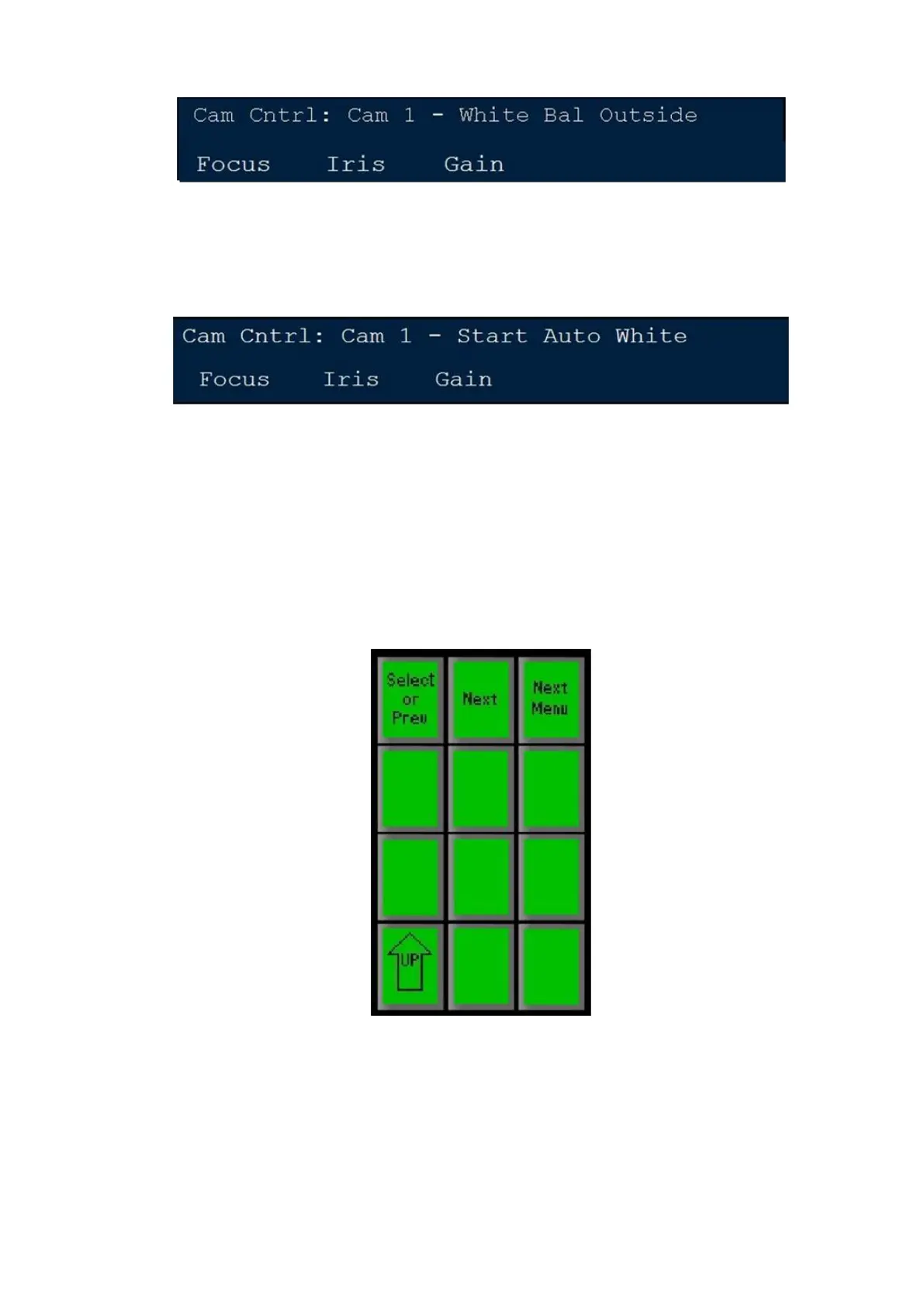
To manually white balance the camera, point the camera to a white area and
press the [Start Auto White] PixButton in the PixPad. When the camera has
successfully white balanced, the display will show Start Auto White, as
shown below.
To access the camera’s internal menu, press the [Online Menu] PixButton in
the PixPad. This will display the camera menu on the camera’s video output,
which is visible on the Broadcast Pix Multi-View. Assign the camera on the
preview row to view the on-screen menu items.
The PixPad will also change to show the menu controls, as shown below.
Depending on which Panasonic camera is used, the online menu has access
to more advance CCU functions, like color balancing, genlock phasing and
output formats.
Use the [Next Menu] PixButton to select menu categories.
Use the [Next] PixButton to change a setting to the next available option
Use the [Select or Prev] PixButton to select a sub category and to change a
setting to a previous setting option
Press the [UP] PixButton to return to the Camera Settings PixPad and to
hide the on screen menu on the camera output



 To Next Page