BPswitch Operators Manual
327 / 413
Assignments menu, as described in Deck
Control Settings.
The display will show the selected deck and the
current state.
Select the [Controls] PixButton.
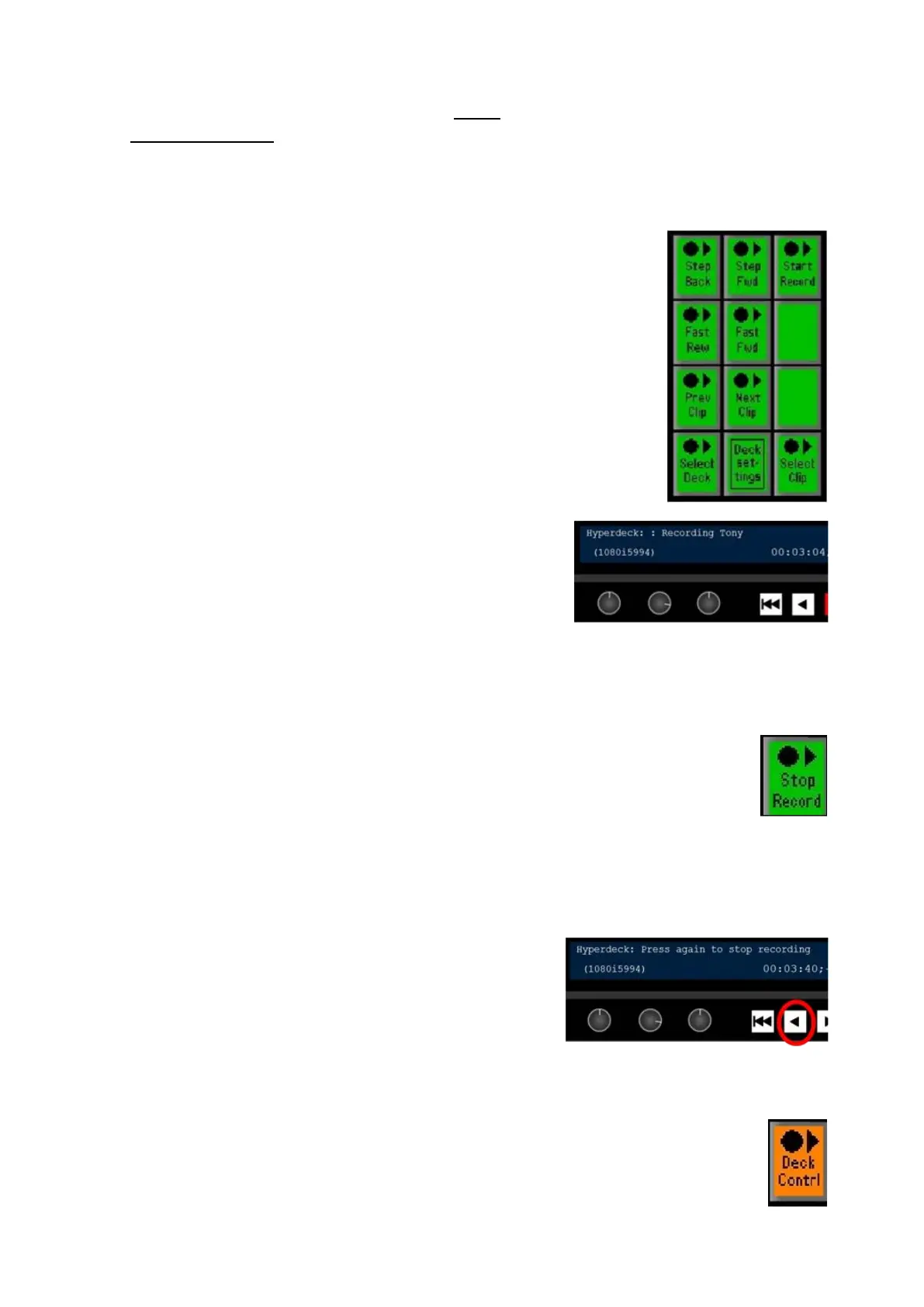
The PixPad will change showing the available
controls. Select the [Start Record]
PixButton, as
shown on the right.
The display will update with the words Recording
Clip and the [>] motion control button will
illuminate red, as shown on the right.
To start more clips on different attached decks,
repeat steps 1 - 4 above.
To stop recording a clip:
Repeat steps 1 - 3 above.
In the PixPad select the [Stop Record]
PixButton, which will be the same PixButton as
[Start Record] as it changes automatically, as
shown on the right.
The counter will stop, the display will read out
stopped and the newly recorded clip will be
added to the end of the PixPad ready for control
To stop recording from the panel, click the [<]
motion control button 2 times. Once a clip has
stopped recording the Multi-View PixPad will
display a thumbnail of the first frame of video
recorded.
To select a clip to control:
In Device Control section, select the [Deck Contrl]
PixButton, it will illuminate orange, as shown on the
right.



 To Next Page