BPswitch Operators Manual
328 / 413
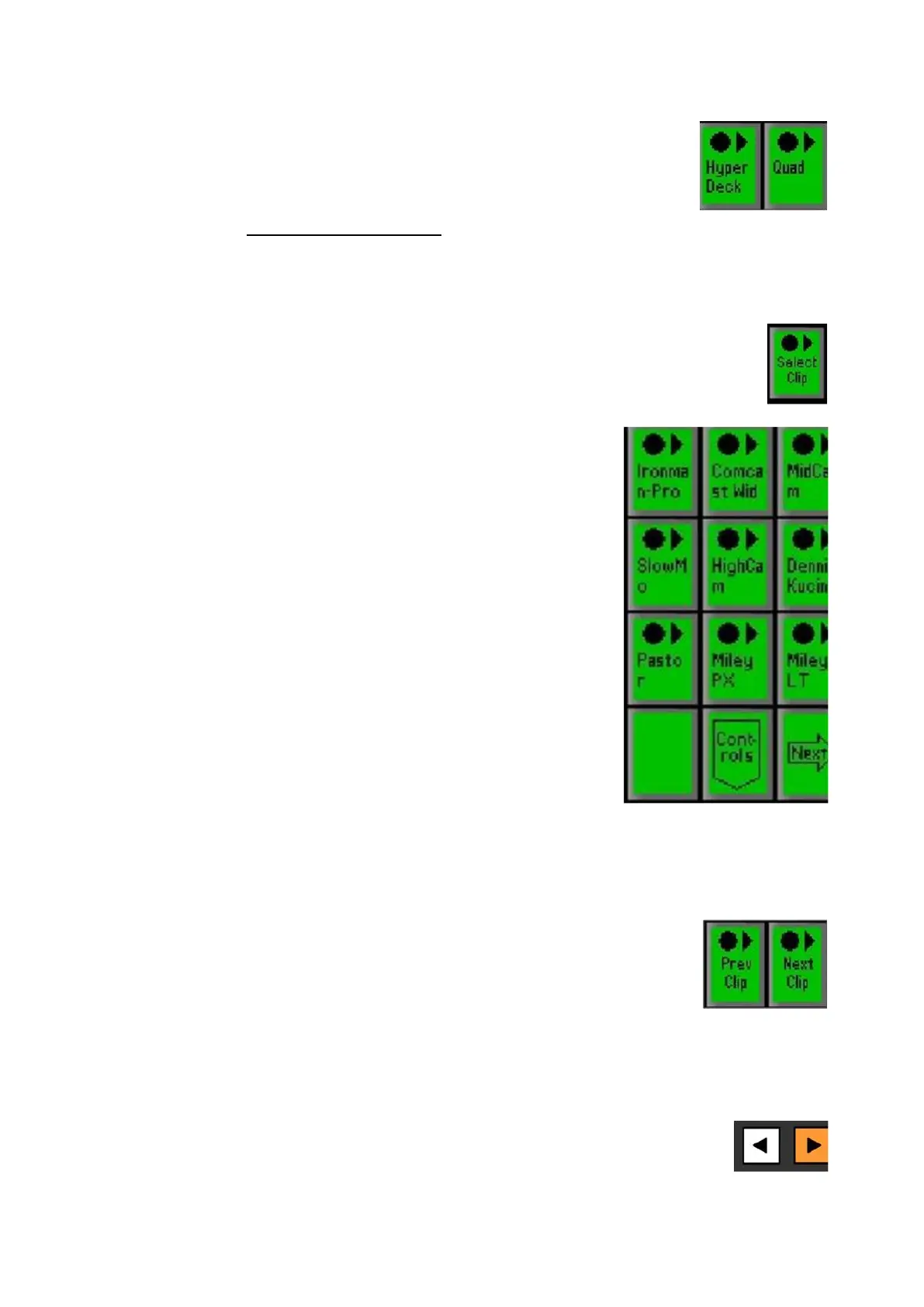
If not already selected, select the desired deck in the
PixPad by selecting the [Deck] PixButton, in this
example Hyper Deck. The name in this PixButton is
the name assigned in the Deck Assignments menu, as
described in Deck Control Settings.
The display will show the selected deck and the
current state.
The PixPad will change showing the available
controls, select the [Select Clip] PixButton, as shown
on the right.
The PixPad will change showing the available
prerecorded clips by filename. Select the desired clip
by selecting the [Clip Name] PixButton.
The display will update showing the selected clip and
timecode and the PixPad will automatically change to
show the Controls PixPad.
NOTE: Clip selection from the KiPro Decks is delayed,
as each clip must be cycled through. Hyperdeck
selection is instant. The KiPro control is not intended
for hot-punching of clips on air, rather it’s for selecting
clips for review after a record or selecting clips in
preview prior to taking them to air.
To view more than 9 clips, select the [Next] PixButton
in the PixPad.
Once the more than 2 pages of clips are available in
the PixPad a [Back] button will also appear for
navigation.
To quickly jump to the next or previous clip in the clip
list, on the Controls PixPad select the [Prev Clip] or
[Next Clip] PixButton, as shown on the right.
To play a clip:
Repeat steps 1-4 to select a clip to control.
In the motion control section, select the [>] motion control button it
will illuminate orange, as shown on the right.
The timecode will start to update and the clip will start to play.



 To Next Page