BPswitch Operators Manual
33 / 413
To delete a restore point in Paragon:
Since the Backup Capsule on the System drive is only 100GB, the capsule may fill
up
with multiple restore points.
Quit all applications, including Broadcast
Pix Switcher.
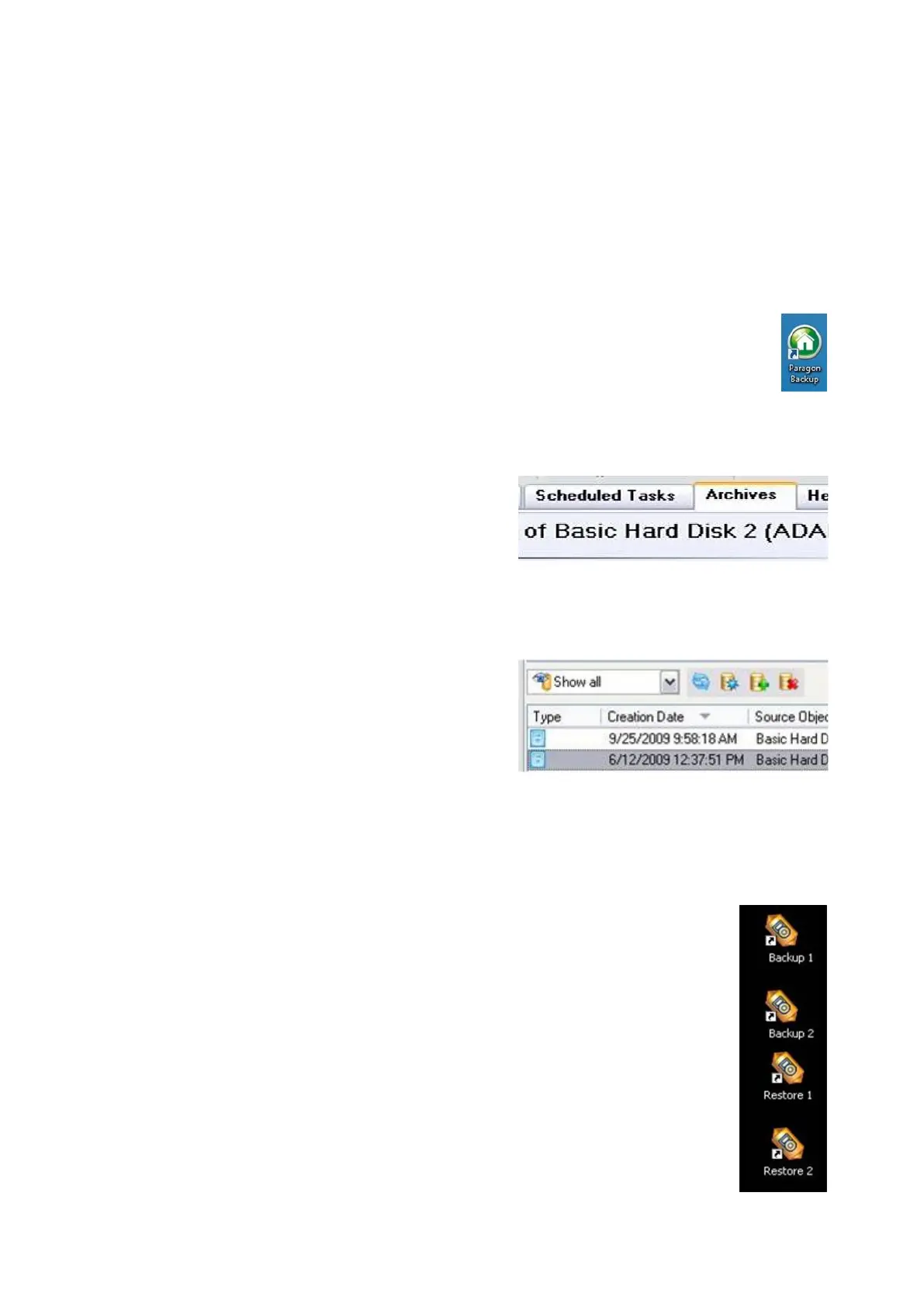
Double-click the green Paragon icon on
the desktop, to launch the application. If
the icon is not on the desktop navigate to
The Start Menu, All Programs, Paragon
Backup and Recovery 11 Home, Paragon
Backup and Recovery.
Click on the Archives Tab, on the top of
the application, as shown on the right.
At the bottom of the Archives window a list
of saved back up points will be visible.
Select the desired back up point, it will
highlight grey.
Click on the Delete the selected archive
button, as shown on the right.
A pop-up warning will appear to confirm
deletion. Click on the Delete button to
permanently delete the backup file. The
file is erased from the backup capsule.
Using the Desktop Shortcuts:
On new systems from Broadcast Pix, 4 desktop icons are
available as shortcuts for both creating and resorting a backup.
There are 2 shortcuts to create a backup, Backup 1 and Backup
2. These backups automate the above steps without the need of
entering the Paragon application. There are 2 shortcuts to restore
from the each backup, Restore 1 (which corresponds with
Backup 1) and Restore 2 (which corresponds with Backup 2). To
run a selected shortcut, ensure that no applications or tasks are
running and double-click the icon and a script will run in the
background. Keep in mind these shortcuts offer a quick and easy
recovery method, for more advanced recovery refer to the
Paragon Backup manual.



 To Next Page