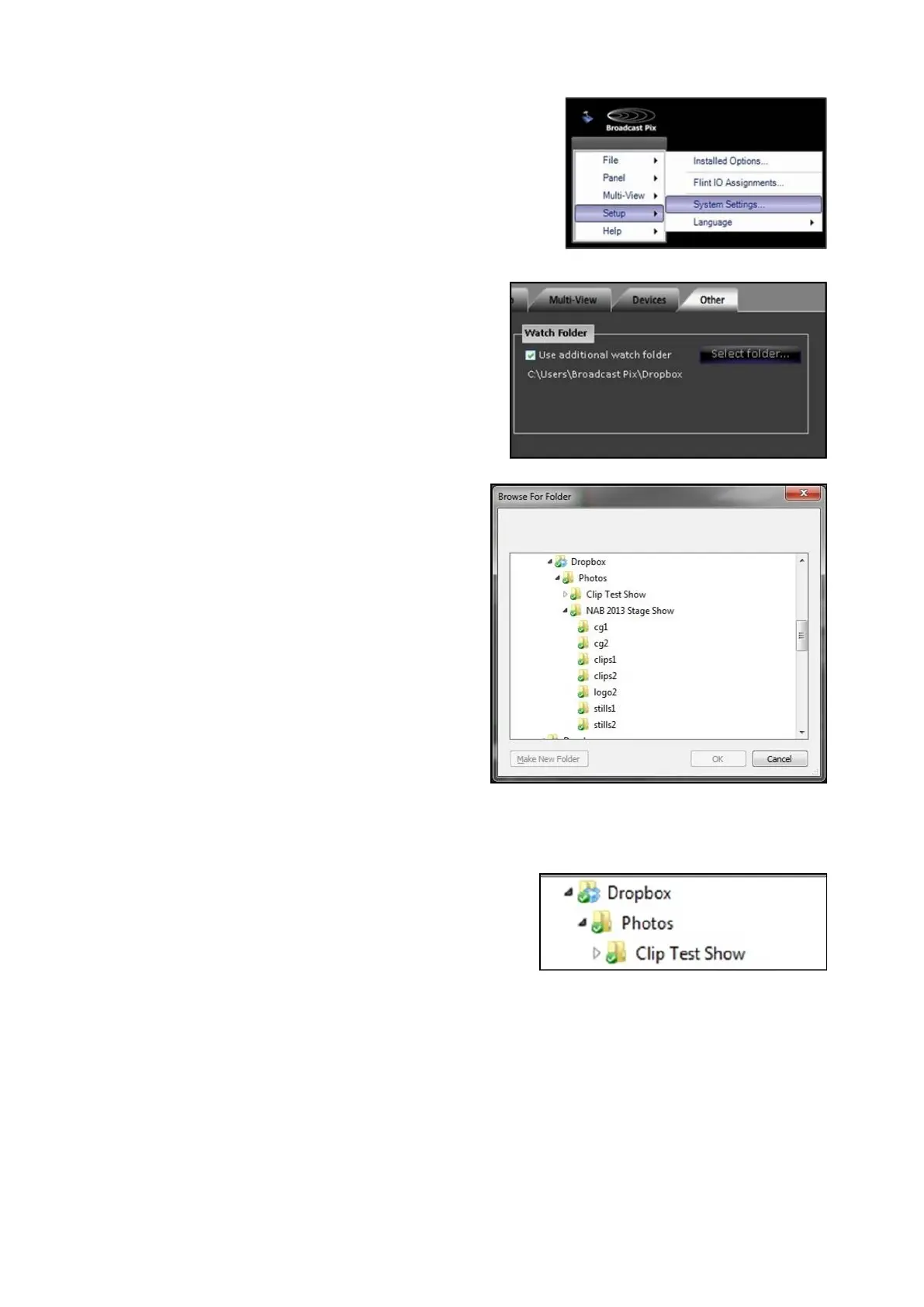
Select the Broadcast Pix menu
button and navigate to Setup,
System Settings…, as shown on
the right.
In the Watch Folder section, place a
check mark next to Use additional
watch folder, as shown on the
right.
In the Browse For Folder window,
navigate to the desired folder
location. This location can be
anywhere locally or on your
network, as shown on the right.
When connecting to Dropbox,
Google Drive or Microsoft Skydrive,
navigate to
C:\Users\Broadcast Pix then
select the Dropbox, Skydrive or
Google Drive subfolder. This
example will use Dropbox.
NOTE: For the Dropbox, Skydrive
of Google Drive folder to appear,
you must have at least one of these
services installed on the Broadcast
Pix Server and registered with an
account to one of those service
providers.
It may also be convenient to create
a s
ubfolder on your storage account
(i.e. Photos) to separate your
personal documents from files you
which to transfers through the
watch folder. If so, make sure you



 To Next Page