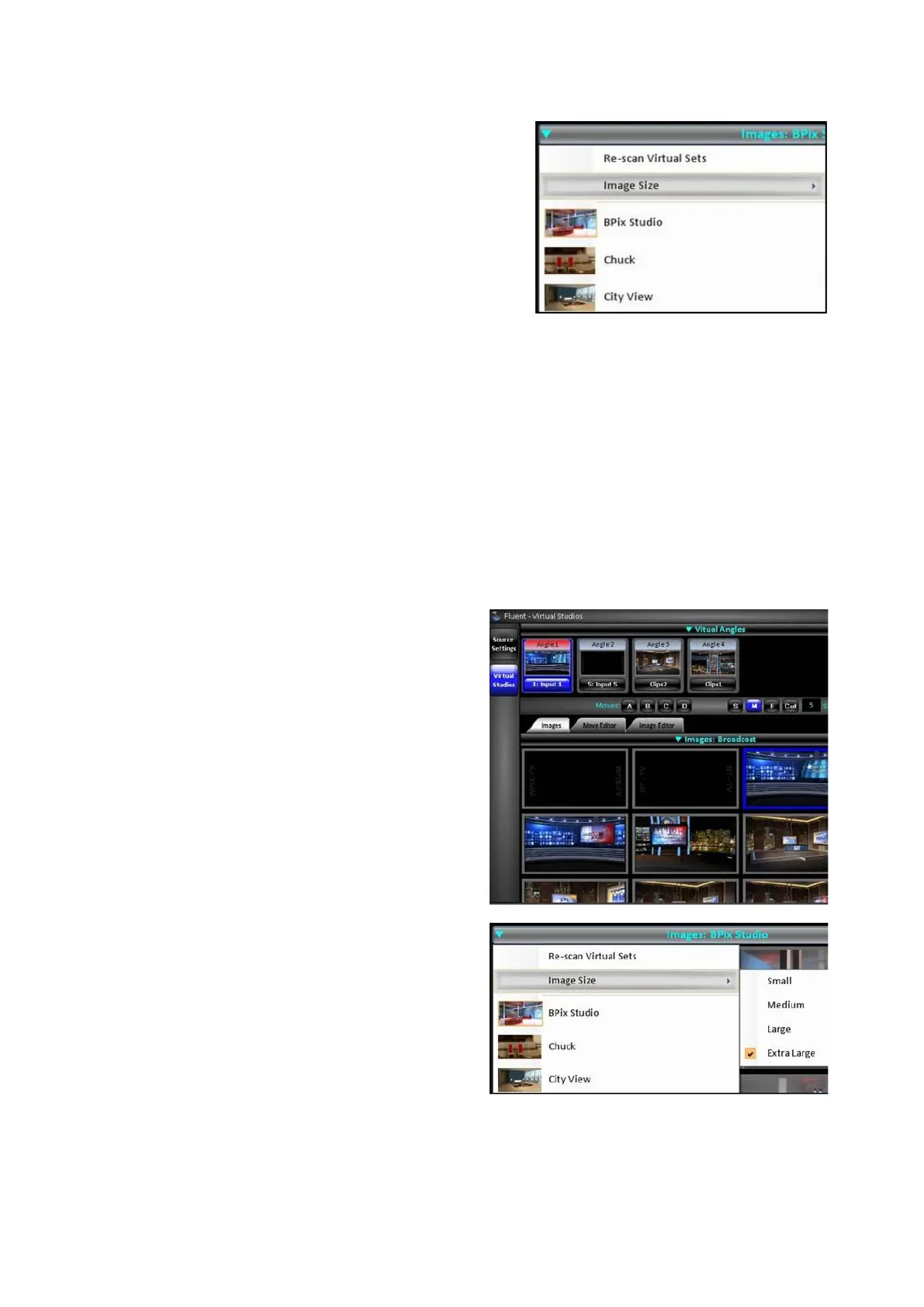
Click on the Images: menu bar and a
drop down menu will appear, showing
an image for each folder saved on the
hard drive.
All images must live in a folder in the
directory C:graphics\Virtual Sets.
Files must be 1920x1080 using a .png,
.tga, .jpg or .bmp file extension.
Other frame sizes and formats may not
scale correctly, it is recommended to
use the Image Editor to save out our
Virtual Set background, see section
4.9.2
5 stock sets are provided with each
system, users may add or remove to
this list using standard Windows
conventions of copy/paste/save.
Select the folder of images to browse
using the mouse, in this example
Broadcast.
The Images pane will update showing
you thumbnails of all the files in the
folder, as shown on the right.
To change the size of these thumbnails,
click on the Images: menu bar, then
Image Size followed by Small,
Medium, Large or Extra Large, as
shown on the right.
If new images are added while the
BPSwitcher application is opened, the
Virtual Sets directory must be
refreshed.



 To Next Page