BPswitch Operators Manual
170 / 413
Selecting the desired angle to modify in
the Virtual Studios panel prior to
selecting the Source Settings button
will automatically change the source
drop down menu, allowing for quick
ClearKey modification.
Sources active in Virtual Studios, and
not simply enabled with a chromakey,
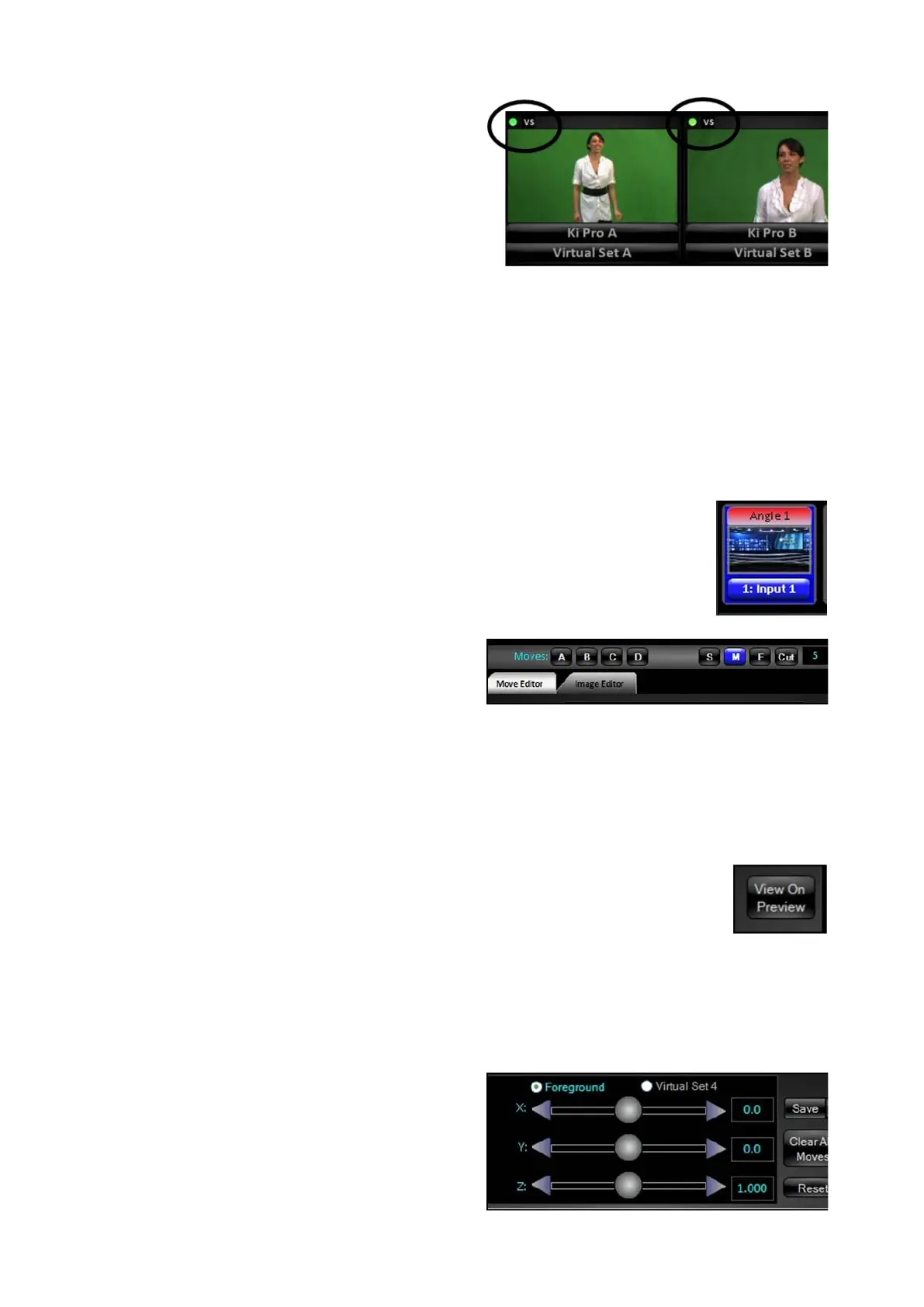
will have a ‘VS’ icon visible on each
source monitor, as shown on the right.
Clicking on the VS icon will open Fluent
Controls and navigate to the selected
angle to the Move Editor tab.
To create moves for an angle:
Select the desired Angle to create
moves for in the Virtual Angles pane,
the Angle will highlight blue, as shown
on the right.
Click on the Move Editor tab, as
shown on the right.
Since any move is applied to the
source
automatically, the initial saving
of moves should be done in pre-
production to avoid any on-air
mistakes. Any minor adjustments can
be saved in a production.
To view the positioning of your
foreground with the background, it is
recommended to put th
e source angle
in preview to see the composition.
Either manually place the source in
Preview or select the View On
Preview button in the Move Editor
tab, as shown on the right.
Depending on the background
selected for the Virtual Set, the
foreground talent may need to be
positioned and sized to fit properly in
the set. Click on the Foreground
radio button, as shown on the right.



 To Next Page