BPswitch Operators Manual
171 / 413
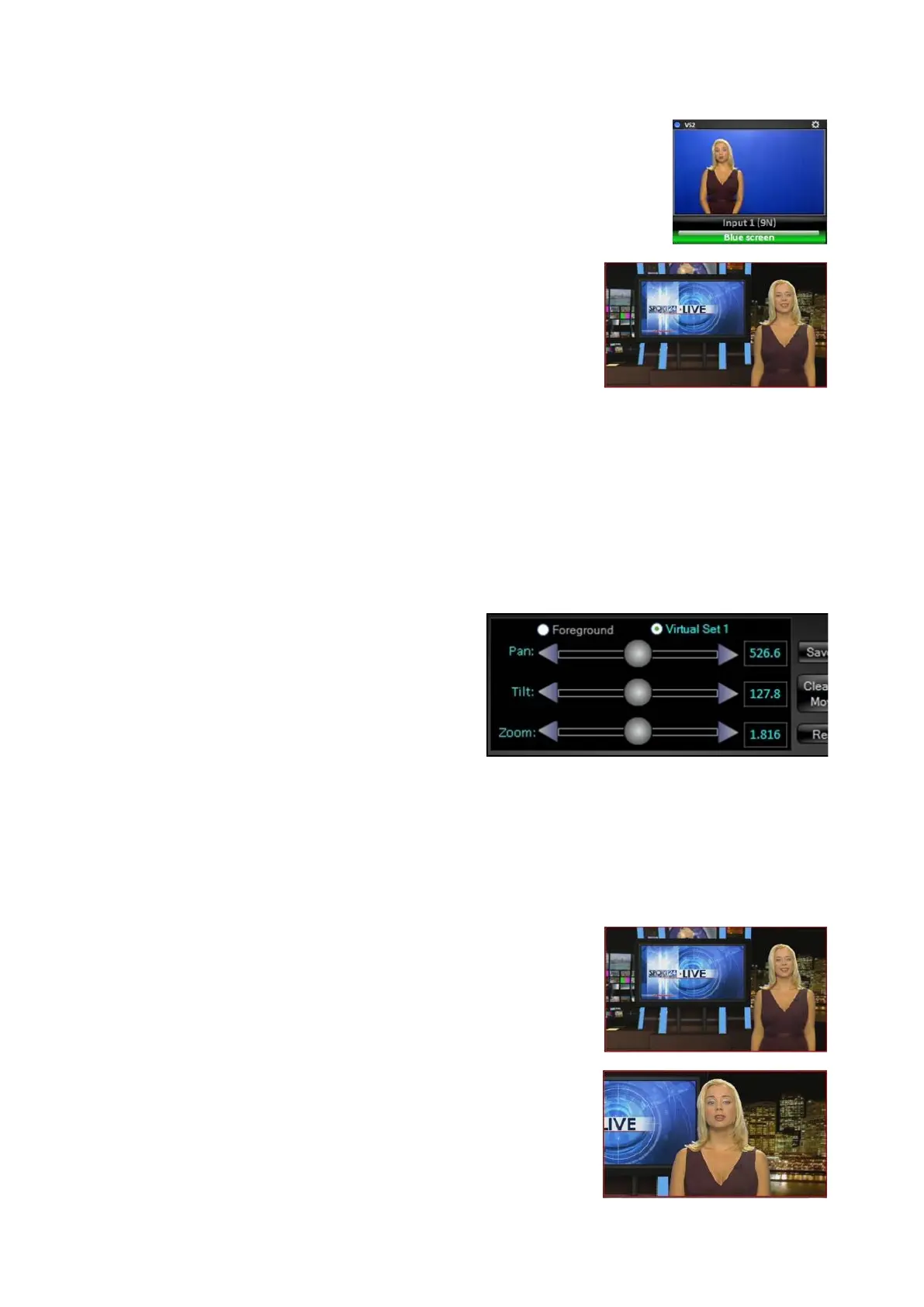
Position the foreground video using
the X and Y sliders.
Size the foreground video using the Z
slider.
As the example on the right shows,
you can easily move your talent to
make the background monitor visible.
Once the talent has been properly
placed in the set, the entire
composition can be linked and then
sized, positioned and moved
together.
Click on the Virtual Set X radio
button, as shown on the right.
Similar to the foreground controls, the
virtual set can be positioned and
scaled.
To scale the virtual set use the Zoom
slider to zoom the composition in.
Moving the slider to the right zooms
into the image and to the left zooms
out.
NOTE: You can not zoom out passed
1.0 as the composition has a max
resolution limit of 1920x1080.
To position the virtual set, use the
Pan and Tilt sliders to move the set.
Moving the slider to the right pans left
and tilts up the image and to the left
pans right and tilts down.
NOTE: The composition can not be
positioned, until it has been zoomed
in.
As the example to the right shows you
can virtually zoom into the



 To Next Page