BPswitch Operators Manual
207 / 413
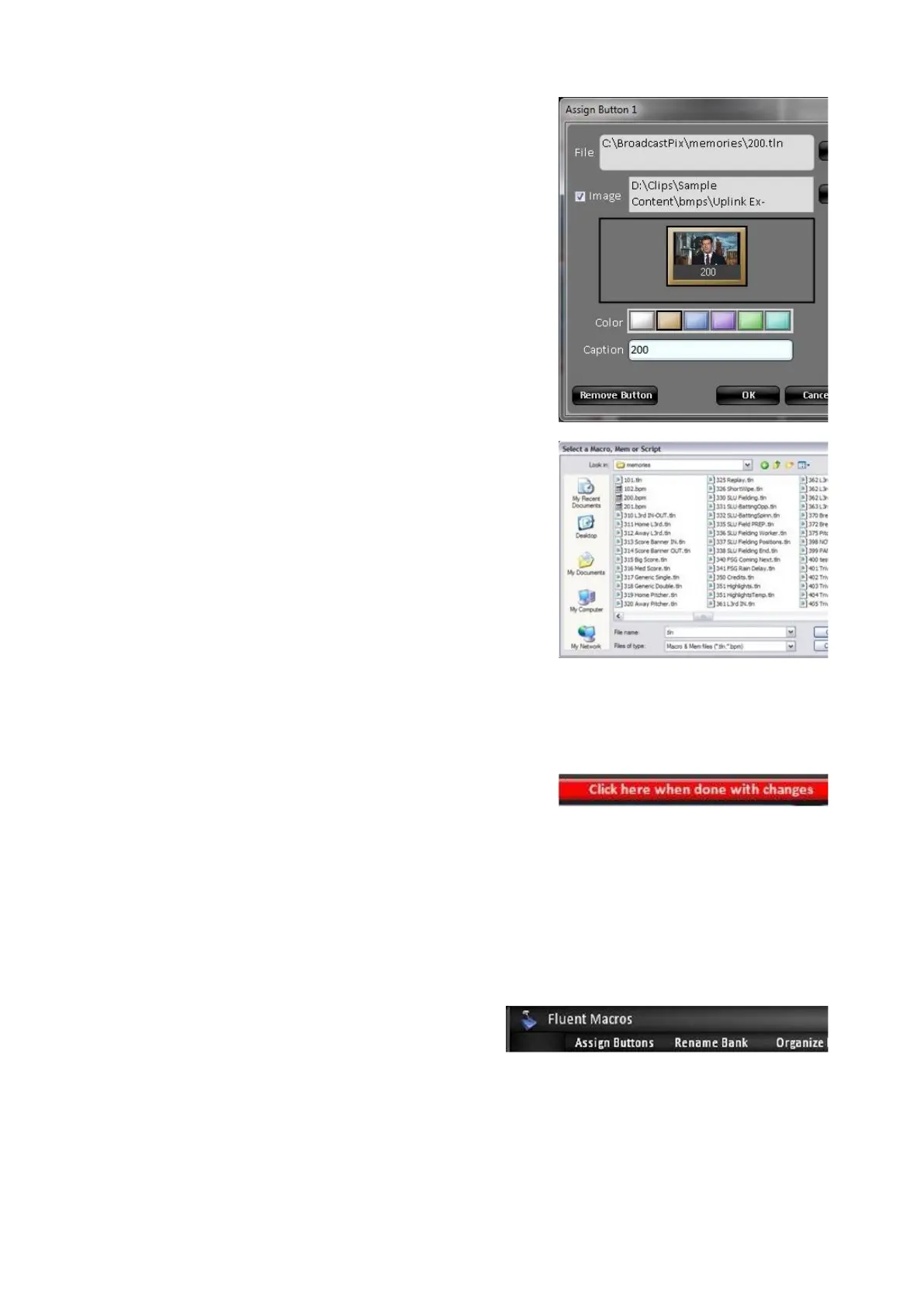
Assign a custom image, click on the …
browse button.
Change button color, click on the color
button, either White, Gold, Blue, Purple,
Green or Aqua.
Add a custom caption to the button, enter a
name in the Caption field.
To un-assign the macro button, click on
Remove Button.
Once finished assigning the button, click on
the OK button.
The assigned button will now appear in the
Macro Bank. To assign more Macros to
buttons, repeat steps 6-10 above.
When complete, click on Click here when
done with changes button, in the Toolbar.
To assign more Macros to different banks
repeat steps 4-11 above.
To customize a Macro Bank:
Repeat steps 1-4 above to edit a Macro
Bank.
To assign a custom name to the selected
bank, click on the Rename Bank button
in the Toolbar.



 To Next Page