BPswitch Operators Manual
343 / 413
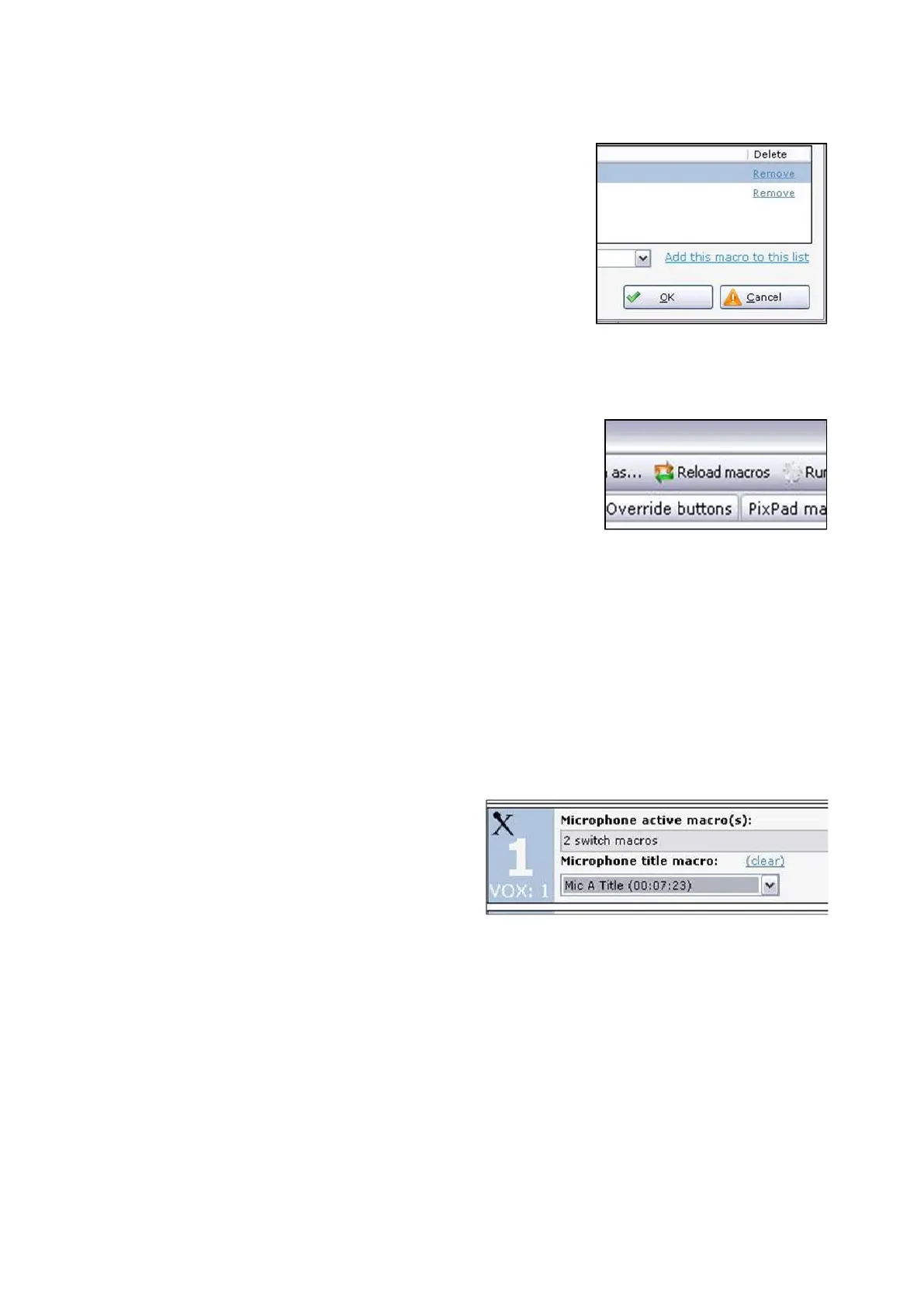
To remove macros from the list, click on
the remove link.
Once all the macros have been added
to the input, click on the OK button, as
shown on the right.
Repeat steps 1-4 above for the
remaining inputs. Only inputs that have
microphone connected should have
macros assigned to them.
If new macros are created when the
VOX Editor is opened, they will not
appear in the Macros drop down list. To
refresh the list and to view the current
list of available macros, click on the
Reload macros button at the top of the
window, as shown on the right.
To assign a Title Macro to an input:
In addition to having macros assigned to an input, a Title Macro may optionally be
assigned as well. A Title Macro is a macro that runs the first time that input is
triggered, then repeated after a user defined amount of time. This macro usually is
a simple graphic of the talent’s name from the CG store, where it fades on stays
on air for a few seconds then fades out.
Click on the Microphone settings tab
on the top of the window.
Under the Microphone title macro drop
down menu, select the desired macro,
in this example Mic A Title, as shown
on the right.
To unassign the title macro, click on the
clear link.
To change the microphone priority:
When one microphone input is activated a macro is triggered, however when
multiple microphones are activated at the same time, which macros are executed?
To address this issue, each mic input may be set a priority from most important (1)
to least important (8). Inputs with a lower number will be switched to more often



 To Next Page