BPswitch Operators Manual
399 / 413
Once both ports are configured to be
forwarded, the Broadcast Pix Server
must be set to communicate on that
Web Server port.
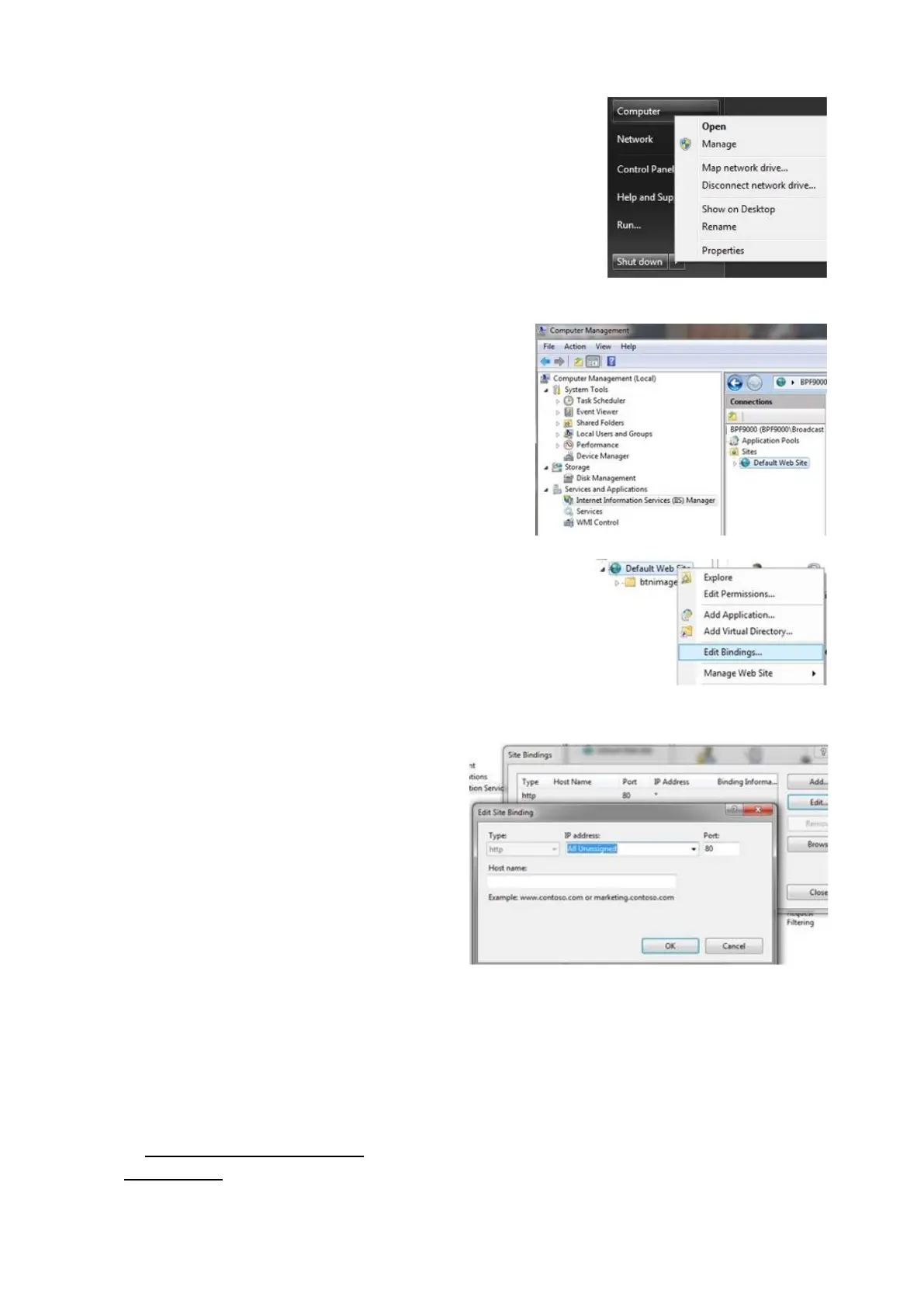
Click on the Start menu of Windows,
right-click on My Computer and
select Manage in the pop-up menu,
as shown on the right.
In the Computer Management
window, double-click Services and
Applications, then double-click
Internet Information Services (IIS)
Manager, as shown on the right.
Now right-click on Default Web Site,
and select Edit Bindings, as shown
on the right.
In the Site Bindings window select the
Port 80 binding and click on the Edit
button.
In the Edit Site Binding window, enter
the new port on the Port text field, as
shown on the right.
Click on the OK button to apply the
settings and click on the Close
button
in the Site Binding window to close
the window.
Click on the Red X to close the
Computer Management window.
NOTE: It is important to consult Broadcast Pix Technical Support prior to changing the Server
Ports. Improper setup will cause BPswitcher to not operate correctly.
To control a remote system with a SoftPanel:
Open a web browser, like Chrome,
on a remote computer, as described
in Two Operators with Two
Computers.



 To Next Page