BPswitch Operators Manual
404 / 413
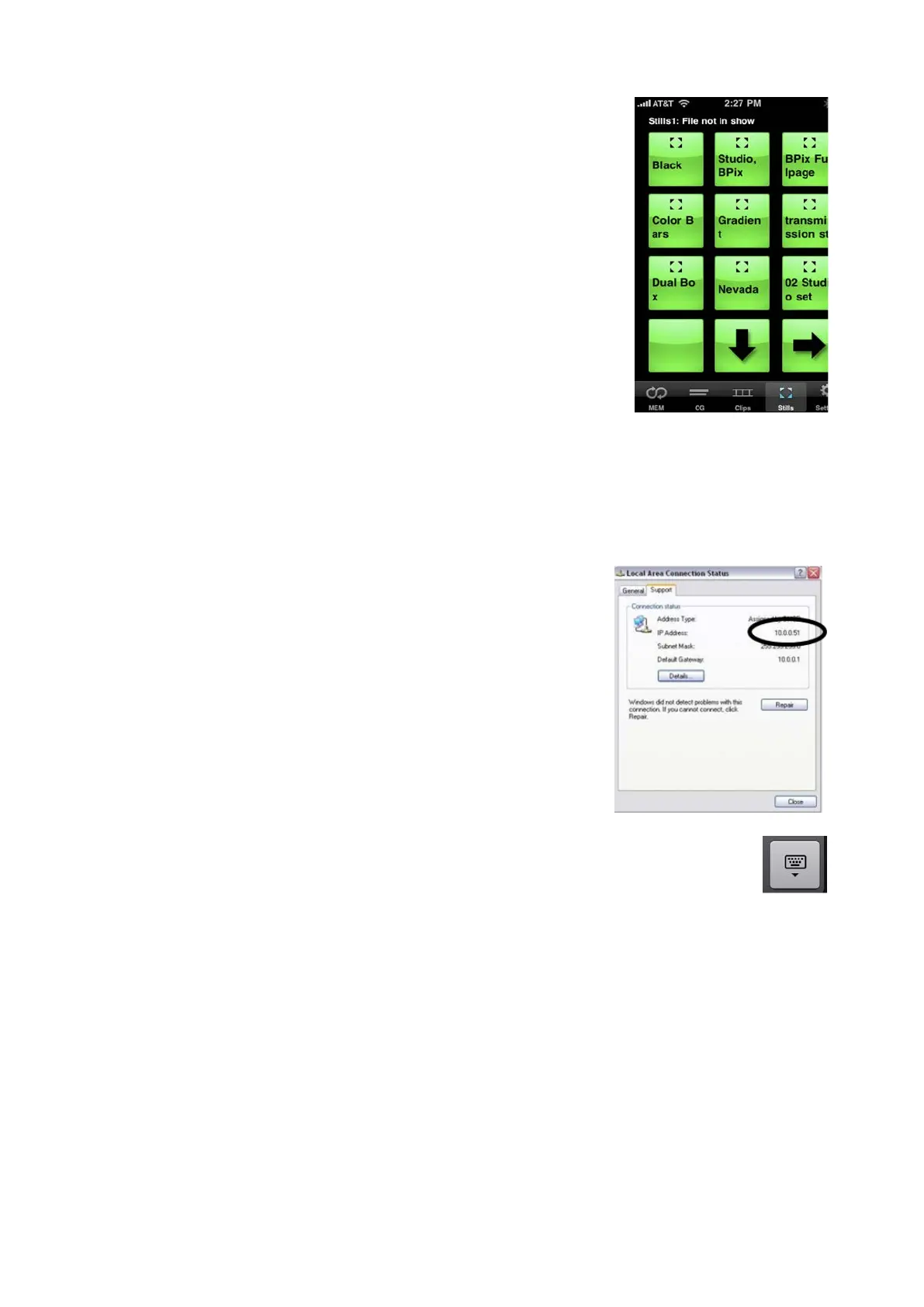
The bottom toolbar holds all your available devices:
MEMs (for SnapShot and Macro Memories), CG (for
CG Channel 1), Clips (for Clips channel 1), Stills (for
Stills Channel 1) and Settings to enter the IP address.
Select the desired device, and a PixPad will appear.
Operation is similar to the PixPad on the control panel.
The top of the iPixPad replicates the display on the
control panel.
There is no access to the second channel of device on
the iPixPad.
To configure the iPixPanel app:
Download and install the iPixPanel at from
the Apple iTunes Application store.
Find the IP address of the NIC 1, wireless
Connection by navigating to the Network
Connections window and double-clicking
Local Area Connection, as shown on the
right. In this case 10.0.0.51.
Launch the iPixPanel application on the
Apple iPad by clicking the Broadcast Pix
logo on the home screen.
The Broadcast Pix splash screen will
appear. Enter the IP address of the
Broadcast Pix system. In the IP Address
text box, in this case 10.0.0.51. Click the
Keyboard key on the virtual keyboard to
hide the keyboard, as shown right.
If the application connects you will receive
a ‘Successfully Connected’ message.
If no wireless network can be found a
message ‘Cannot Connect to the
Broadcast Pix Studio’ will appear. Go to the
wireless network settings on iPad to
configure the network.



 To Next Page