BPswitch Operators Manual
73 / 413
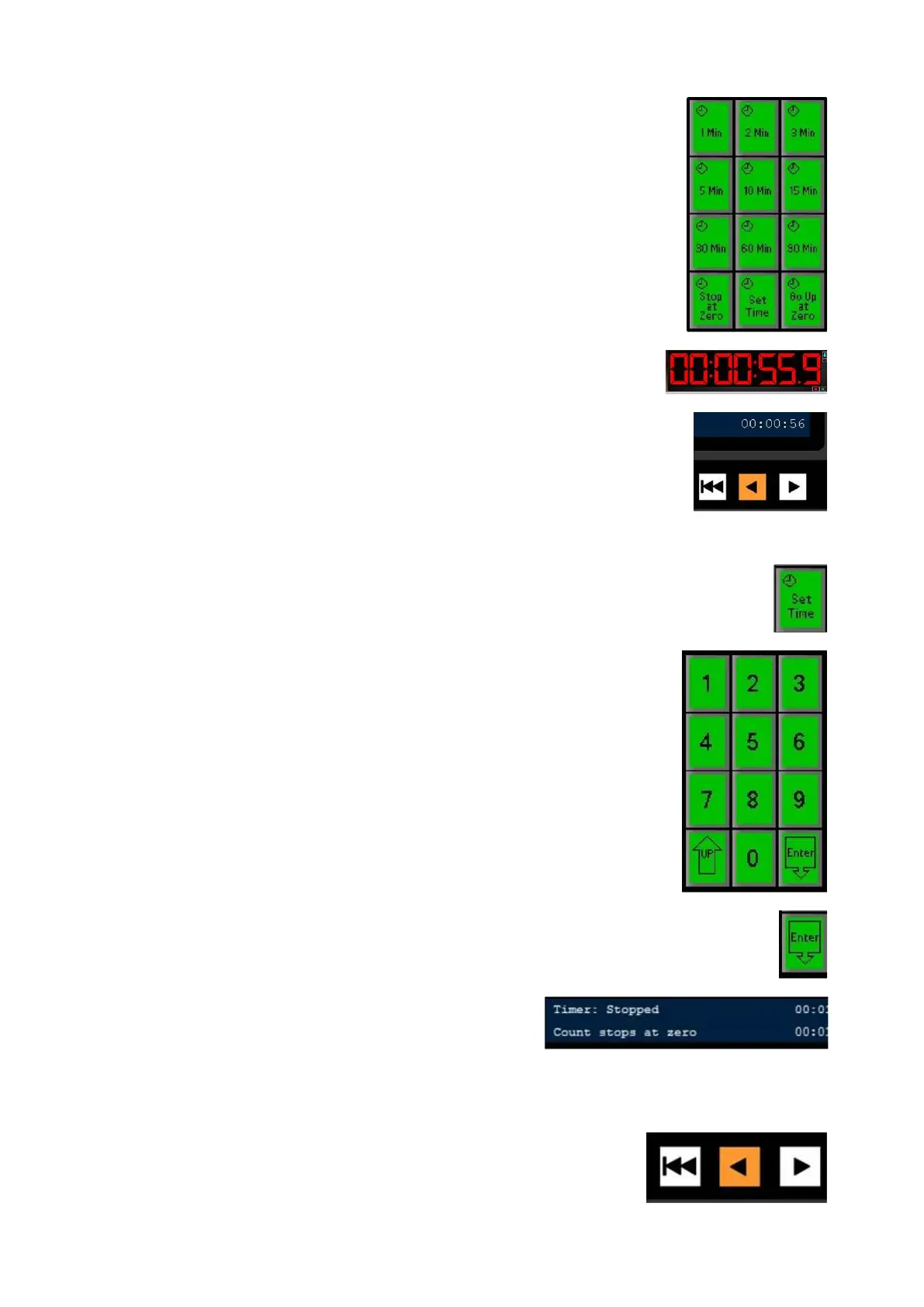
The PixPad will change showing the available
pre-made timers, as shown on the right.
Select the desired timer unit in the PixPad,
either [1 Min], [2 Min], [5 Min], [10 Min], [15
Min], [30 Min], [60 Min] or [90 Min]
PixButton.
The display will show the selected timer and
the timer will automatically start playing,
updating the Multi-View and display.
The [<] motion control button will illuminate
orange, signifying that the countdown is
running, as shown on the right.
In Device Control section, select the [Timer]
device button (A/B/C), it will illuminate orange.
The PixPad will change showing the available
pre-made timers.
Select the [Set Time] PixButton, as shown on
the right.
The PixPad will change showing a numeric
pad, as shown on the right.
Enter the desired time. As numbers are
selected the display will update, starting with
seconds.
For example to enter 1 min and 30 seconds
push [1], [3], [0] or [9], [0] for 90 seconds.
Select the [Enter] PixButton to apply the
countdown time, as shown on the right.
The new time will be shown in the display, as
shown on the right.
To control the countdown timer:
To start counting down, press the [<]
motion control button, it will illuminate
orange, as shown on the right.



 To Next Page