15-9
15
The Fingerprint Reader is used for optional user logon.
Cleaning can be performed by placing a piece of cellophane tape (sticky side down) onto the lens of
the Fingerprint Scanner
Do not use liquids, solvents or scraping devices to clean the reader lens surface.
No response when finger is applied
1) Log In or a Main Screen function must be selected prior to applying an enrolled finger.
2) Ensure the Fingerprint Reader lens is not scratched or damaged.
3) Ensure the Fingerprint Reader is enabled as a Log In option for the User
Log In > User Management > Modify User > User Log In Setup > Login Data
a) Select Fingerprint Reader
If prompted to place a Finger on the reader for enrollment is displayed, the user
has no currently enrolled fingerprints.
If “Un-enroll” or “Re-scan” is prompted, the user has fingerprints enrolled
4) Verify the Fingerprint Reader is illuminated (blue).
If not:
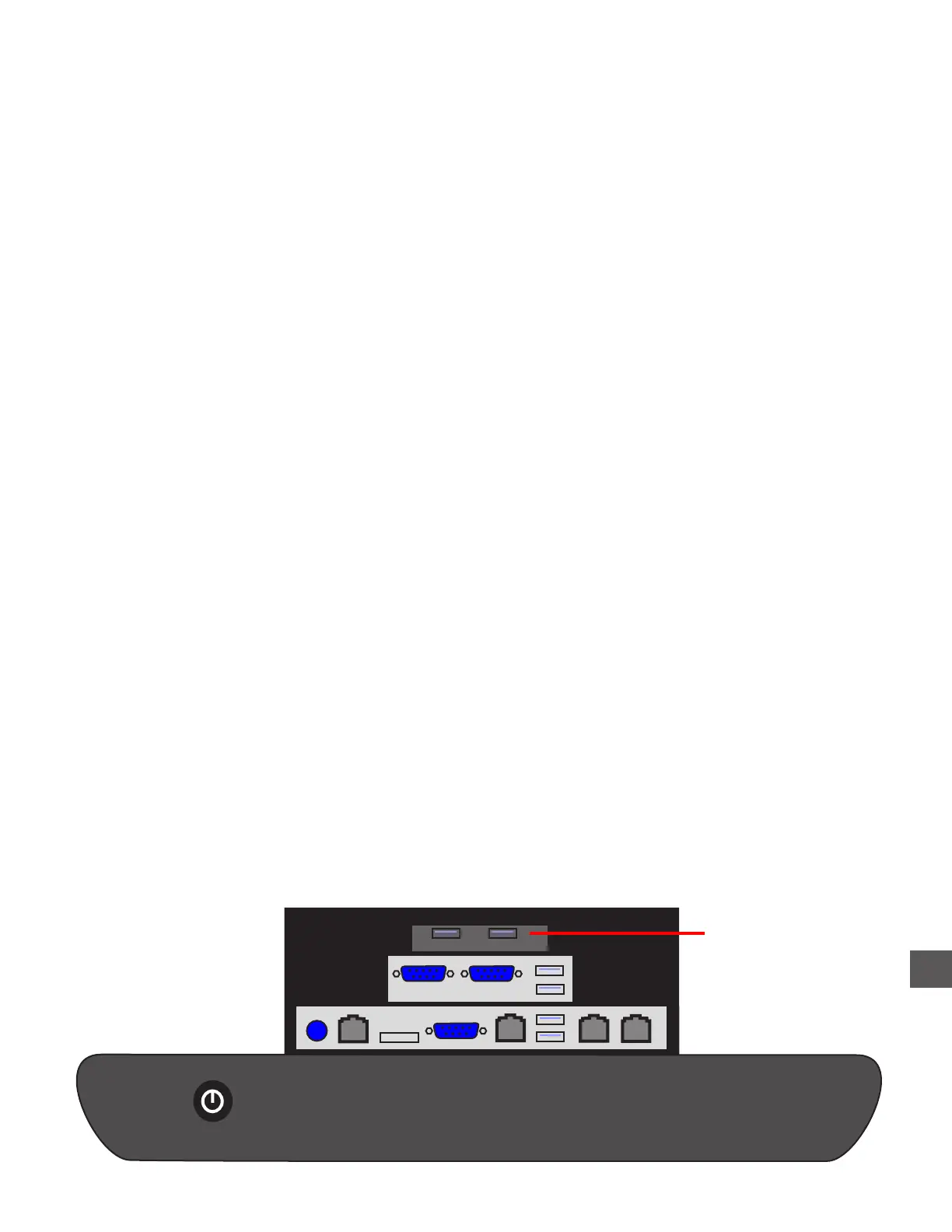
a) Check the Fingerprint Reader connection at U5 on the expansion dongle (inside
the rear compartment on the Control Computer).
5) Verify the Fingerprint Reader flashes (red) when a finger is applied.
If not, Perform a Fingerprint Reader Test
Log In > Maintenance Menu > Fingerprint Reader
If no response is provided when the test is performed, the Fingerprint Reader may
be defective.
No prompt to place a finger on the scanner when Log In or a function is selected
1) Ensure the Fingerprint Reader is enabled
Log In > Configuration Menu > Edit Configuration > Fingerprint Reader
Fingerprint Reader
Fingerprint Reader



 To Next Page