4-20 Sun Blade 1500 Service, Diagnostics, and Troubleshooting Manual • December 2004
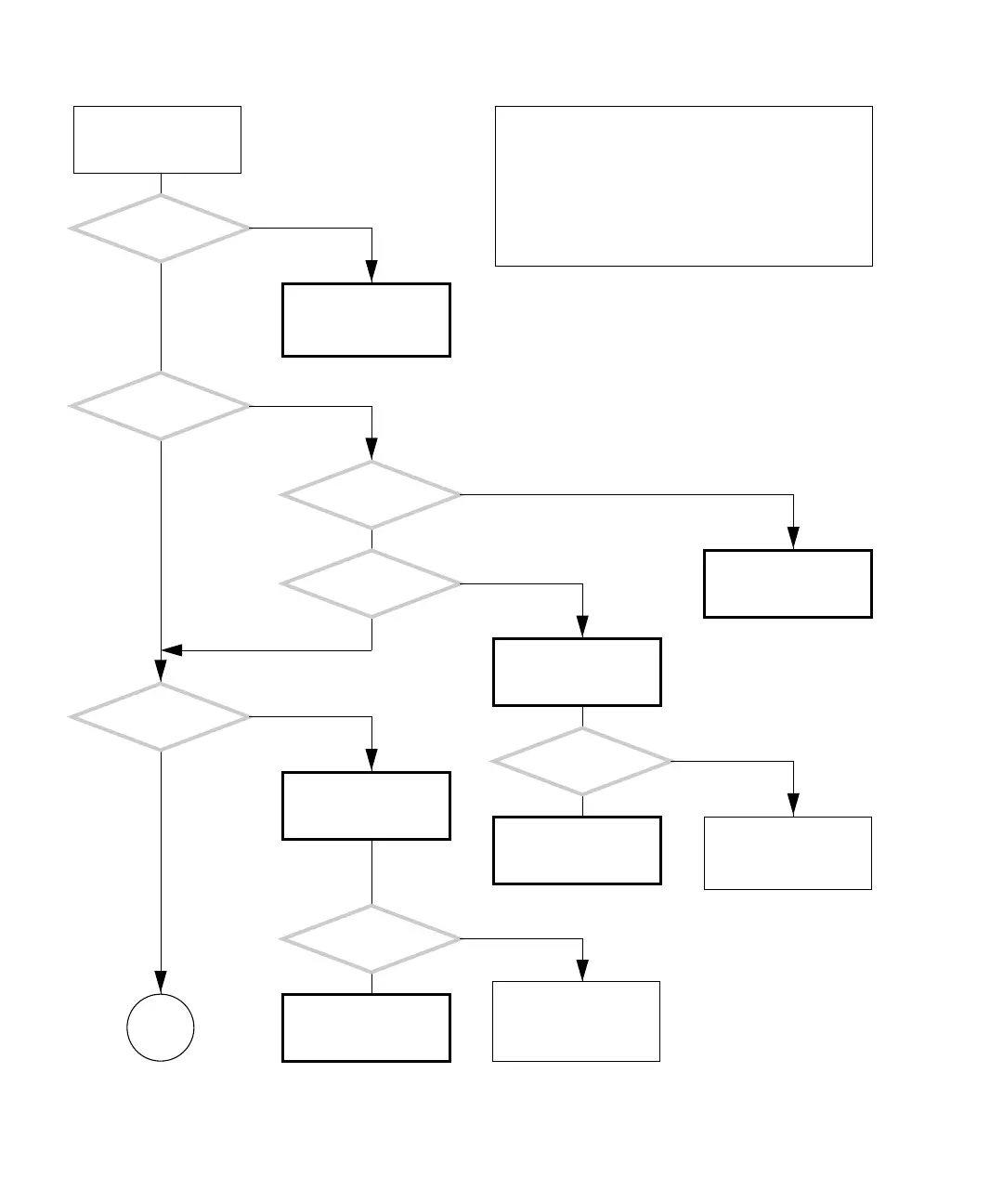
4.2.9 Login Problem
FIGURE 4-17 Login Problem
Check motherboard and
replace if necessary. See
“Motherboard Problem”
on page 4-34.
There is a problem log-
ging in.
Do the keyboard and
mouse work properly?
Does the
mouse cursor respond to
mouse movement?
Is a login GUI
displayed?
Is a
command-line login
prompt displayed?
Check the USB ports. See
“USB Problem” on
page 4-10.
Refer to displayed screens
table. See “Displayed
Screens” on page 3-2.
Did this solve
the problem?
There might be a mouse
driver software problem.
Contact system adminis-
trator.
Return to “Power-On
Flowchart” on page 4-3.
Can you type a user
name and password?
Check the USB ports. See
“USB Problem” on
page 4-10.
Did this solve
the problem?
There might be a Dtlogin
software problem. Con-
tact system
administrator.
Return to “Power-On
Flowchart” on page 4-3.
Y
N
Y
N
Y
N
Y
N
Y
N
Y
N
Y
N
In normal operation, the login procedure is straightfor-
ward. At a prompt, the user types their user name and
password, and the system opens a shell or GUI.
Besides a hardware problem, the Dtlogin application, the
name server, or the Solaris operating system itself might
cause difficulty logging in. Consult the system administra-
tor in this situation.
Checking a component means checking the electrical con-
nections and fit.
Go to
G




 To Next Page