8 Processing
Aer acquiring imag
es or opening a series, you can perform image processing funcons.
In the Processing task, you can perform the following image processing funcons:
• Zoom and pan images
• Adjust contrast, brightness and edge enhancements
• Apply text and graphical annotaons
• Crop images (electronic shuers)
• Apply vascular tools
• Create view trace images
• Perform measurements
• Start quantave analysis
When performing processing acons, you select the appropriate task in the task selecon panel and
the images are displayed in the main display area. For more informaon, see the following secons:
• Windows, Panels, Views, and Viewports (page 384)
• Acquision Monitor (page 349)
• Review Monitor (page 351)
• Toolbars (page 370)
Processing Biplane Images
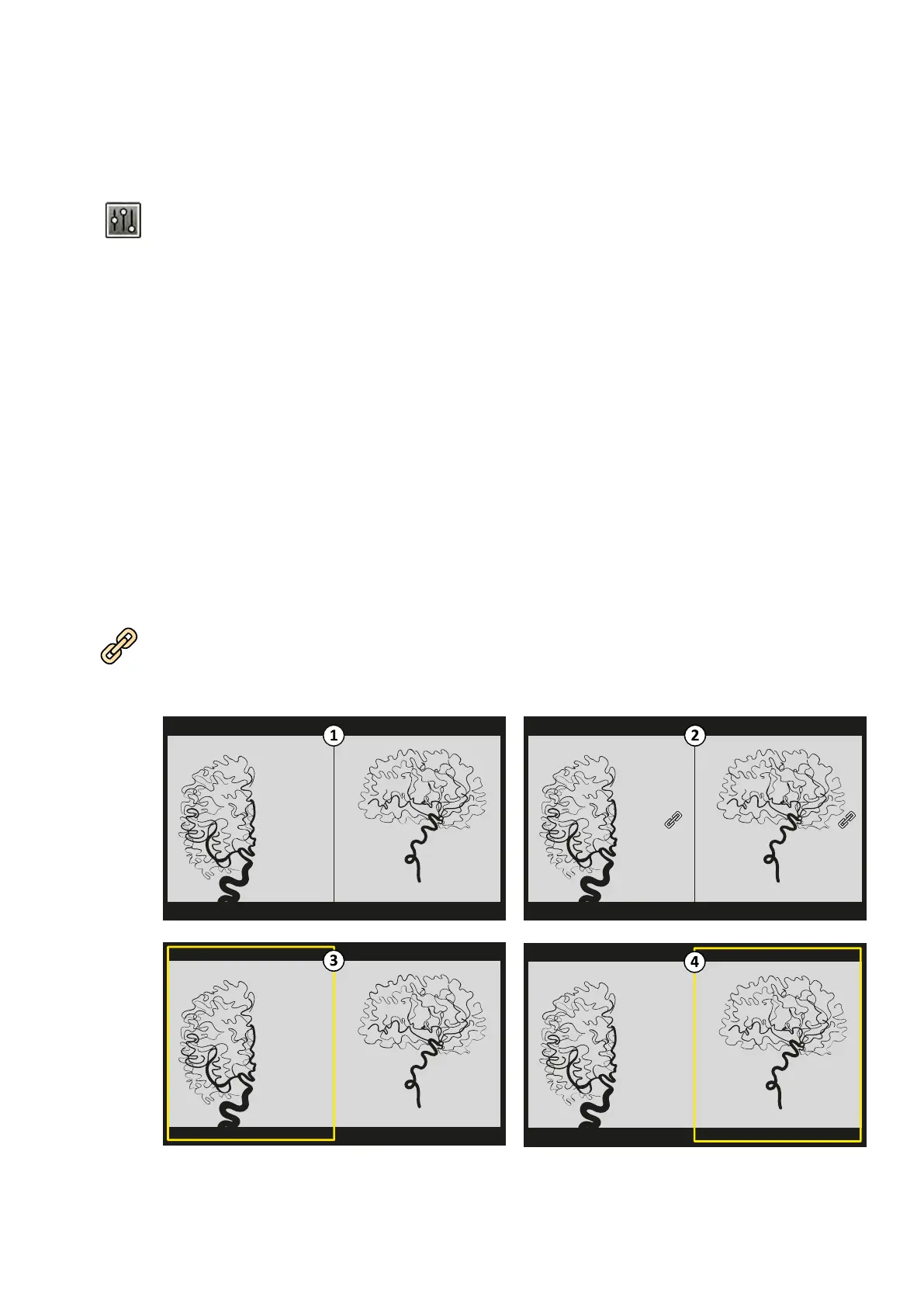
When processing biplane images, you can set the scope of your modicaons to just the frontal or
lateral image, independently to either image, or automacally to both images.
To set the processing scope, click Link Image Processing in the toolbar.
• Biplane Unlinked: Changes can be applied independently to both the frontal and lateral images
• Biplane Linked: Changes applied to one image are automacally applied to both the frontal and
lateral images
Figure 70 Link Image Processing opons
Processing
Azurion Release 1.2 Ins
trucons for Use 129 Philips Healthcare 4522 203 52421



 To Next Page