6 T
o undo any changes you have made, click Undo Changes.
7 To save your changes, click Save.
8 To close the System Customizaon window, click Close.
12.6 Managing Presets from the Control Room
You can edit, create, and delete presets for use with FlexSpot and FlexVision, from the FlexSpot primary
monitor in the control room. If FlexSpot is not installed, you can manage FlexVision presets from the
review monitor.
Your system must have FlexSpot or FlexVision equipment installed before you can manage presets.
Presets are predened screen layouts. Using these preset layouts, you can dene your preferred screen
layout to assist you during a study. You manage FlexSpot and FlexVision presets in the same way.
For informaon about managing presets in the examinaon room, see Managing Presets for FlexVision
Using the Touch Screen Module (page 219).
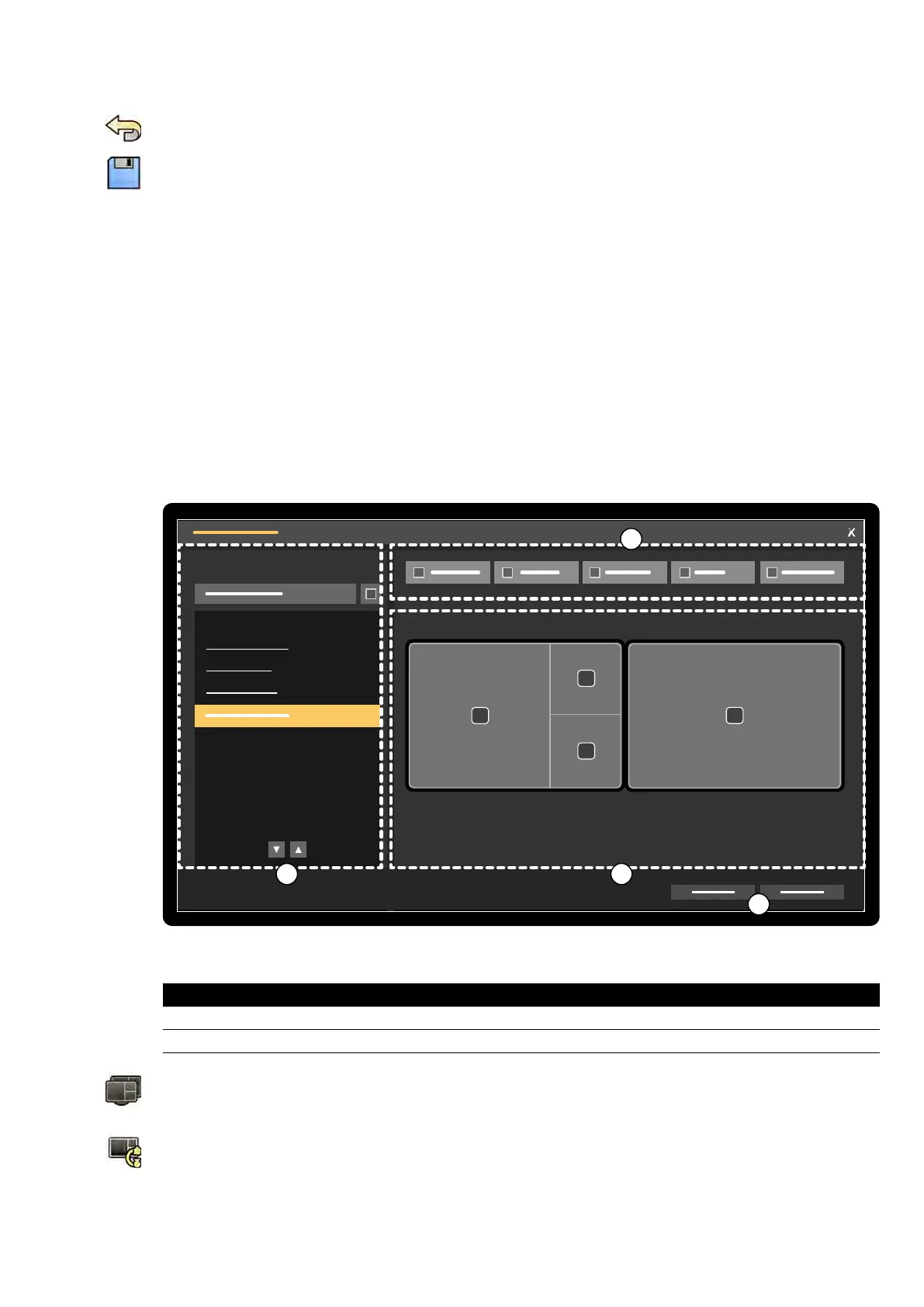
Figure 120 FlexSpot Presets Manager dialog bo
x (the FlexVision Presets Manager is similar)
Legend
1 Presets Group lis
t 3 Current preset
2 Toolbar 4 Funcon buons
1 T
o manage FlexSpot presets, click FlexSpot and select Manage Presets.
The FlexSpot Presets Manager is displayed.
2 To manage FlexVision presets, click FlexSpot and select Manage FlexVision Presets.
The FlexVision Presets Manager is displayed.
3 To create a new preset, do the following:
User Cus
tomizaon Managing Presets from the Control Room
Azurion Release 1.2 Ins
trucons for Use 215 Philips Healthcare 4522 203 52421



 To Next Page