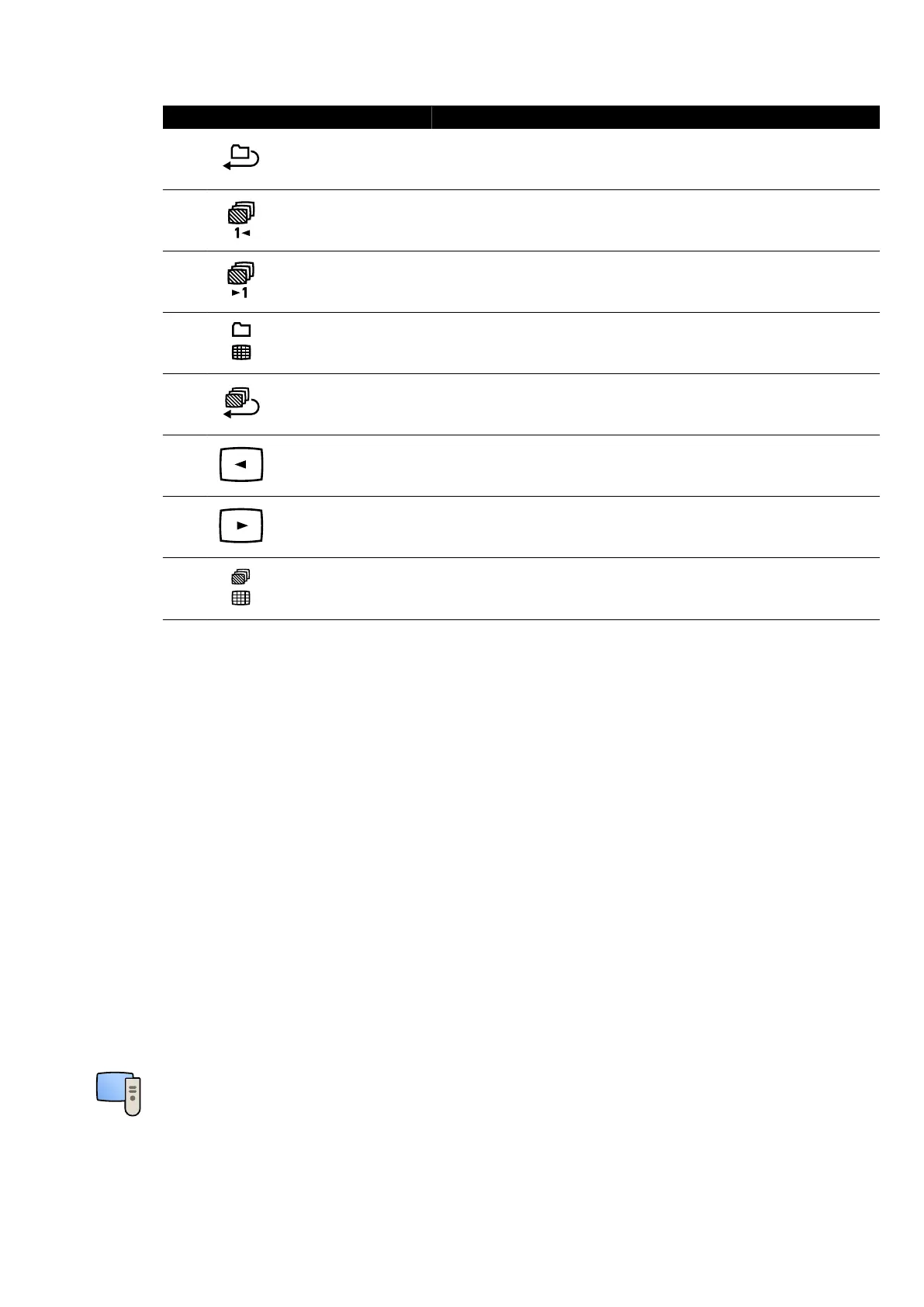
Legend Descripon
9 Cycle all
Starts and stops replay of the images within the current series. The indica-
t
or light is on when replay is acve.
10
Previous series Displays the previous series.
11 Next series Displays the next series.
12 Study overview
Switches between overview and single study viewing modes. The indicator
light is on when overview mode is in use.
13 Series replay
Starts and stops replay of the series within the current study. The indicator
ligh
t is on when replay is acve.
14
Previous image
Displays the previous image in a series. This funcon is disabled in s
tudy
overview mode.
15
Next image
Displays the next image in a series. This funcon is disabled in s
tudy over-
view mode.
16
Series overview
Switches between overview and single image viewing modes. The indicator
ligh
t is on when overview mode is in use.
18.11 Using the Mouse
Y
ou can access several funcon shortcuts with the mouse.
The following funcons are available:
Le buon: Click to select a tool or item.
Mouse wheel: Rotate to navigate the images of a series or items in a list.
Mouse wheel buon: Press and hold to adjust the WW/WL or brightness/contrast sengs.
Right buon: Click to open the shortcut menu.
Right buon: Drag (click and hold) to pan the image.
Mouse wheel buon + right buon: Drag (click and hold) zoom the image.
18.12 Viewpad
You can use the viewpad for viewing and processing in the live X-ray window or the reference windows
from anywhere in the examinaon room.
When you acvate a funcon on the viewpad, the funcon is applied to the viewport that currently has
focus. A viewpad icon is displayed in the middle of the viewport for a moment, and is then displayed in
the top bar of the viewport.
The viewpad contains a laser poinng de
vice which is emied from the front of the viewpad to point at
the display monitors. You acvate the laser poinng device using the buon on the underside of the
viewpad.
Quick Reference Using the Mouse
Azurion Release 1.2 Ins
trucons for Use 379 Philips Healthcare 4522 203 52421



 To Next Page