6 T
o change the appearance of an annotaon, right-click it and select an opon from the shortcut
menu.
You can change the following characteriscs, when available:
• Color
• Font Size
• Line Thickness
7 To move a polyline, drag it to a new locaon.
8 To edit a polyline, do any of the following:
• Drag an end point or an intermediate point to a new locaon.
• To create a new point, click on the line between points and then drag the new point to a new
locaon.
• To delete a point, right-click the point and then click Delete Point.
9 To apply an annotaon to all images in the series, instead of just the selected image, select
Annotate All Images in the task panel before creang the annotaon.
10 To delete an annotaon, select the annotaon, and then click Delete in the task panel.
You can also delete an annotaon (or just an annotaon's text label, if applicable) from the shortcut
menu aer right-clicking the annotaon.
8.7 Cropping Images
Cropping an image allows you to hide parts of the viewed image that are not of interest. This does not
aect the stored image. Crop lines are also known as electronic shuers.
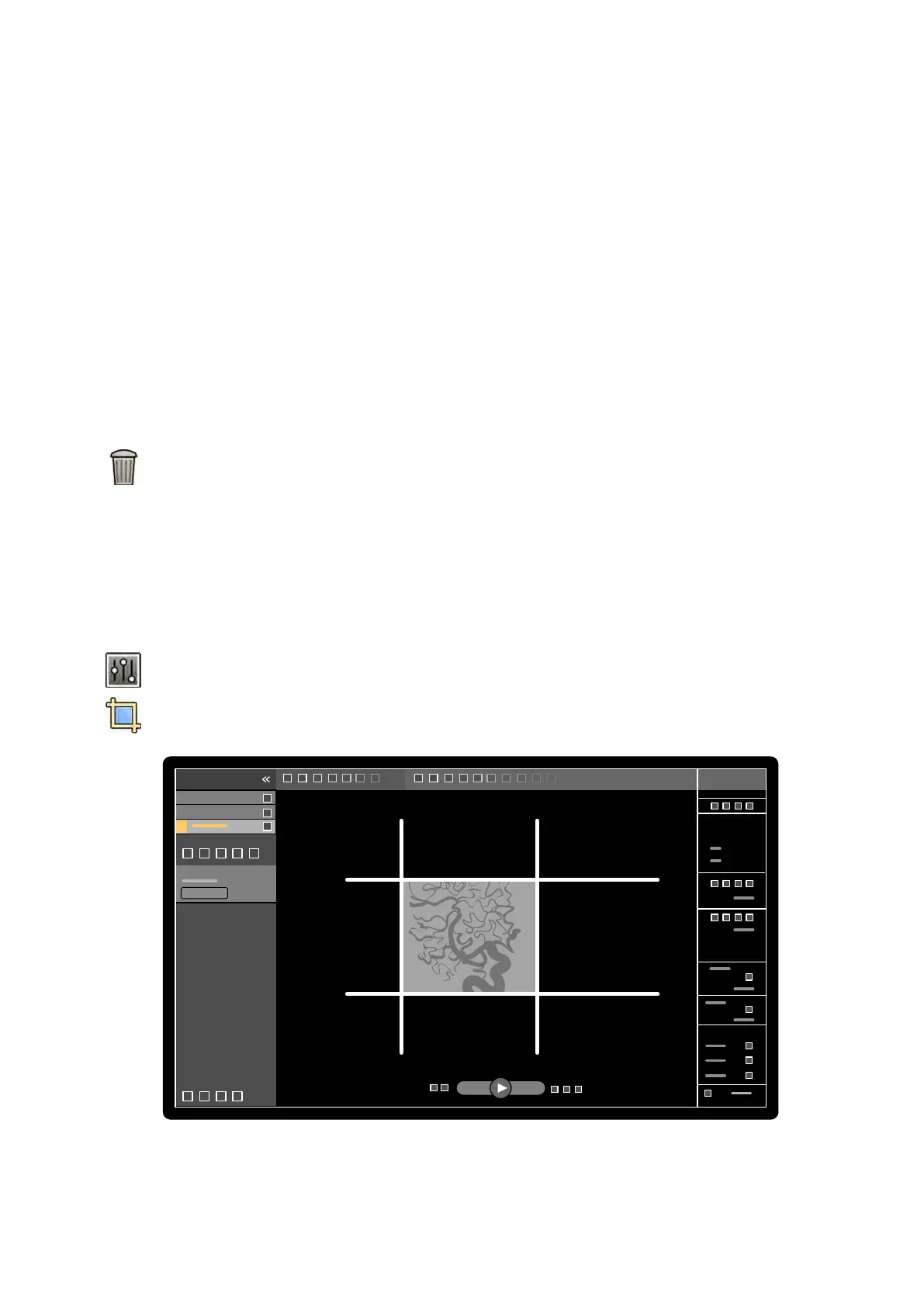
1 Click the Processing task in the acquision or review windows.
2 Click Image Cropping in the control panel.
Shuer lines are displayed at the edges of the image.
Figure 71 Shuer lines when cr
opping an image
3 To move the le and right, and top and boom lines together, select the Use symmetric lines check
box.
Processing Cropping Images
Azurion Release 1.2 Ins
trucons for Use 136 Philips Healthcare 4522 203 52421



 To Next Page