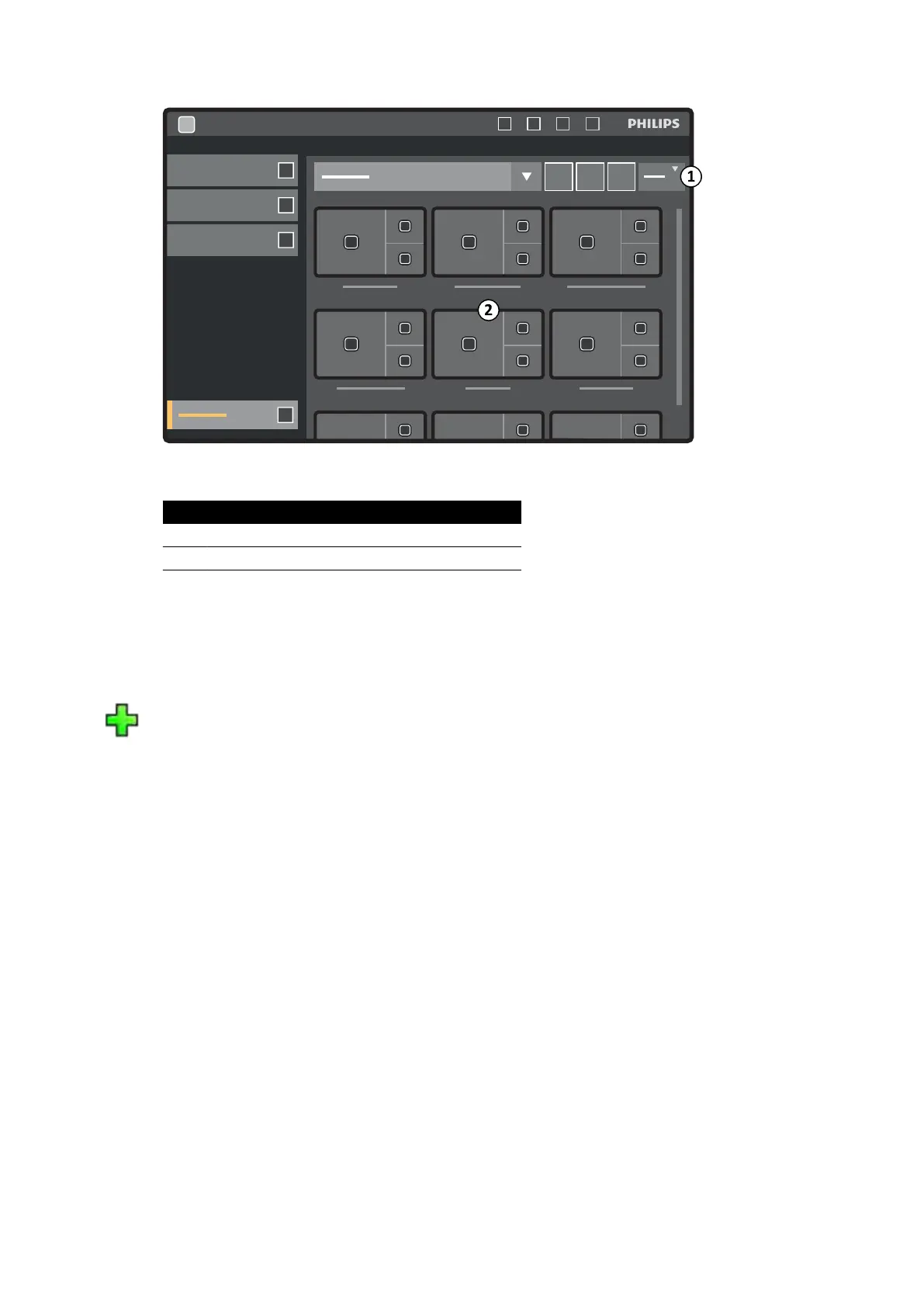
Figure 123 Fle
xVision preset menu
Legend
1 Funcon buons
2 Available presets
Each preset is depicted with a thumbnail image showing the pr
edened screen layout and
applicaons.
4 To create a new preset, do the following:
a Select the desired preset group in the list.
b Tap New.
The New Preset dialog box is displayed.
c Select a screen layout and tap Next.
d Select the applicaons you want to include in your preset and tap Next.
NOTE The system automacally selects applicaons that are mandatory for the current
situaon in the examinaon room. You cannot deselect mandatory applicaons, but
to prevent applicaons from being dened as mandatory, arrange the situaon in the
examinaon room accordingly. For example, to create a preset that does not include
the live lateral applicaon as a mandatory, park the lateral stand or disable X-ray
before creang the preset.
The number of available windows in the selected layout is indicated.
To move back a step you can tap Previous.
e Drag each applicaon from the applicaon list to the desired posion on the monitor and tap
Next when you have nished.
f Select a preset group from the list.
g Enter a name for your preset.
h To save your preset, tap Complete.
Your preset is saved within the selected preset group.
i To close the dialog box without saving your preset, click Cancel.
User Cus
tomizaon Managing Presets for FlexVision Using the Touch Screen Module
Azurion Release 1.2 Ins
trucons for Use 220 Philips Healthcare 4522 203 52421



 To Next Page