XY View Screen - Setting the Magnification KLA-Tencor P-16+ / P-6 User’s Guide
4-10 KLA-Tencor Confidential 0142530-000 AB
3/13/09
Changing the Magnification 4
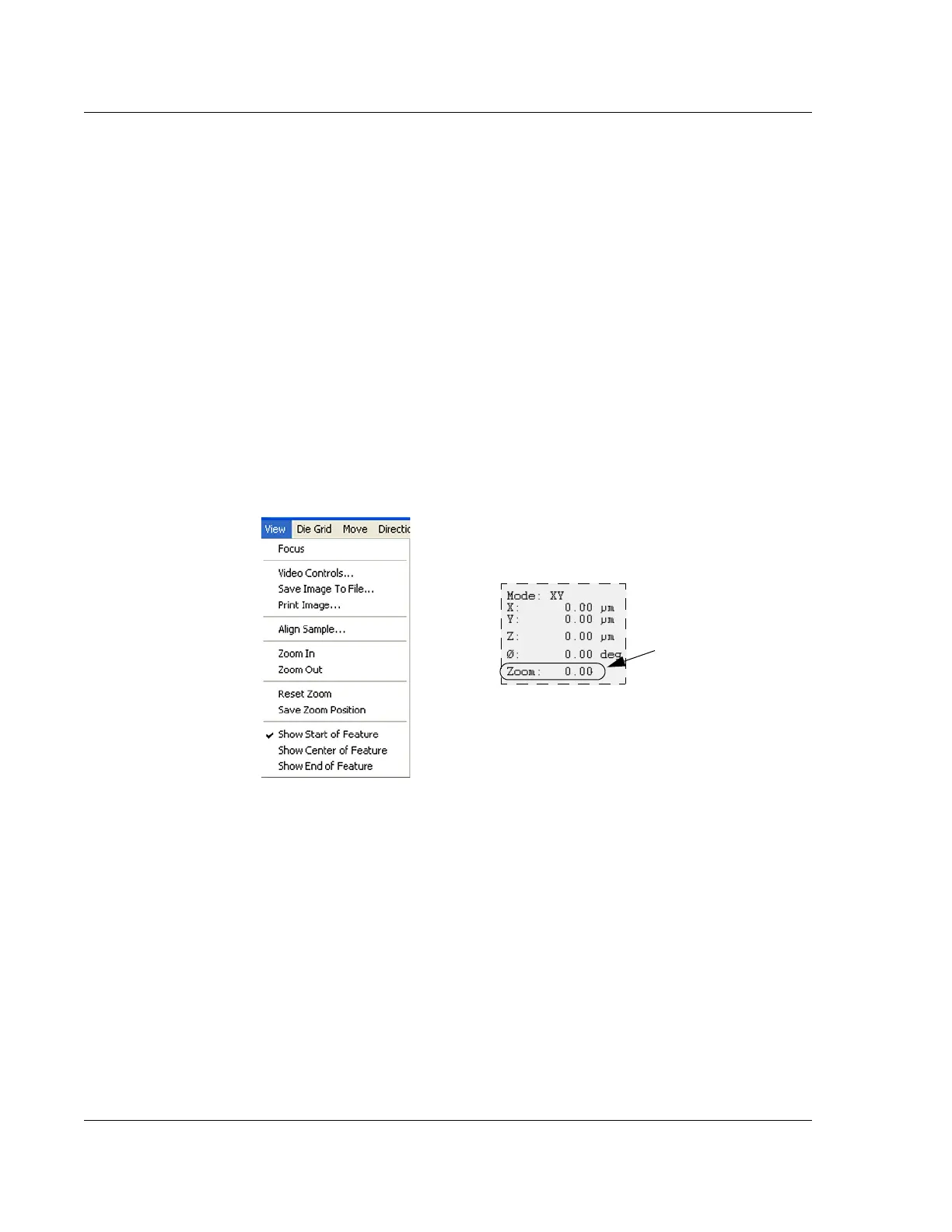
Click the ZOOM IN or ZOOM OUT to change the magnification. Each click changes the
magnification level in or out by a small amount.
(Alternative:
In the Menu bar click
View to display its menu. From the View menu, select
either
Zoom In or Zoom Out to change the magnification. Each click changes the
magnification level in or out by an amount a little more than twice the size of the
button icons.)
Resetting the Zoom to “0.00” 4
If the zoom function has been used, it might be necessary to use the Reset Zoom to
return the zoom magnification to exactly “
0.00” in the Zoom field at the bottom right
of the screen.
Click
Reset Zoom and the system automatically zooms out to the furthest position and
sets the Zoom field to
0.00.
Saving the Current Zoom Position 4
For systems operating with the Pattern Recognition option, verify that the Zoom
position is locked. This way, the system can perform the pattern recognition function
with greater accuracy. Secure the zoom position by using the
Save Zoom Position
dialog box to set and lock the desired position.
For more accurate pattern recognition, set and lock the zoom to 0.00.
1. Verify that the current Zoom position is set to the desired magnification. If so,
proceed to the next step. If not, adjust the zoom (magnification) to the required
level using the zoom icons or menu items.
2. To save the current zoom position, click
Save Zoom Position in the View menu.
This opens the Save Zoom Position dialog box.
Figure 4.5 View Menu and the Stage and Zoom Coordinate Field
Click Reset Zoom from
the View menu to reset
the
Zoom to exactly
0.00.
In the Zoom field, the
current zoom position
is displayed. This is not
the magnification.



 To Next Page