Analyzing 3D Scan Data - 3D Analysis Screen Features KLA-Tencor P-16+ / P-6 User’s Guide
7-6 KLA-Tencor Confidential 0142530-000 AB
3/13/09
Graphics Buttons and Their Function) 7
Automatic and Manual Image Rotation Buttons 7
The Automatic and Manual Image Rotation buttons are displayed in Figure 7.3. They
are discussed beginning in Analysis Screen – Image Orientation on page 7-2 and
explained in Table 7.1 through Table 7.4.
In general, the automatic rotation buttons move the image in the depicted direction by
one increment of movement each time they are clicked on. The manual rotation
buttons place handles on the image to allow it to be moved in the indicated direction.
Zoom Features 7
The Zoom features are designed to facilitate zooming in on a portion of the 3D
graphic for closer inspection. The zoom can be accomplished through the use of
several zoom tools.
The View menu contains zoom features.
The tool bar contains zoom features shaped like magnifying glasses.
The Right-Click menu contains zoom tools.
The following explanation demonstrates the use of the zoom tools in the most
efficient manner. Other combinations of zoom tool usage exist, but this combination
should be the simplest.
1. In the Analysis screen, click the Tool Activation icon at the top of the
tool bar on the right side of the screen. This activates (enables) the side tool bar
tools. (See Figure 7.8.) When the side tool bar is activated, the graphic image is
changed to top view.
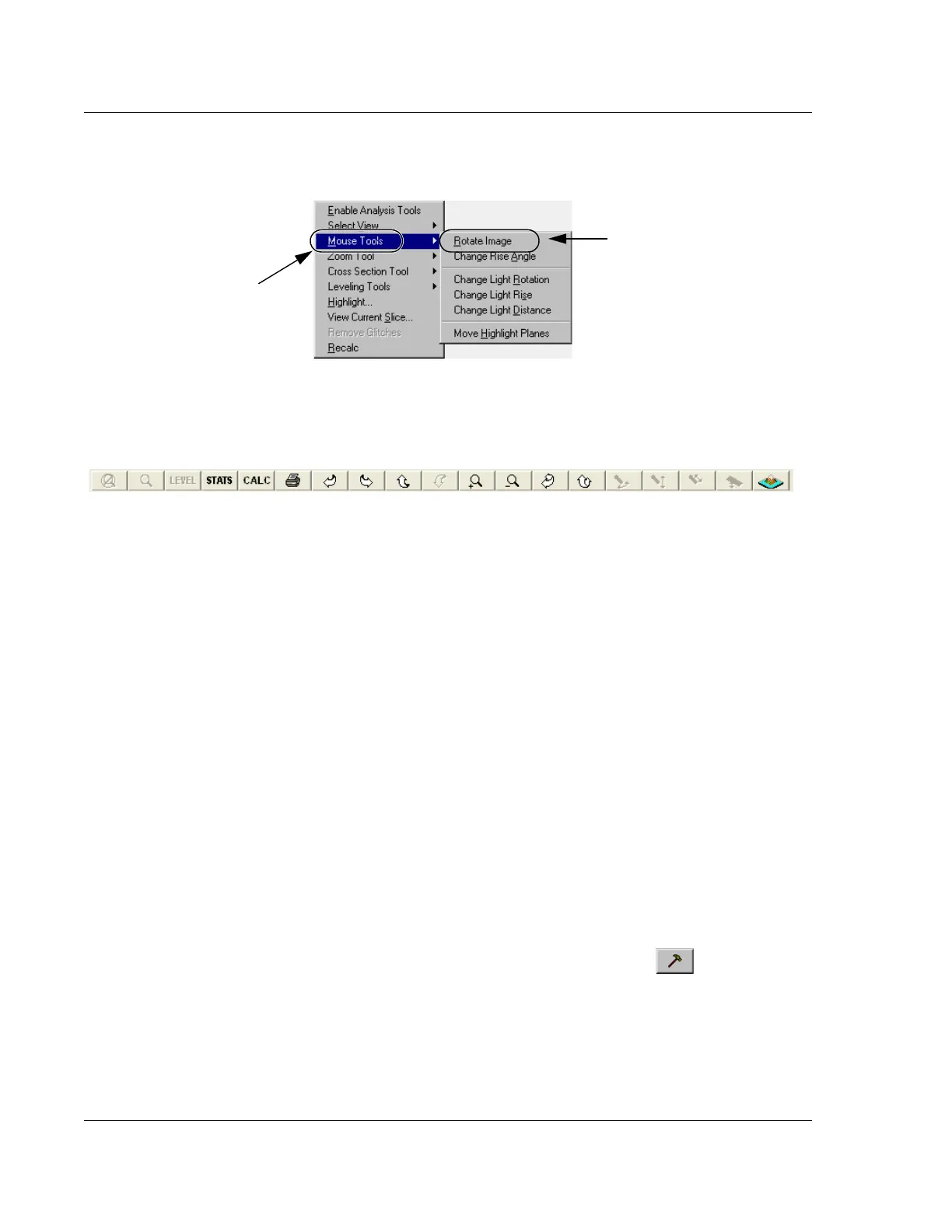
Figure 7.6 Right-Click Menu – Mouse Tools
Step 1 Right-click the
mouse button to open the
Right-Click menu.
Step 2 Click
Mouse Tools
to display its menu.
Step 3 Click
Rotate
Image
to display its menu.
Figure 7.7 Analysis Tool Bar Graphics Buttons



 To Next Page