0142530-000 AB KLA-Tencor Confidential 3-25
3/13/09
KLA-Tencor P-16+ / P-6 User’s Guide Scan Recipes - Creating and Editing a Scan Recipe
Automatic Parameter Adjustment: - In general, a connection exists in the software
such that, when certain parameters are changed, other parameters are readjusted to
accommodate the changes. The adjustments occur between the
Y Scan Size, Traces,
and
Y Spacing parameters. After setting a parameter, the user might click on the other
parameters and notice a minor adjustment to the parameter that had just been set. This
happens to balance the numbers between
Y Scan Size, Traces, and Y Spacing.
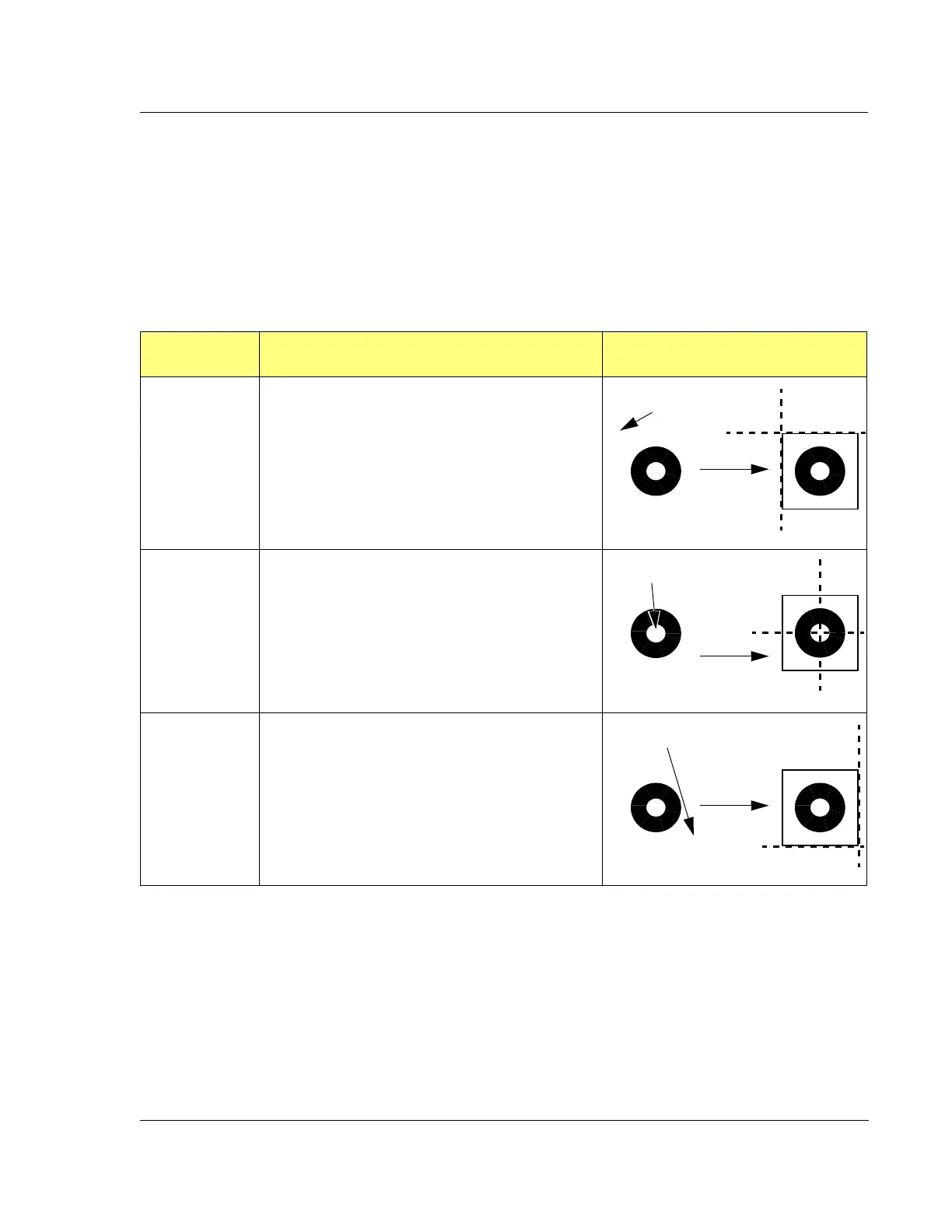
Show Position - For 3D scans, the three options in this box are used for positioning the
scan area parameters box.
Table 3.15 Show Position Options
Show Position
Option
Description Graphic Representation
Start The Start setting is used in the Video portion of the XY
view screen to position the upper left corner of the scan
area box in the Video screen crosshairs. Wherever the
user clicks in the video image, that position becomes the
upper left corner of the scan area box, and appears at the
center of the Video screen.
This is not the actual place where the scan starts.
Start only defines the upper left corner of the scan
area box. Literal START is near the lower left corner.
Center The
Center setting is used in the Video portion of the XY
view screen to position the center of the scan area box in
the center of the Video screen crosshairs. Wherever the
user clicks in the video image, that position becomes the
center of the scan area box, and appears at the center of
the Video screen.
End The
End setting is used in the Video portion of the XY view
screen to position the lower right corner of the scan area
box in the center of the Video screen crosshairs. Wherever
the user clicks in the video image, that position becomes
the end of the scan area box, and appears at the center of
the Video screen.
This is not the actual place where the scan ends.
End
only defines the lower right corner of the scan area
box. Literal END is near the upper right corner.
Scan Feature
Click here to position
Outcome
Start
x
Scan Feature
Click here to position
Outcome
Center
x
Scan Feature
Click here to position
Outcome
End
x



 To Next Page