Basic Skills - Exporting Data Graphs KLA-Tencor P-16+ / P-6 User’s Guide
2-14 KLA-Tencor Confidential 0142530-000 AB
Friday, March 13, 2009
Preliminary
EXPORTING DATA GRAPHS 2
Introduction 2
Data graphs are contained in the Scan Data catalog, Sequence Data catalog and in the
Analysis screen when the scan data is being analyzed. 2D and 3D graphs can be
exported directly from the Analysis screen during scan data analysis. 2D and 3D
graphs from the Scan Data catalog can be exported in two ways: from the Analysis
screen, and from the Database File Manager.
2D and 3D data graphs from the Sequence Data catalog can be exported only from the
analysis screen because the file must be opened and the desired graph chosen and
displayed before it can be exported.
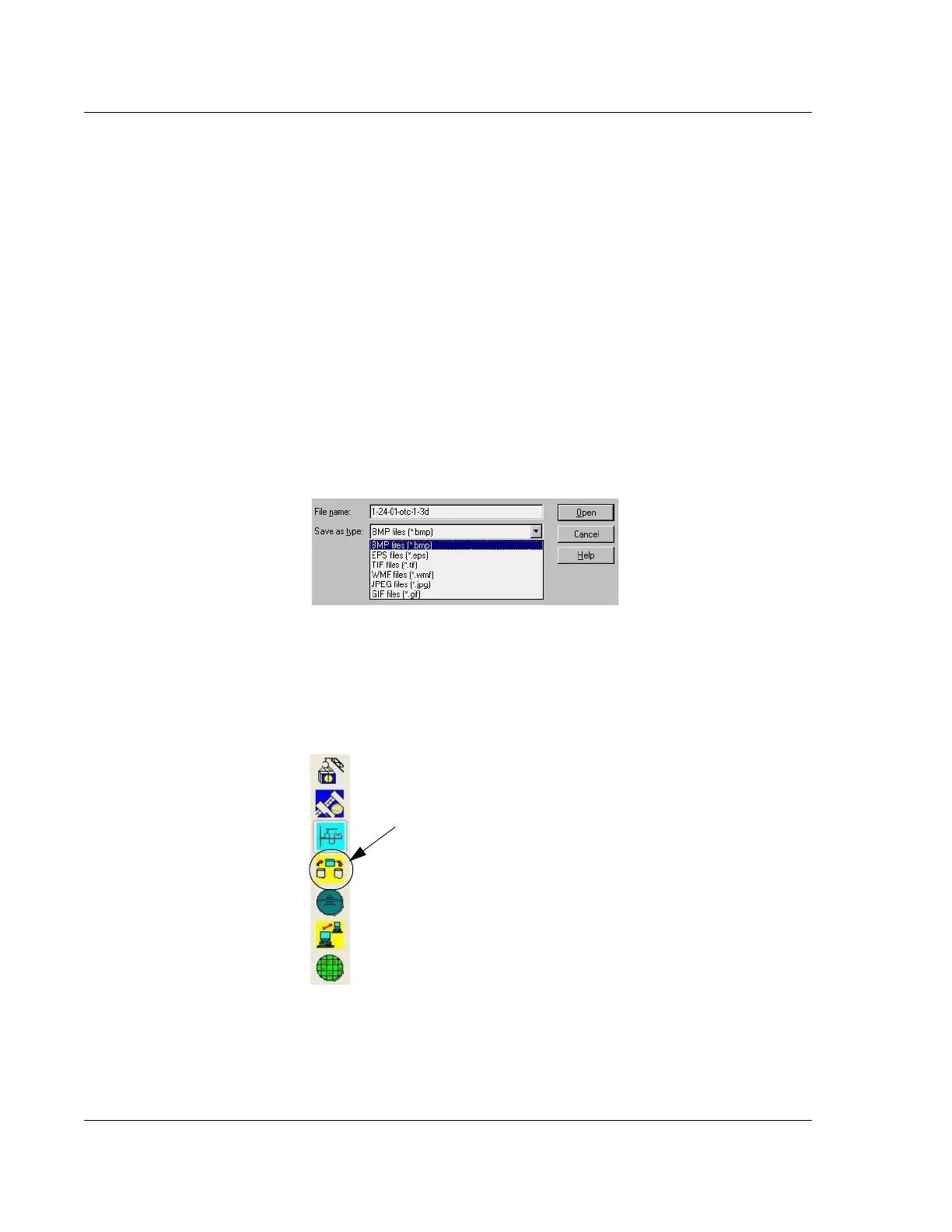
The data graph is exported as a graphic image as Bitmap format (*.bmp), TIFF (*.tif),
JPEG (*.jpg), or Word Metafile Format (*.wmf).
Exporting the Graph from the Scans Catalog (Scan Data Only) 2
Exporting Graph from the
Database File Manager
1. Go to any top level screen containing the system icons and click the Database
File Manager
icon. (See Figure 2.11.)
Figure 2.10 Export File Formats in Drop-Down Menu
Figure 2.11 Catalog Screen – Database File Manager Icon
Step 1 Click the
Database File Manager
icon to open it screen.



 To Next Page