Basic Skills - Exiting the Profiler Application KLA-Tencor P-16+ / P-6 User’s Guide
2-6 KLA-Tencor Confidential 0142530-000 AB
Friday, March 13, 2009
Preliminary
Navigation Procedure 2
Use the following procedure to navigate between screens:
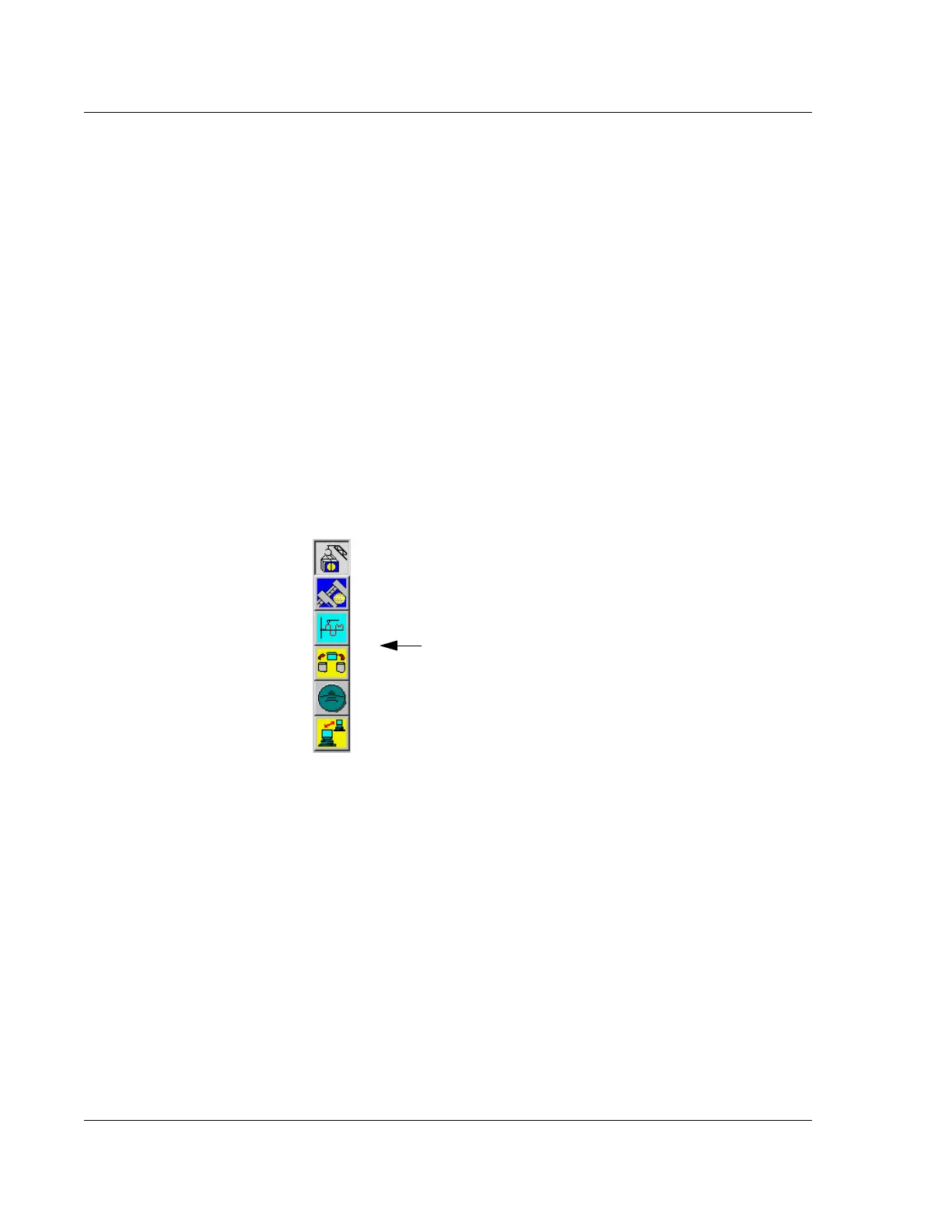
Click the icon of the required program screen. (See Figure 2.4.)
This closes the current program screen and accesses the chosen one. This could
generate a message box that inquires if changes to settings, or data are to be
saved or discarded. Choose the required answer and follow any instruction.
Functions performed in some screens automatically access other screens.
EXAMPLE:
Performing a scan in the XY View screen generates the scan screen then the
Analysis screen.
The above screens do not contain the program icons. To change or exit, click
File
in the Menu Bar and choose
Exit from the drop-down menu. In some cases it is
necessary to click the control button at the top left corner of the screen and
choose
Close from its drop-down menu. This closes the current screen and
displays the program screen from which the procedure was entered.
EXITING THE PROFILER APPLICATION 2
Introduction 2
This procedure is used to close the Profiler and Windows applications.
Profiler Exit Procedure 2
1. Close all screens up to a program screen (program level screens are represented
by one of the program icons at the right side of the screen).
2. Click the control button at the top left of the screen to display the menu.
3. Choose
Close from the drop-down menu.
Figure 2.4 Profiler Configuration Screen
To change to a different
program function, click
the related icon.



 To Next Page