Configuration - Recipe Transport Options KLA-Tencor P-16+ / P-6 User’s Guide
14-16 KLA-Tencor Confidential 0142530-000 AB
3/13/09
5. From the Configuration page open the System Configuration editor, and
select the Instrument dialog.
6. Verify that the options that need to be enabled have an X next to the option.
7. If any changes are made, close the Instrument and System dialog, then close and
restart profiler software.
8. After profiler software has finished initializing, verify that the new option
functions correctly.
RECIPE TRANSPORT OPTIONS 14
Recipe Transport Options set the default path for exporting scan and sequence recipes
and data.
Data Export Paths Configuration 14
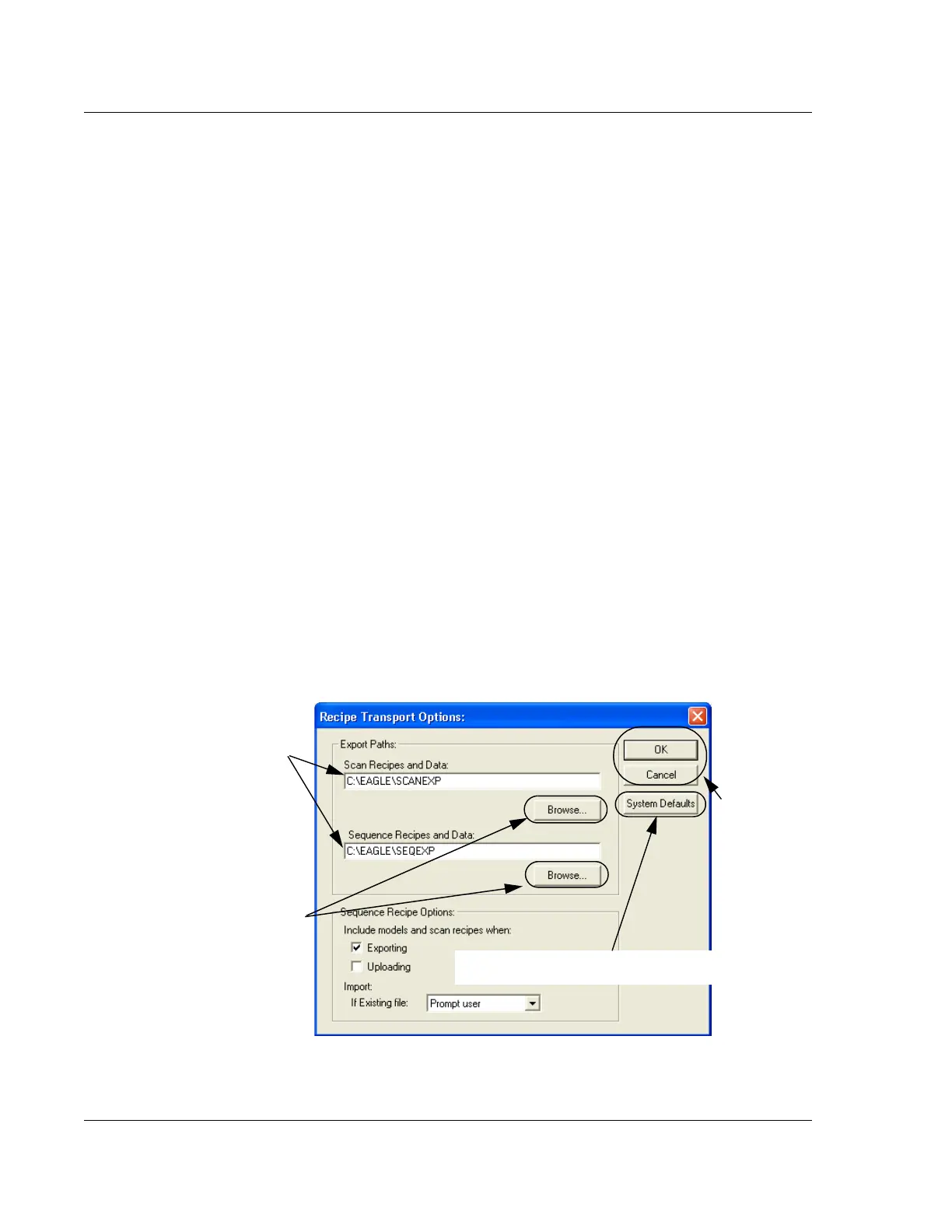
1. Choose Export Paths in the Configuration screen. (See Figure 14.12.) The Recipe
Transport Options
dialog box opens. (See Figure 14.16.)
2. To set the default path for either the Scan or Sequence recipe and data, use one
of the following:
a. Enter the desired path, starting with the drive and continuing through the
entire sequence, ending with the folder in which the information is to
reside. (See Figure 14.16.)
b. Click
Browse… to find the drive and folder in which the information is to
reside. (See Figure 14.16.)
c. Click
System Defaults. This sets the path to the one programmed into the
system as displayed in Figure 14.16.
Figure 14.16 Recipe Transport Options
Option a. Highlight the current
path, then enter the entire new
path, starting with the drive and
ending with the folder in which
the information is to reside.
Option b. Click
Browse… to open
the explorer window and locate the
drive, file(s) and folder in which the
information is to reside.
Option c. Click System Defaults to change the
path to the one programmed into the system.
Step 3 Click
OK to set the
new paths, or
Cancel to exit
and retain the
old ones.



 To Next Page