0142530-000 AB KLA-Tencor Confidential 5-1
3/13/09
KLA-Tencor P-16+ / P-6 User’s Guide View Scan Window - 2D Screen Function
VIEW SCAN WINDOW Chapter 5
5
2D SCREEN FUNCTION 5
The View Scan Window appears while a scan is being run. It allows the user to observe
the progress of the scan and to adjust scan parameters in the various screens for
optimum scan results. The scan can be started once the recipe has been chosen and the
sample loaded onto the sample stage. The scan can be started from several places. The
most common two starting points are:
With the required recipe chosen, click
START in the Scan Recipe screen.
From the Scan Recipe screen, click the
XY icon. From the XY screen click
START.
Click
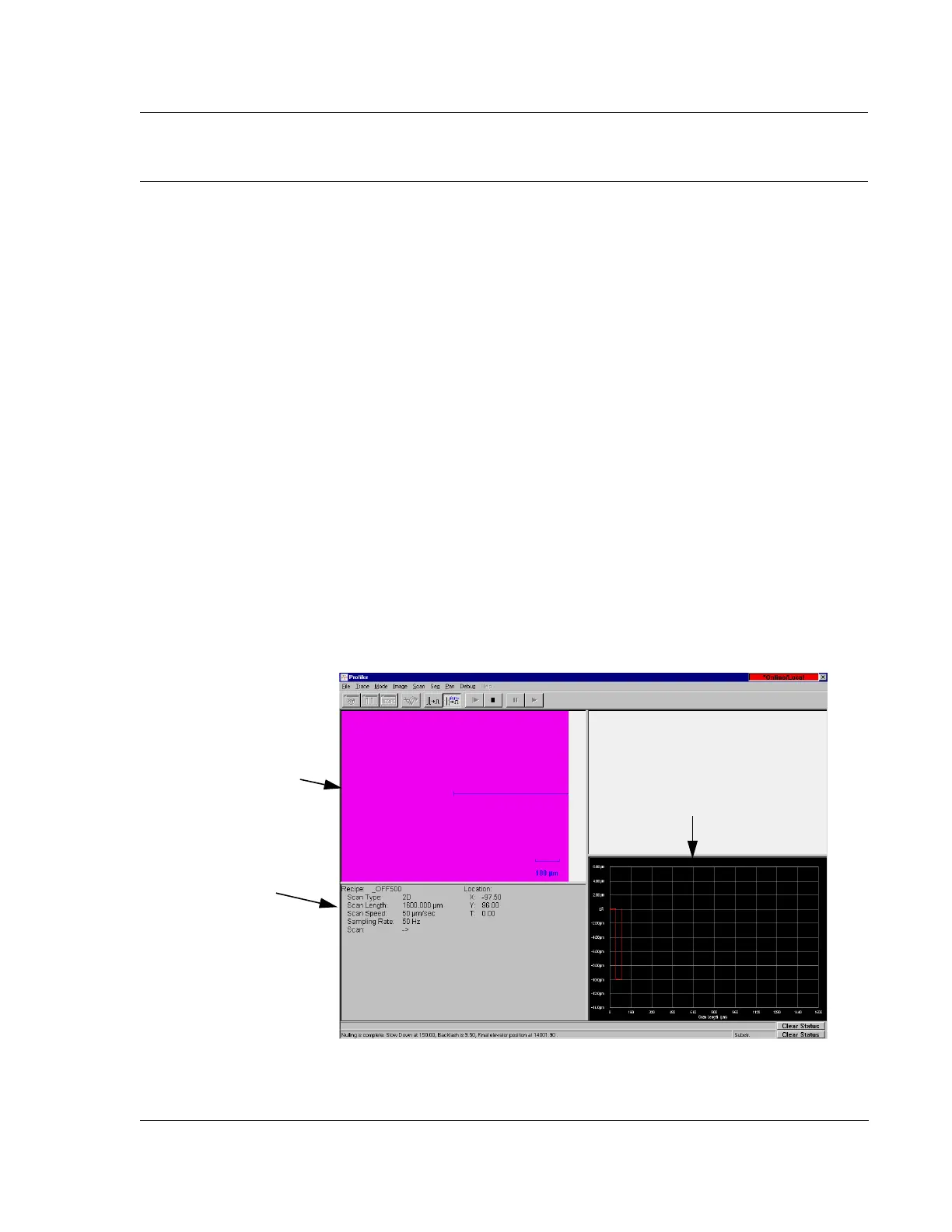
START to begin the scan. The View Scan screen appears. (See Figure 5.1.)
The head lowers bringing the stylus into contact with the sample at the
start-of-scan position. The scan begins, first briefly traveling opposite the scan
direction, then reversing. This allows the mechanical instruments to settle down
and the stage to reach the programmed scan speed before data collection begins.
The View Scan window appears and the scan begins. The video image freezes
during the scan and the Real Time Scan view in the lower right corner displays
the data in real time as it is collected. (See Figure 5.1). When the scan is
finished, the data is automatically displayed in the
Analysis window.
Figure 5.1 2D Single Scan View Scan Window
Real Time Scan
Trace Window
Scan information is
displayed in this area.
The sample surface and
scan progress is displayed
from the side-view in the
Video Display.



 To Next Page