0142530-000 AB KLA-Tencor Confidential 6-37
3/13/09
KLA-Tencor P-16+ / P-6 User’s Guide Sequence Recipe and Data - Viewing Sequence Data
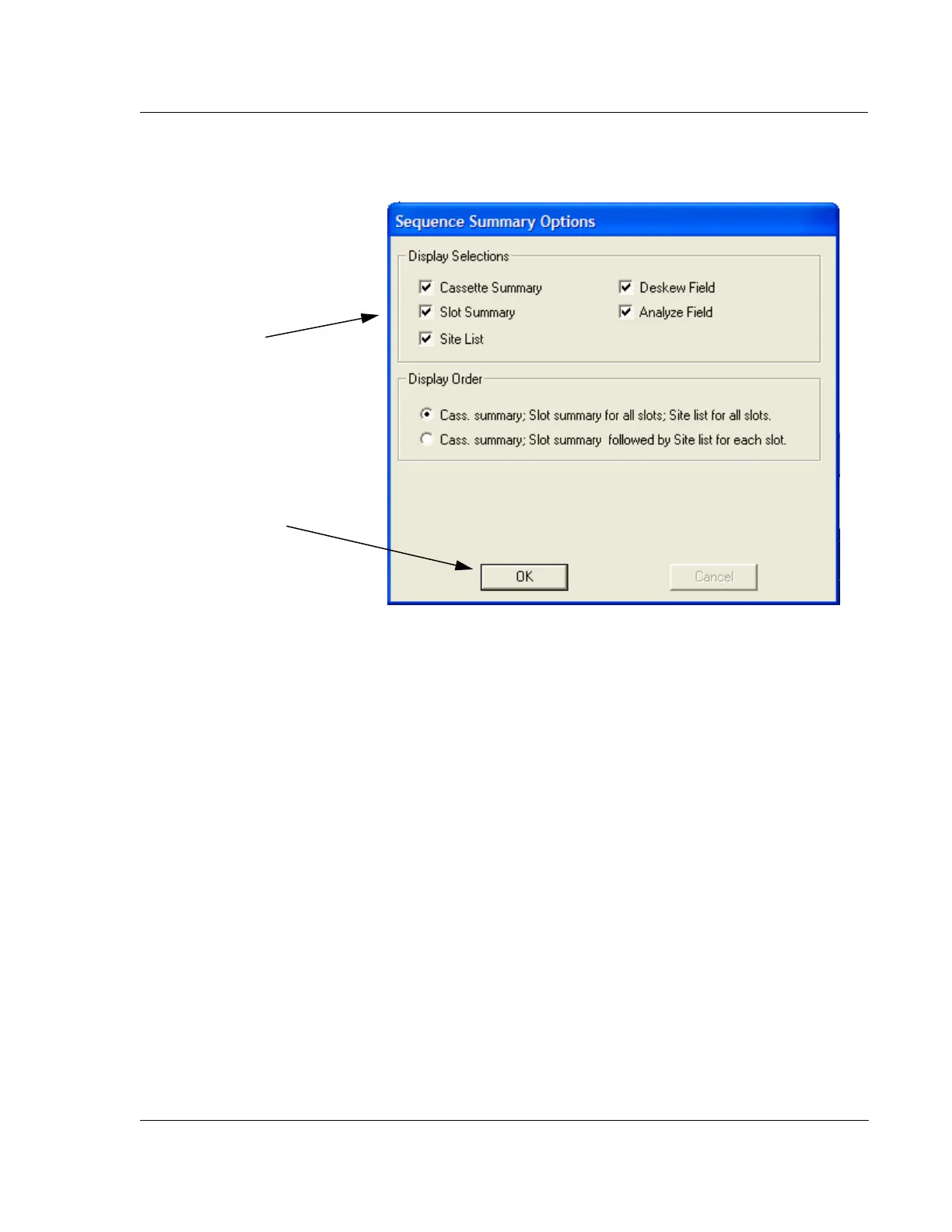
3. Choose the items to be displayed in the summary screen. A check in the box
indicates those that are displayed. (See Figure 6.32.)
4. Click
OK to activate changes to the summary display items. (See Figure 6.32.)
Viewing Sequence Data with the Corresponding Trace,
Site-by-Site 6
The screen can be set up to display a site’s parameter data along with the trace itself.
1. Open both the
Analysis and the Sequence Parameter Data windows.
2. Go to the
Windows menu, and select Tile Vertically.
3. Size the windows by clicking and dragging their frames.
4. Display the desired trace:
a. Go to the
Sequence Parameter Data window, and click the numbered Site
box of the trace desired.
The Analysis window displays the trace for that site.
b. Repeat for other sites, displaying each trace in turn.
5. Save the workspace:
a. Click the
File menu, and select Save Workspace to save this window
orientation.
The dialog box appears.
Figure 6.32 Sequence Summary Options Dialog Box
Step 3 Click in the check box to
put a check in the option. That
item get displayed in the
summary screen.
Step 4 Once all changes have
been made, click
OK to activate
the changes.



 To Next Page