0142530-000 AB KLA-Tencor Confidential 7-3
3/13/09
KLA-Tencor P-16+ / P-6 User’s Guide Analyzing 3D Scan Data - 3D Analysis Screen Features
Option 2 – Manual Handle Drag. There are also Manual Image Rotation buttons,
described in Table 7.2.
1. Click the button representing the plane in which the required rotation is to take
place. The image appears to have handles attached to it. (See
Figure 7.4)
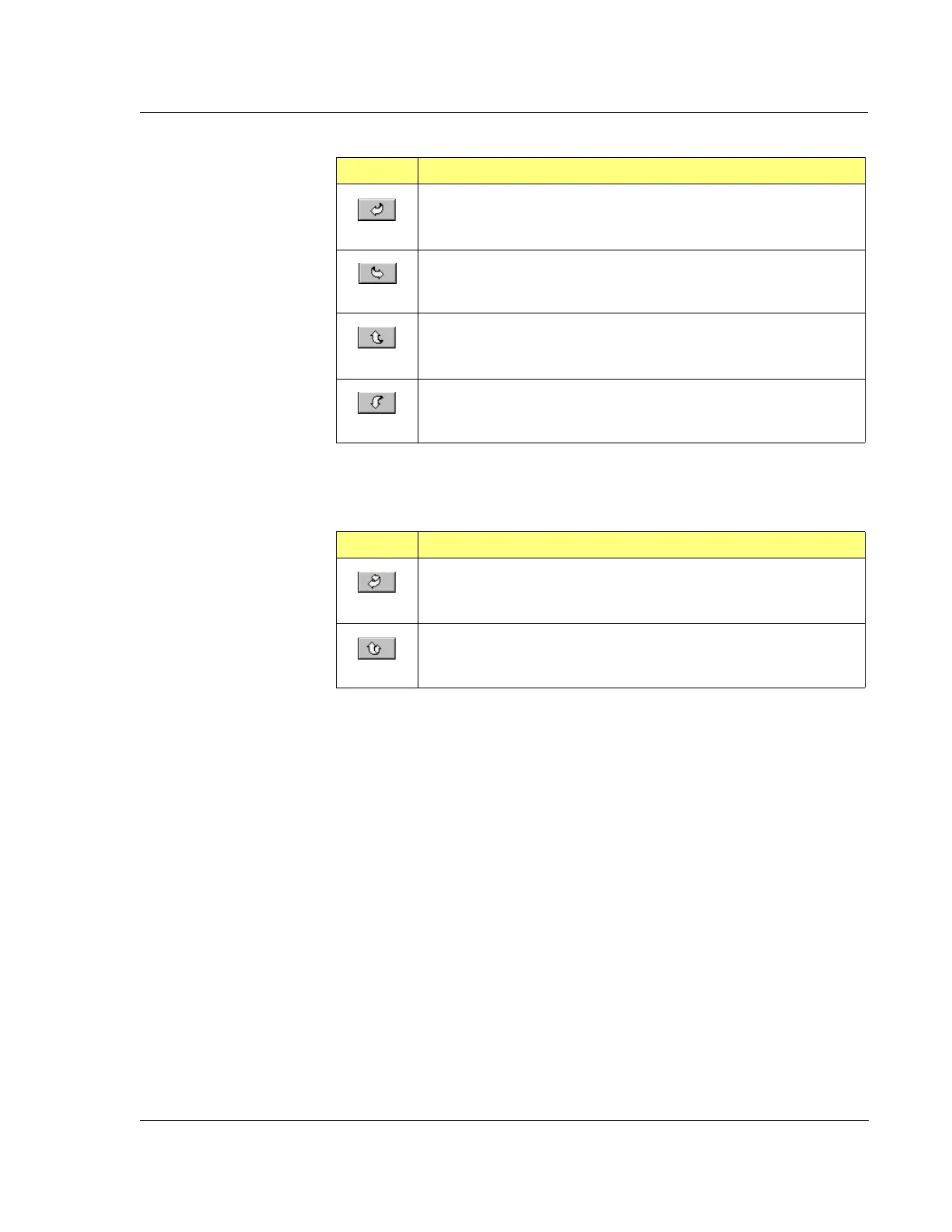
Table 7.1 Automatic Image Rotation Buttons
Button Description of Action
Rotates the image to the left on its horizontal plane. Each click moves
the image a small distance. (Identical to the left arrow key.)
Rotates the image to the right on its horizontal plane. Each click moves
the image a small distance. (Identical to the right arrow key.)
Rotates the image in a backward roll. Each click moves the image a
small distance. (Identical to the up arrow key.)
Rotates the image in a forward roll. Each click moves the image a
small distance. (Identical to the down arrow key.)
Table 7.2 Manual Image Rotation Buttons
Button Description of Action
Rotates the image on its horizontal plane using four handles that are
manipulated by click-and-drag method. (See Figure 7.4.)
Rotates the image on its horizontal plane using a single handle that is
manipulated by the click-and-drag method. (See Figure 7.4.)



 To Next Page