0142530-000 AB KLA-Tencor Confidential 14-15
3/13/09
KLA-Tencor P-16+ / P-6 User’s Guide Configuration - License Options
LICENSE OPTIONS 14
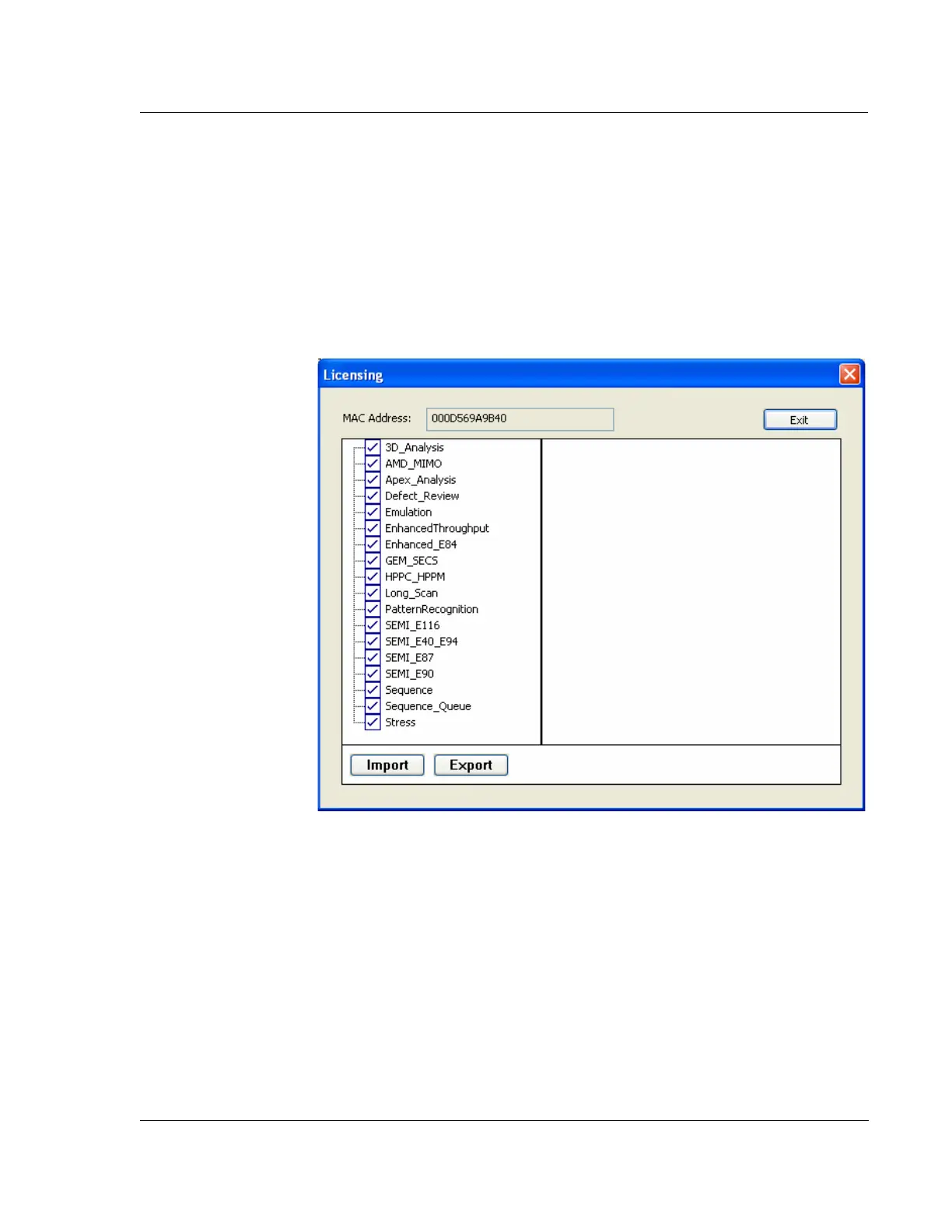
The License Options dialog shown in Figure 14.15 is the interface for importing and
exporting license files. The license file system is based on the MAC address of the
tool since this HEX value is unique to each computer (each network connection on
the computer). A blue checkmark indicates that the option and license are valid. A
red x next to an option indicates that the option and license are invalid. This is
generally due to an expiration of a temporary license file. Features can be
temporarily enabled to allow users to get a trial run of the feature.
Procedure to Enable/Purchase New Options 14
1. If the desired software feature has not been purchased, contact sales and provide
the information on the feature that you want to purchase as well as the MAC
Address from the computer.
2. After KLA-Tencor has provided the new license file to enable a new software
feature or to fix a problem on the system, such as an expired license or a new
license required due to a computer change, from the Configuration Page open
the License Options dialog shown in Figure 14.15 and click on Import.
3. Navigate to the license file provided by KLA-Tencor and open the file.
4. Verify that the option(s) have a blue checkmark next to them and then Exit the
licensing dialog.
Figure 14.15 License Options



 To Next Page