Analyzing 3D Scan Data - 3D Analysis Screen Features KLA-Tencor P-16+ / P-6 User’s Guide
7-2 KLA-Tencor Confidential 0142530-000 AB
3/13/09
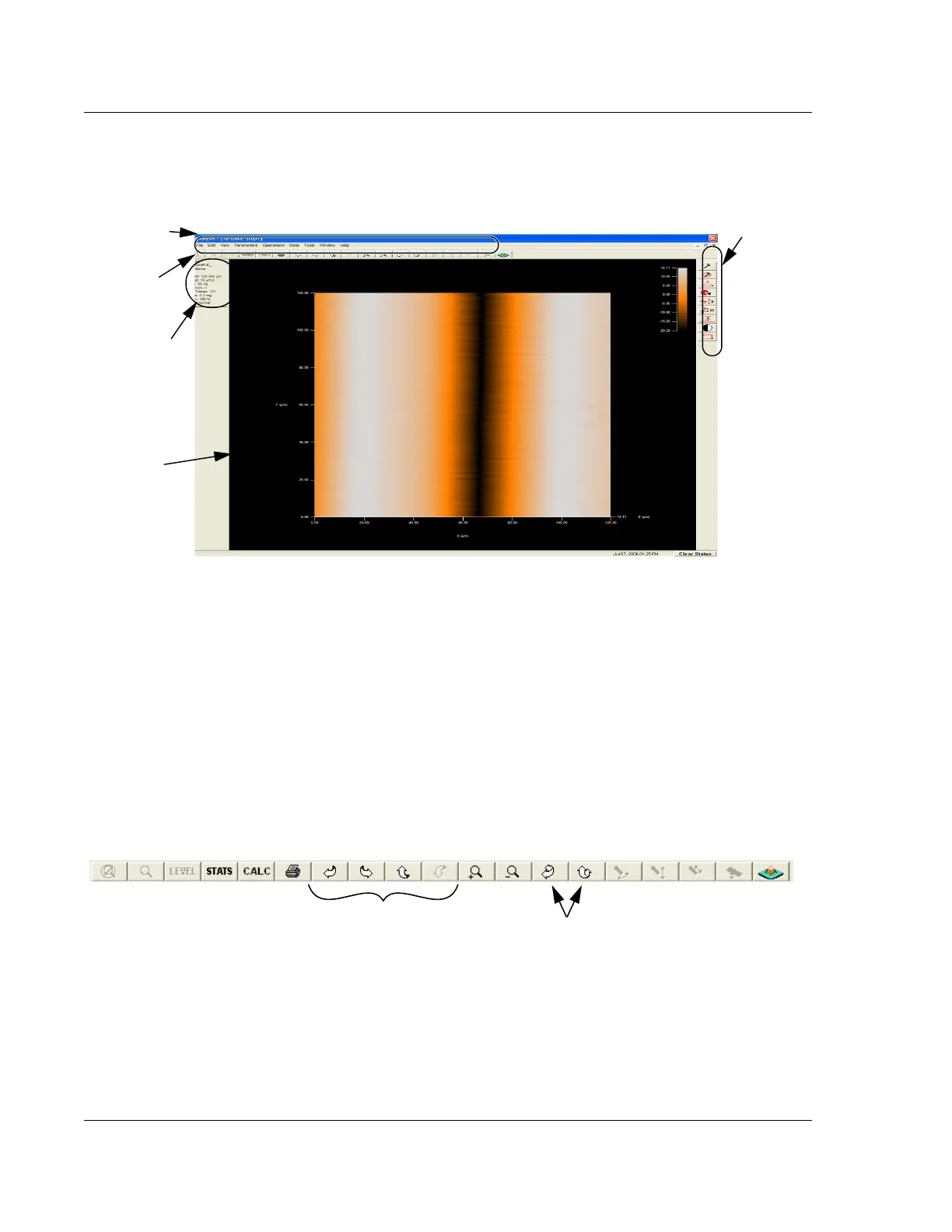
5. With the data set highlighted, click the Review button. The Analysis window
appears. (See Figure 7.2.)
3D ANALYSIS SCREEN FEATURES 7
Analysis Screen – Image Orientation 7
The image in the Analysis Image Display area can be rotated to orient it for analysis
and viewing. Four options exist for rotation of the object. All four are presented, with
the Recommended procedure coming first.
Recommended Image
Rotation Procedure
Option 1 – Automatic Image Rotation. Use the Image Rotation buttons in the tool
bar. (See Figure 7.3) These are Automatic Image Rotation buttons, described in
Table 7.1.
Figure 7.2 3D Analysis Screen with 3D Object Displayed
Toolbar
Buttons
Additional
Command
Buttons
Trace
Information
Menu Bar
Image
Display
Figure 7.3 Analysis Tool Bar Image Rotation Buttons
Automatic Image Rotation Buttons
Manual Image Rotation Buttons



 To Next Page