0142530-000 AB KLA-Tencor Confidential 2-17
Friday, March 13, 2009
KLA-Tencor P-16+ / P-6 User’s Guide Basic Skills - Exporting Data from the Database File Manager
Preliminary
2. Choose either the Scan Data or Sequence Data catalog button. This displays the
related 2D or 3D data files in the chosen catalog.
3. Navigate to the required data set and click it to highlight it.
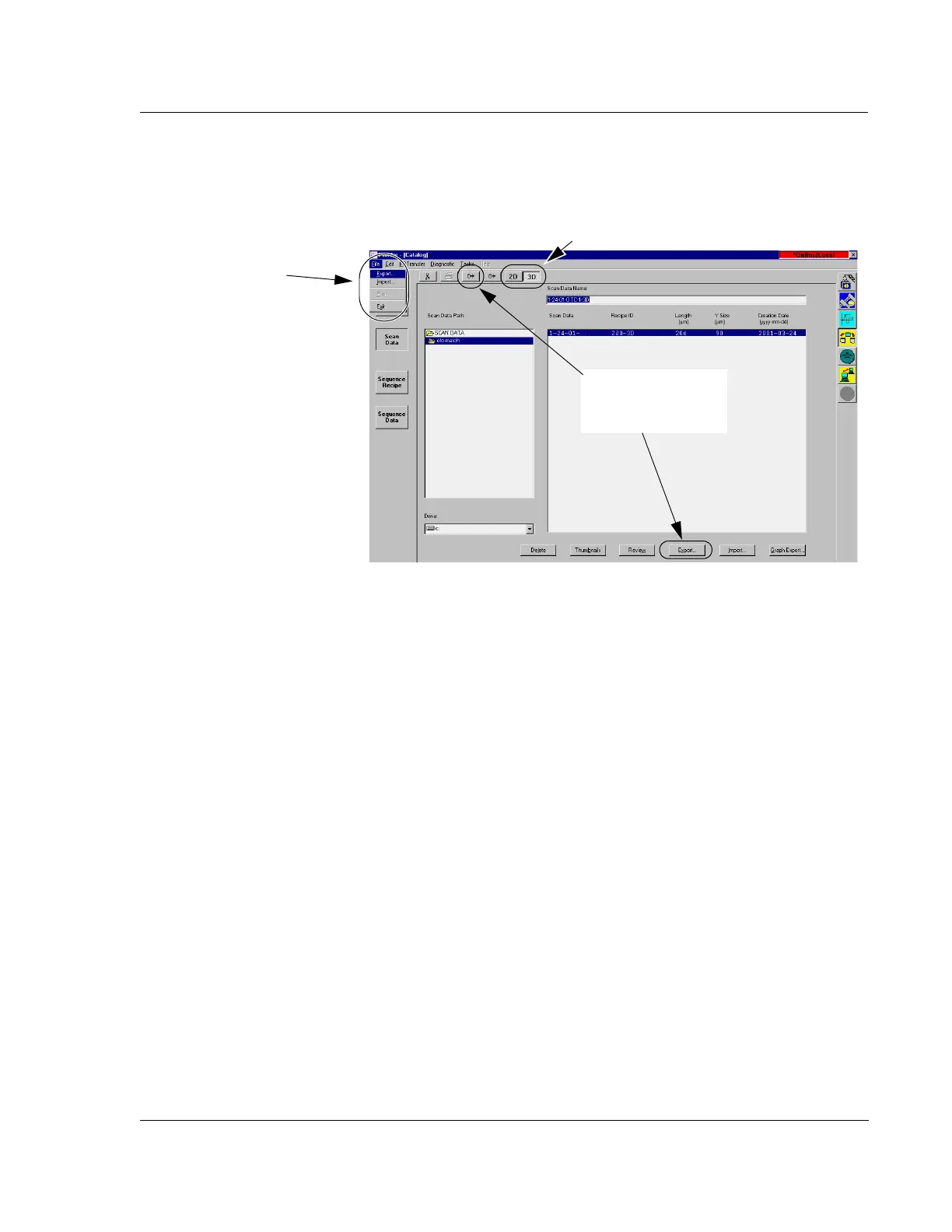
There are three ways to access the
Export Sequence (or Scan) Data -- Select
Export Directory
dialog box.
The
Export… button at the bottom of the screen
The Export Data icon in the tool bar at the top of the screen
The
Export… menu item in the File menu
4. Select
Export… from one of its access points.
This displays the
Export Sequence (or Scan) Data -- Select Export Directory
dialog box.
From the
Export to: drop-down menu, choose the directory/folder that the data is
to be exported to. The actual path and folder name are displayed at the bottom
left of the dialog box.
5. Choose an export format, either ASCII, Binary, or Simple Binary.
ASCII - Exports data in text format for viewing in programs such as Excel
Binary - Binary files are used for transporting data between Profiler
systems or to offline Profiler software. When sending data to KLA-Tencor
for analysis, binary is the preferred format.
Simple Binary - Binary file format with a header that contains the
minimum required to interpret the data and generally does not change
between software versions. This allows easier transporting data to third
party data analysis programs such as Apex, SPIP, etc.
6. Click
OK to export the data to the destination folder.
Figure 2.14 Data Catalog Screen for Export of Data or Recipes
Step 1 Click 2D or 3D to display related files.
Two sets of buttons
produce the Import and
Export dialog boxes.
The File menu also has
menu items for
Import
and
Export dialog box
activation.



 To Next Page